

- Create Google Calendar events from incident workflows, with a video meeting attached
- Invite responders drawn from the incident’s roles and teams
- Update an existing event’s time, attendees, or duration as an incident evolves
- Import a calendar’s iCal feed to overlay holidays on Rootly on-call schedules
Before You Begin
Before setting up the integration, make sure you have:- A Rootly account with admin permission to manage integrations
- A Google Workspace account, or a Google Cloud project if you are using a service account
Rootly recommends installing with a service account so the integration does not break if the installing user leaves your organization.
Installation
Locate Google Calendar on the integrations catalog and click Setup.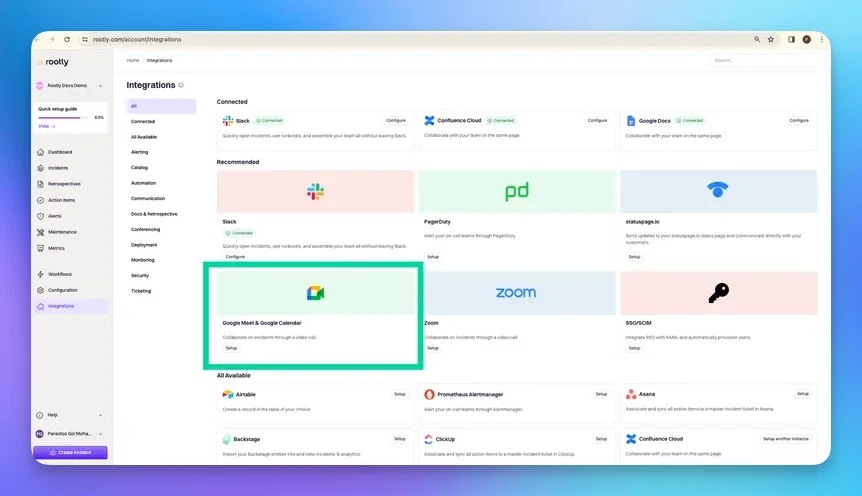
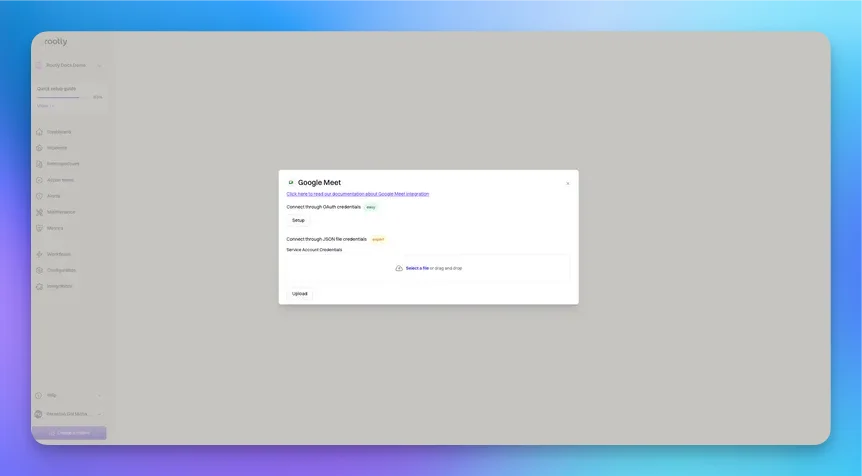
- OAuth (Recommended)
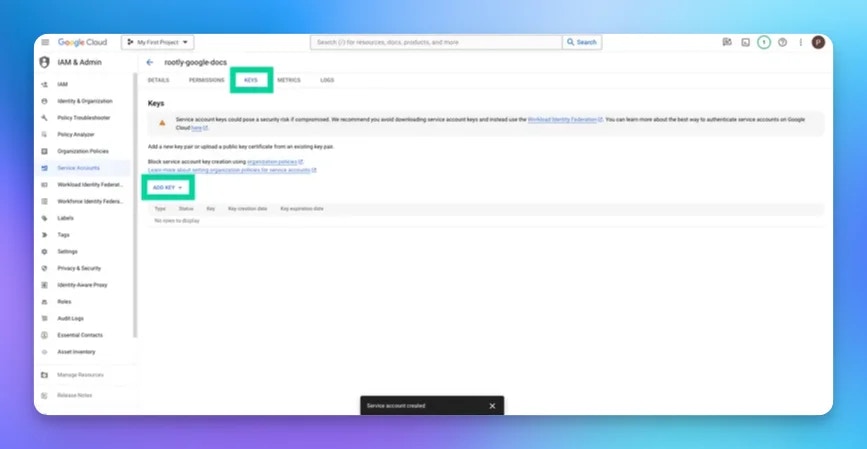
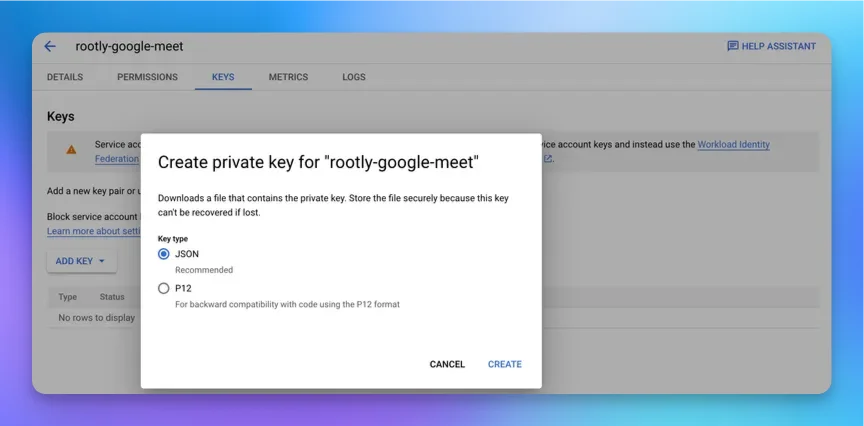
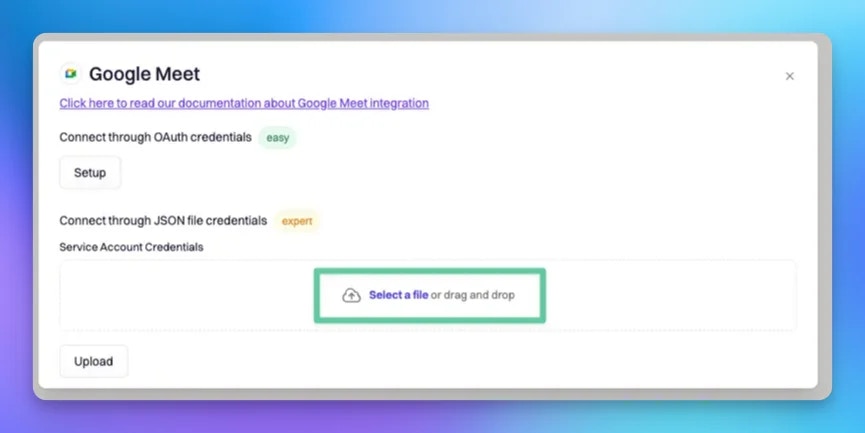
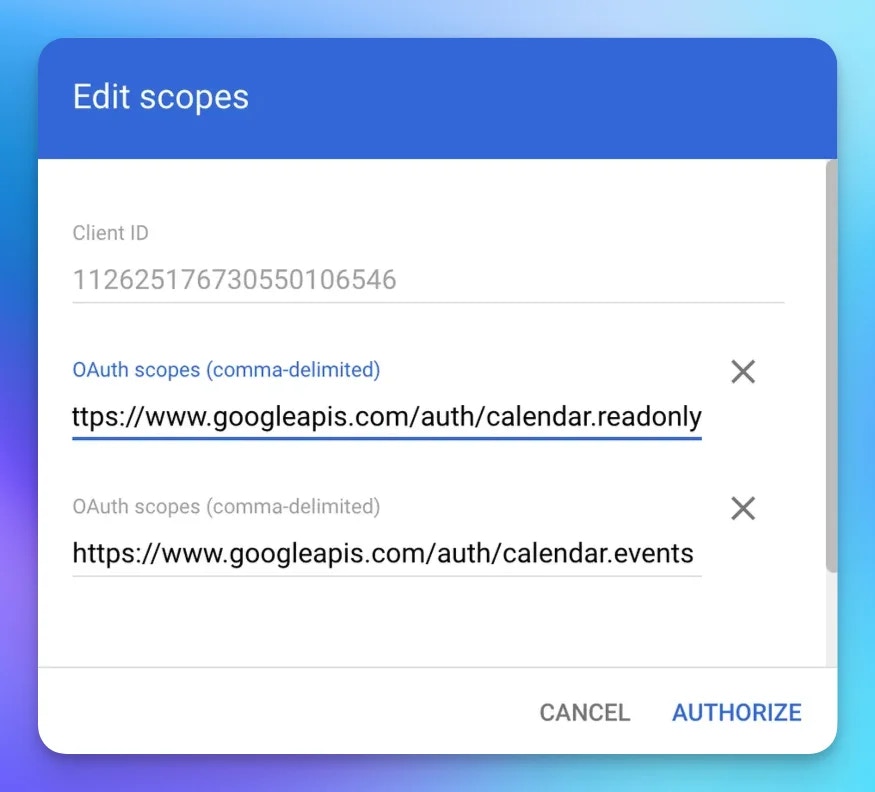
- GCP Service Account
Use this method for non-GCP service accounts. It is the simplest approach.
To install as a shared identity rather than a personal one:
- Create a Google account with a generic email (for example,
acme_rootly@company.com). - Log into that Google account in your browser.
- Add
acme_rootly@company.comas a member of your Rootly organization. - Follow the steps below while signed in as that account.
Start the integration
Click Setup to begin. You will be prompted to select a Google account.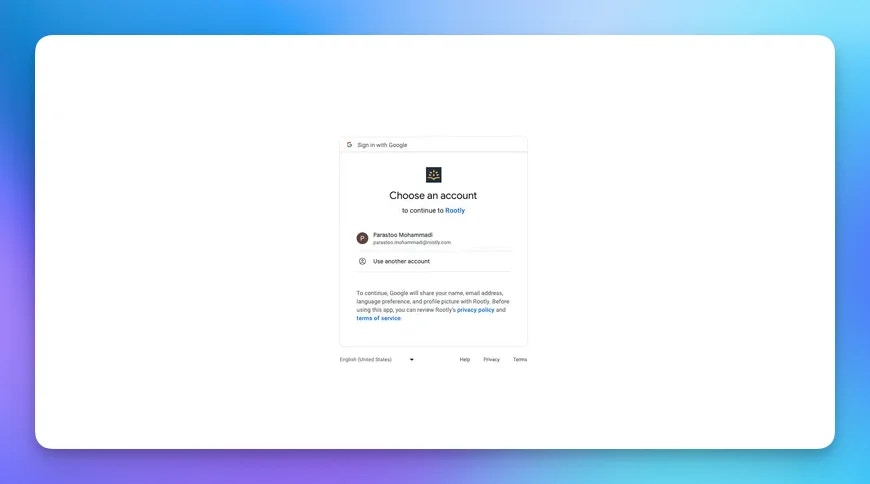
Grant Rootly permission
After selecting an account, grant Rootly permission to integrate with it.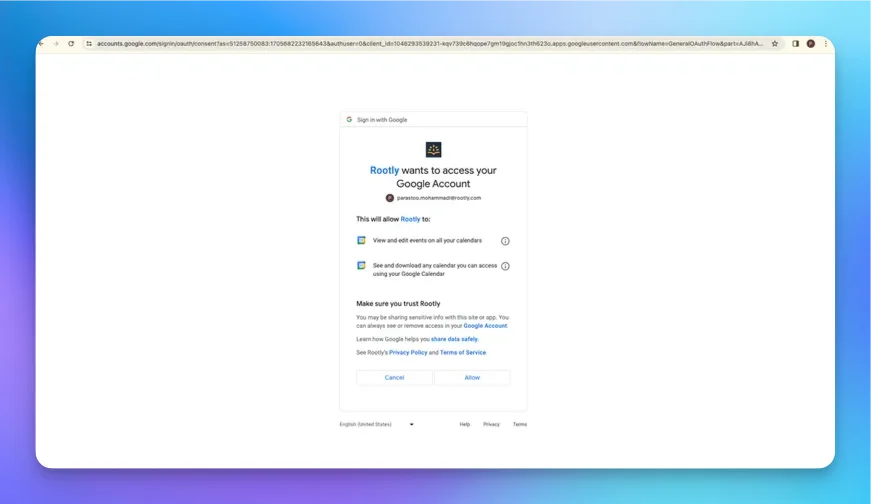
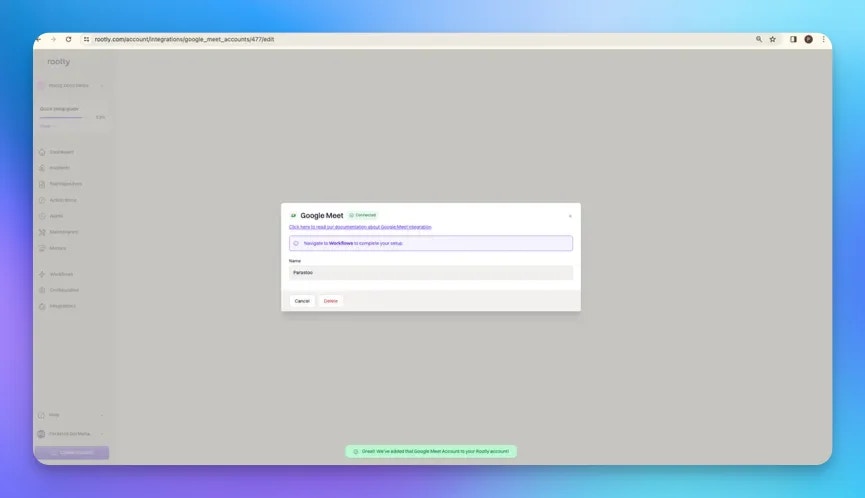
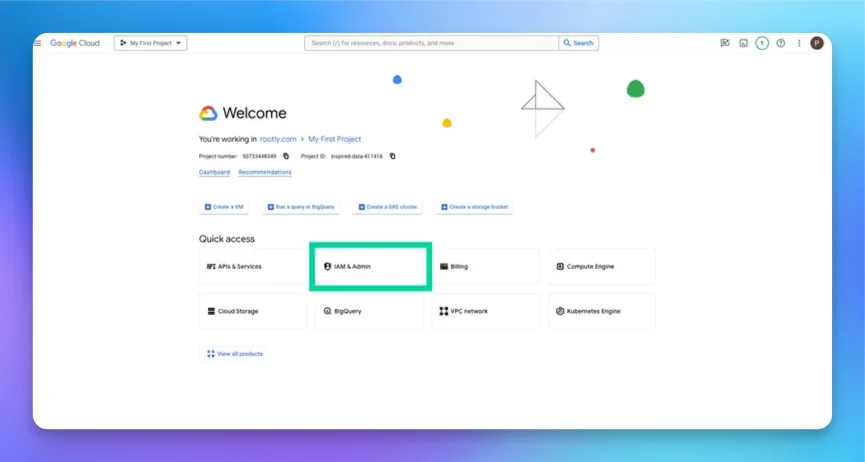
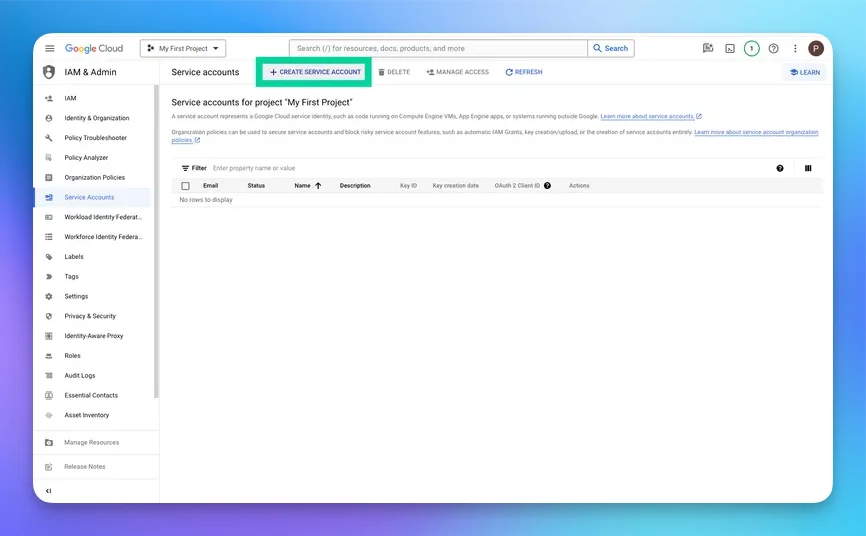
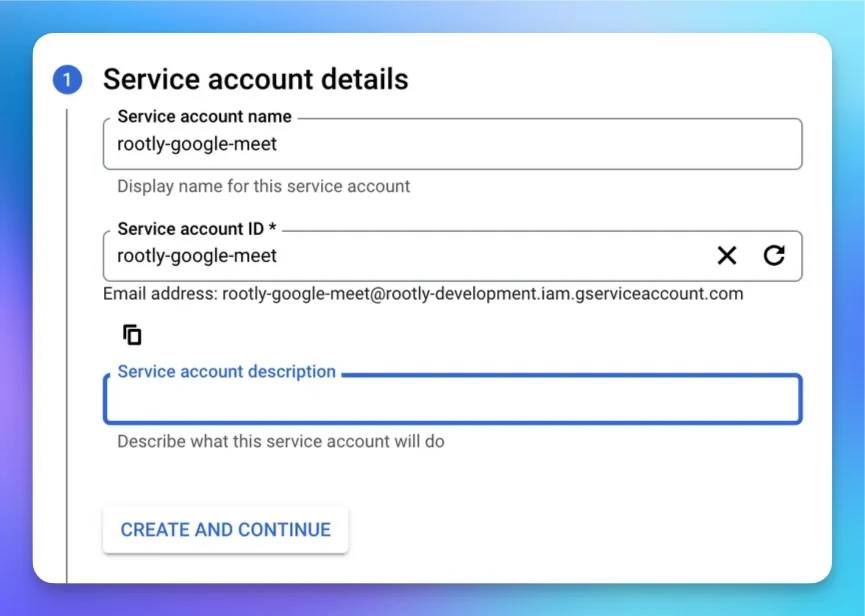
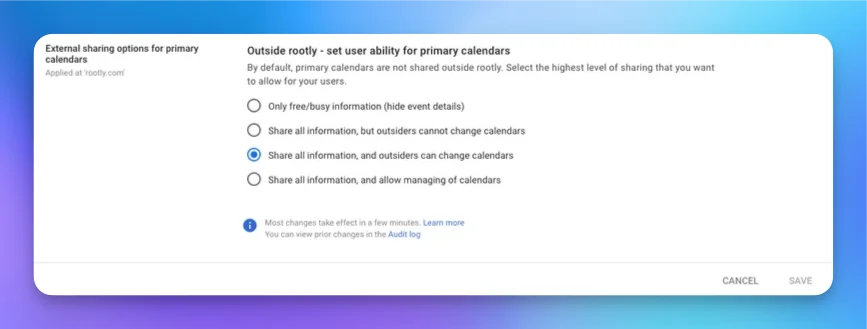
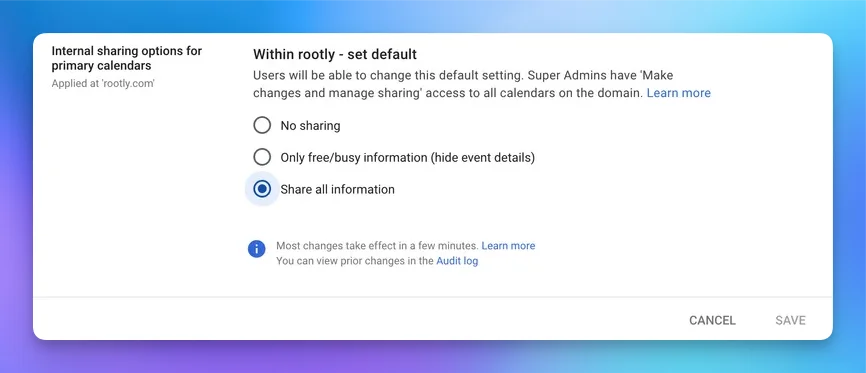
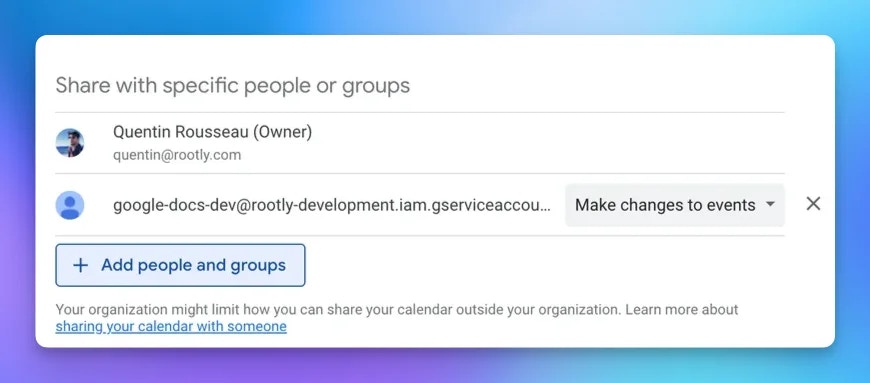
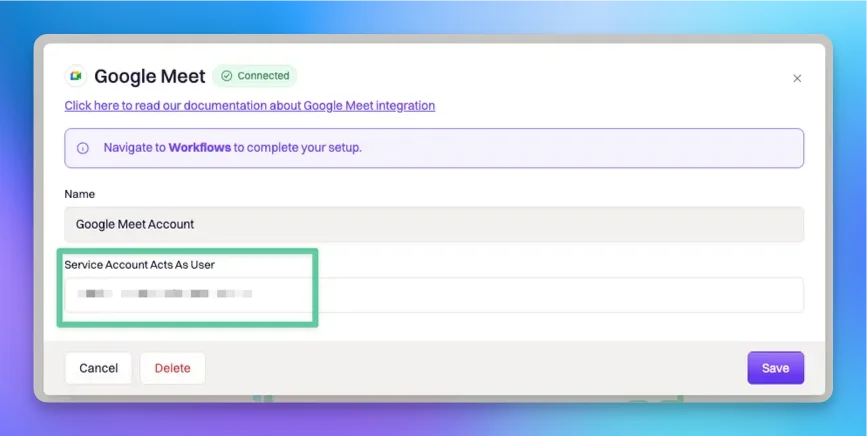
Workflow Actions
The Google Calendar integration uses workflows to schedule calendar events automatically. If you are unfamiliar with how workflows function, visit the Workflows documentation first.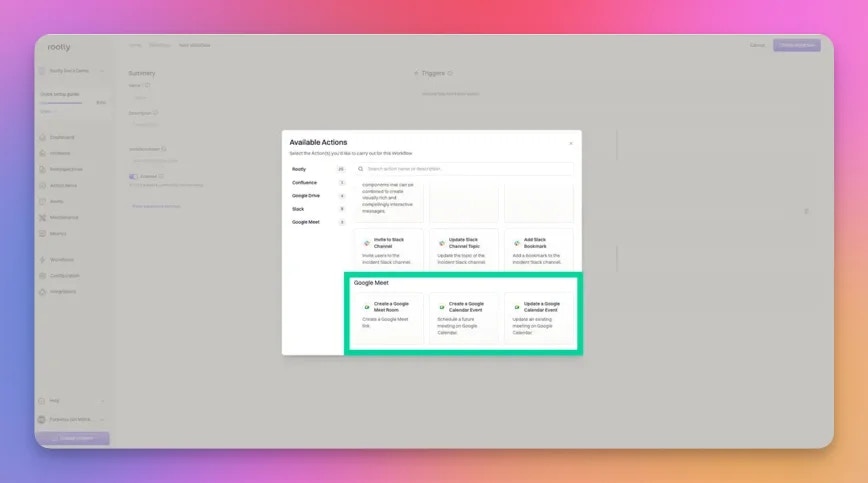
Create a Google Calendar Event
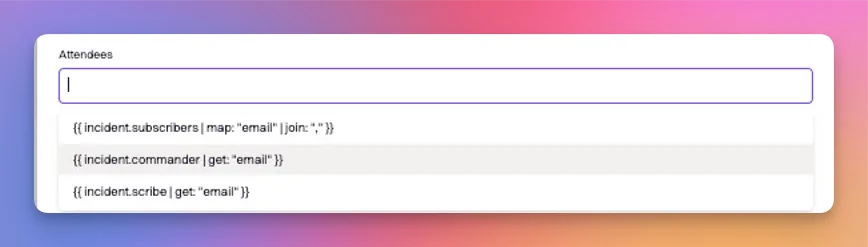
Schedules a new calendar event, optionally with a video meeting attached.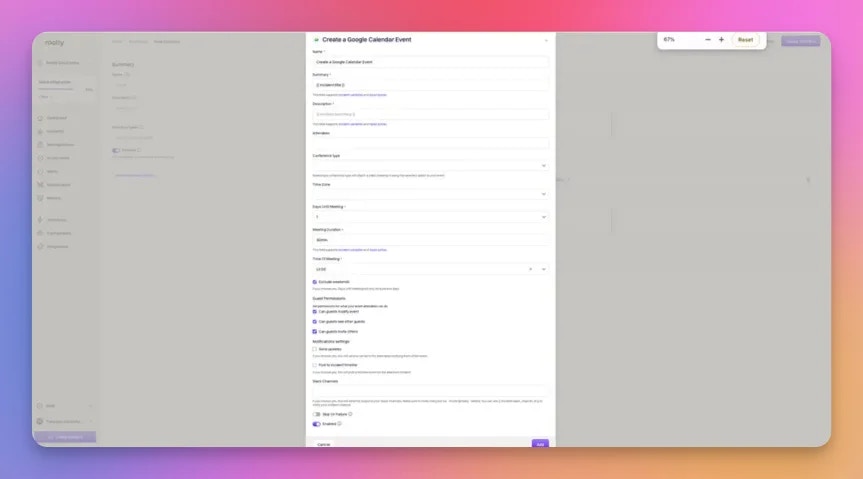
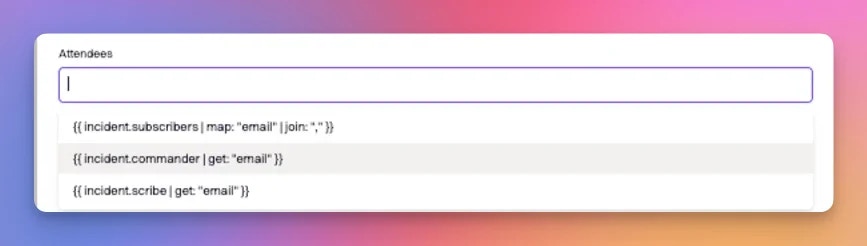
Update a Google Calendar Event
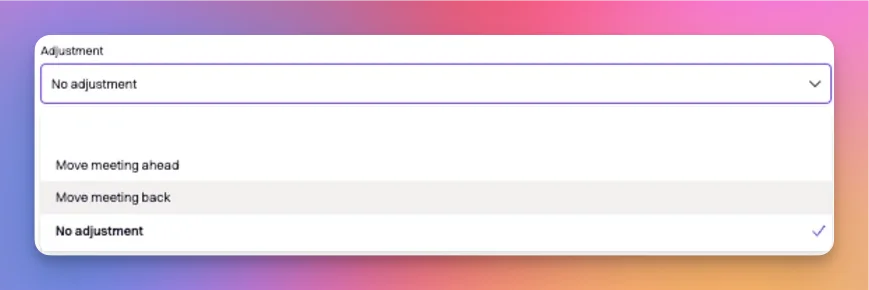
Updates an existing calendar event. Only the fields you specify are changed; unspecified fields keep their existing values.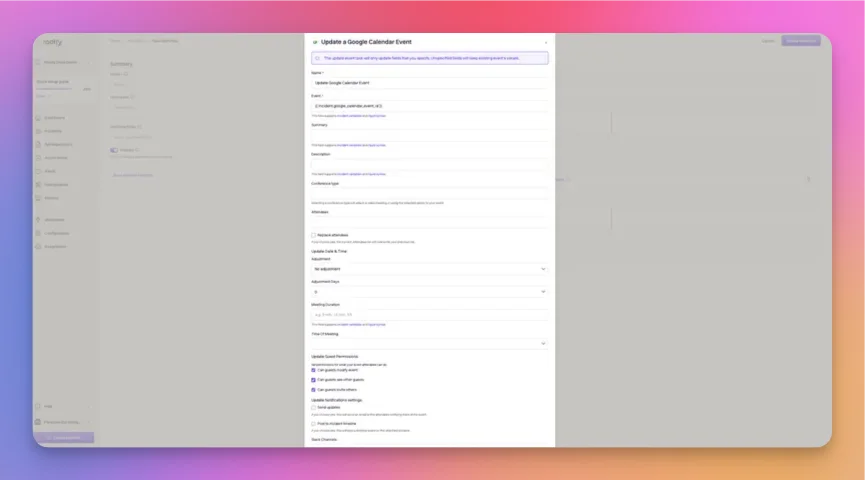
Importing a Google Calendar as a PTO Feed
The OAuth integration above is for event-based workflow actions. If your goal is instead to overlay holidays on your Rootly on-call schedules — for example, a shared team calendar tracking company holidays — no OAuth is required. Rootly accepts a Google Calendar’s iCal URL as a holiday calendar feed.1
Open the calendar's settings
In Google Calendar, hover over the calendar in the left sidebar, click the overflow menu, and choose Settings and sharing.
2
Copy the iCal URL
Scroll to the Integrate calendar section and copy the URL that fits your use case:
- For private or sensitive calendars, copy the URL under Secret address in iCal format. Treat this URL as a credential — anyone with it can subscribe to the calendar.
- For calendars already intended to be public (like company holidays), copy the URL under Public address in iCal format. This option requires the calendar to be set as public under Access permissions.
3
Add the feed to Rootly
In the Rootly dashboard, go to On-Call → Schedules, open the Holiday calendars dropdown, and select Add a holiday calendar. Paste the iCal URL, give the calendar a descriptive name, and save.