

- Automatically create Trello cards when incidents are declared or reach a certain state
- Update card title, description, labels, due date, and position as incidents evolve
- Move cards between lists and boards as incident status changes
- Archive cards automatically when incidents are resolved
Before You Begin
Before setting up the integration, make sure you have:- A Rootly account with admin permission to manage integrations
- A Trello account with access to the boards you want to use
Rootly recommends installing with a dedicated Trello service account so the integration does not break if an individual user leaves your organization.
Installation
Open the Trello integration in Rootly
Navigate to the integrations page in Rootly and select Trello.
Authorize Rootly with Trello
You will be redirected to Trello to sign in and grant Rootly permission to access your account.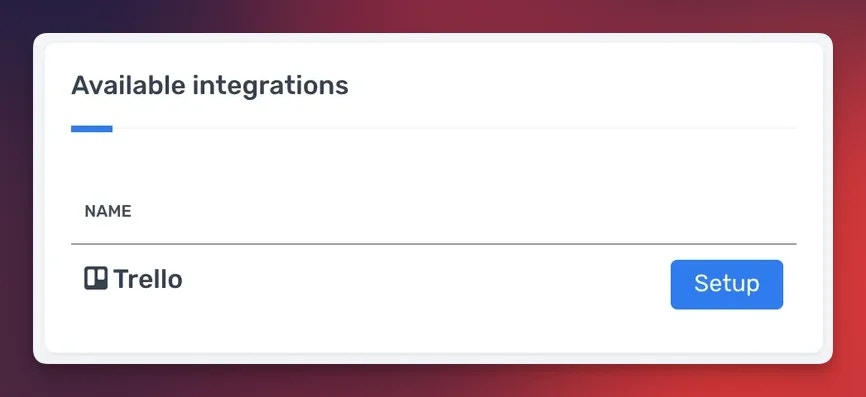
After authorization, the Create a Trello Card and Update a Trello Card workflow actions are available in your Genius workflows.
Workflow Actions
The Trello integration provides two workflow actions for managing cards from Rootly incidents. If you are unfamiliar with how Genius workflows work, visit the Workflows documentation first. Trello organizes content in a hierarchy: Boards → Lists → Cards. When configuring workflow actions, select the board first, then the list within that board.Create a Trello Card
This action creates a new card in a specified Trello list.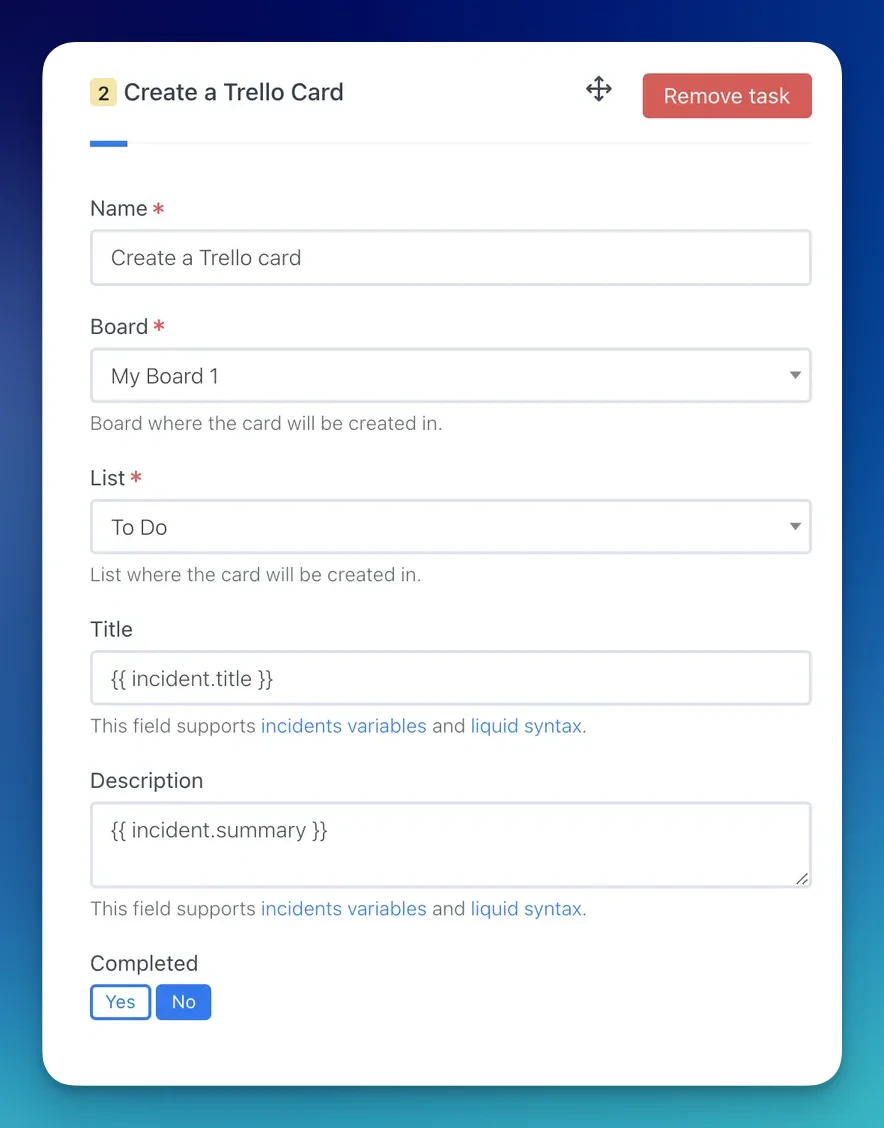
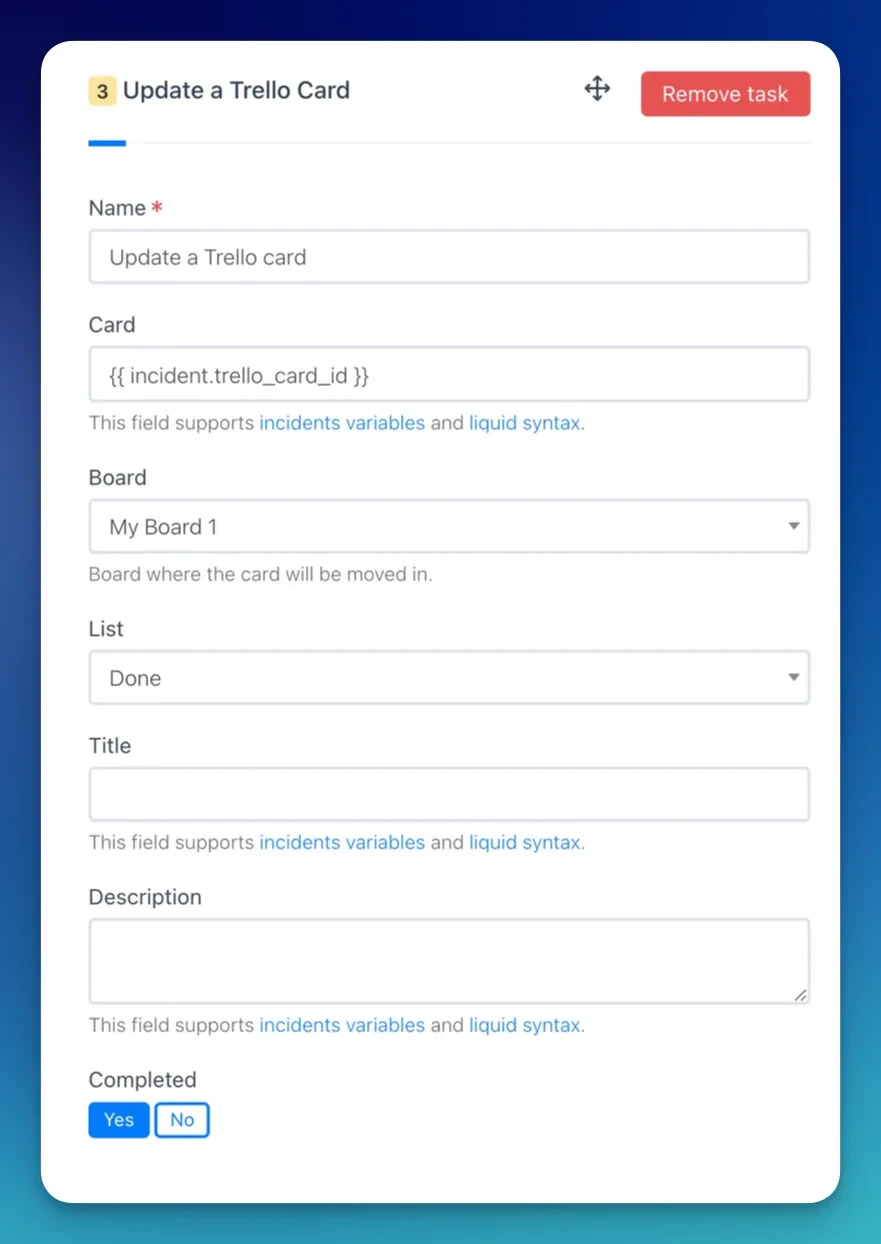
Update a Trello Card
This action updates an existing Trello card.When a Create a Trello Card action runs, Rootly stores the resulting card ID on the incident record. Reference it in subsequent update actions using Liquid variables.
Troubleshooting
Board or list is not appearing in the dropdown
Board or list is not appearing in the dropdown
Rootly loads boards and lists from your authorized Trello account. If boards you expect to see are missing, confirm the authorizing user has access to those boards. Re-authenticating the integration may refresh the available list.
Labels are not available for selection
Labels are not available for selection
Labels in Trello are scoped to a specific board. Select a board first — labels will load automatically based on the selected board.