

Snoozing an Alert
Snoozing pushes back the next page on an acknowledged alert. While the alert is snoozed it stays acknowledged, and nobody is paged. When the snooze ends, Rootly re-triggers the alert, pages the responder who acknowledged it, and continues escalation if they don’t respond. Resolve the alert before the snooze ends and no further pages are sent.Snooze is available when all of these are true:
- The alert is acknowledged. Triggered, deferred, and resolved alerts can’t be snoozed.
- The workspace Automatically re-trigger acknowledged alerts setting is on. On the Alerts page, click the gear icon to open Alert settings. See Retrigger logic.
- The alert’s escalation still has someone left to page.
Snooze From the Web App
Snooze an alert you acknowledged from its alert page.1
Open the Alert
Go to Alerts and open the acknowledged alert.
2
Choose a Duration
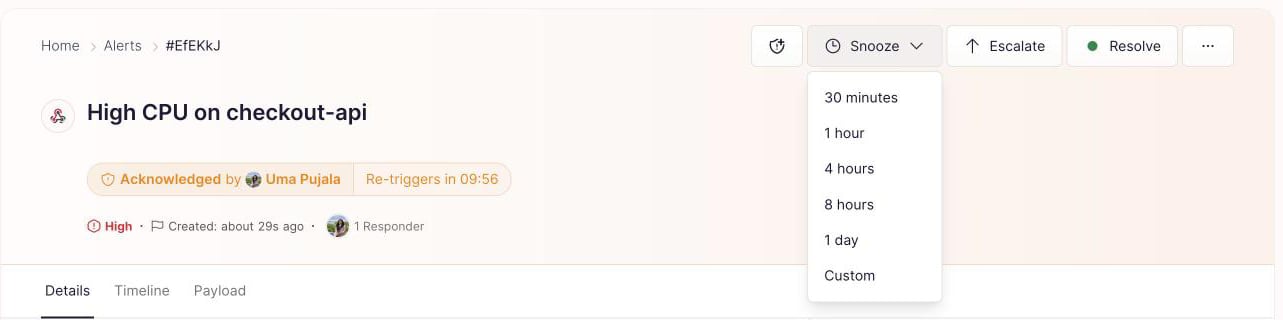
Click Snooze and pick 30 minutes, 1 hour, 4 hours, 8 hours, or 1 day. Pick Custom for any other length.
Custom Snooze Options
The Snooze Alert dialog offers two options.A time of day, read in the time zone on your Rootly profile. The snooze always ends at that time tomorrow, even if the time hasn’t passed yet today. Choosing 9:00 AM at 2:00 AM snoozes the alert for 31 hours.
Snooze From Slack or Microsoft Teams
Once an alert is acknowledged, its message in Slack or Microsoft Teams shows a Snooze action, under the same conditions as the web app. In Slack, pick a preset from How long do you want to snooze the alert?, or pick Custom to use Snooze for or Snooze until.What Snooze Changes
- The timer restarts from now. Snoozing again replaces the current snooze rather than adding to it.
- The alert shows the countdown. The status reads Acknowledged and snoozed by, with the time left until the alert re-triggers.
- The timeline records it. The alert timeline shows who snoozed the alert and for how long. When the snooze ends, it shows Alert re-triggered after N minutes snooze expired.
- It doesn’t change your settings. Snooze affects only this alert. Your re-trigger settings are untouched.
Bulk Actions
Select alerts in the Alerts list to act on all of them at once. Rootly runs the action in the background and shows its progress in the action bar at the bottom of the page.1
Select Alerts
On the Alerts page, tick the checkbox on each alert you want. The action bar shows how many alerts are selected.
2
Pick an Action
Choose Acknowledge, Resolve, or Create incident from the bar, or open More bulk actions for the rest.
3
Confirm
Fill in the dialog if the action has one. When the action finishes, Rootly shows Alerts were successfully updated.
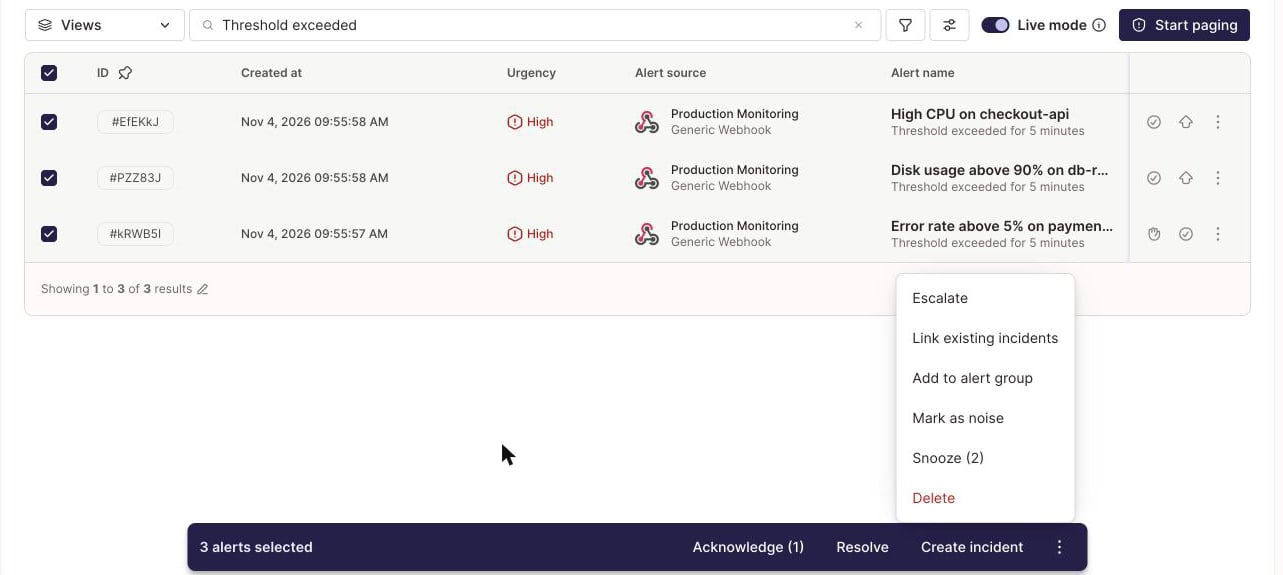
Opens the new incident form with the selected alerts attached. See Alert to Incident.
Pages one or more users or escalation policies for every selected alert, at the urgency you choose, with an optional note. Any paging in progress stops and a new paging cycle starts. Hidden when your workspace has turned off the native Escalate button.
Snoozes the selected alerts with Snooze for or Snooze until. Alerts that aren’t eligible for snooze are skipped.
Moves the selected alerts into an existing alert group.
Troubleshooting
The Snooze option doesn't appear on an alert
The Snooze option doesn't appear on an alert
Check that the alert is acknowledged, that Automatically re-trigger acknowledged alerts is on in Alert settings, and that the escalation policy has a level left to page. On the alert page, the button appears only for the responder who acknowledged the alert. Use the row actions menu in the Alerts list instead.
A snoozed alert paged at an unexpected time
A snoozed alert paged at an unexpected time
Snooze until always ends at the chosen time tomorrow, in the time zone on your Rootly profile. Check that your profile time zone is correct. Snoozing again restarts the timer from the moment you snooze.
A bulk action updated fewer alerts than I selected
A bulk action updated fewer alerts than I selected
Alerts that don’t qualify for an action are skipped. Snooze skips alerts that aren’t acknowledged, and every action skips alerts you don’t have permission to change.
Frequently Asked Questions
What's the longest I can snooze an alert?
What's the longest I can snooze an alert?
7 days. Longer Snooze for values are rejected.
Can I snooze an alert that's still triggered?
Can I snooze an alert that's still triggered?
No. Acknowledge it first, then snooze it.
Does snoozing change my re-trigger settings?
Does snoozing change my re-trigger settings?
No. Snooze affects only the alert you snoozed. To change when acknowledged alerts re-page by default, change your re-trigger settings. See Retrigger logic.