The AWS EventBridge integration allows Rootly to publish incident and alert lifecycle events directly to your AWS account through the EventBridge partner event source model. Events are delivered in near real-time as incidents and alerts progress through their lifecycle, enabling you to build event-driven automations entirely within AWS.Once configured, Rootly creates a partner event source in your AWS account. You associate this event source with an event bus in the EventBridge console, then create rules to route events to any EventBridge target — Lambda functions, Step Functions, SQS queues, SNS topics, API Gateway endpoints, and more.
This integration uses the AWS EventBridge partner event source model. Rootly pushes events to your account — no polling or webhook configuration is required on your side.
Looking to send AWS events into Rootly to trigger alerts? Route EventBridge events to an SNS topic subscribed to Rootly’s AWS SNS alert source. Use an EventBridge input transformer to format events into the required payload schema. For CloudWatch alarms specifically, use the dedicated AWS CloudWatch alert source instead.
You can subscribe to any combination of the following event types per integration:Alert Events:
Event Type
Description
alert.created
A new alert was created
alert.updated
Alert properties were changed
alert.acknowledged
An alert was acknowledged by a responder
alert.resolved
An alert was resolved
Incident Events:
Event Type
Description
incident.created
A new incident was started
incident.updated
Incident properties were changed
incident.mitigated
An incident was mitigated
incident.resolved
An incident was resolved
If no event subscriptions are selected, all event types are published. This is useful when you want to receive everything and filter using EventBridge rules instead.
Navigate to Settings → Integrations → AWS EventBridge and click Add Integration.Fill in the following fields:
Integration Name: A friendly name (for example, “Production Events”)
AWS Account ID: Your 12-digit AWS account ID
AWS Region: The region where your event bus will be created
Event Source Name: A unique identifier (for example, “production”, “staging”)
Event Subscriptions: Select which event types to stream (leave empty for all)
Click Create Integration. Rootly creates a partner event source in your AWS account.Your new integration will appear on the index page with a Pending status until you complete the AWS setup.
EventBridge integrations index page showing a pending integration
The AWS Account ID, Region, and Event Source Name cannot be changed after creation. A new integration must be created if these values need to change.
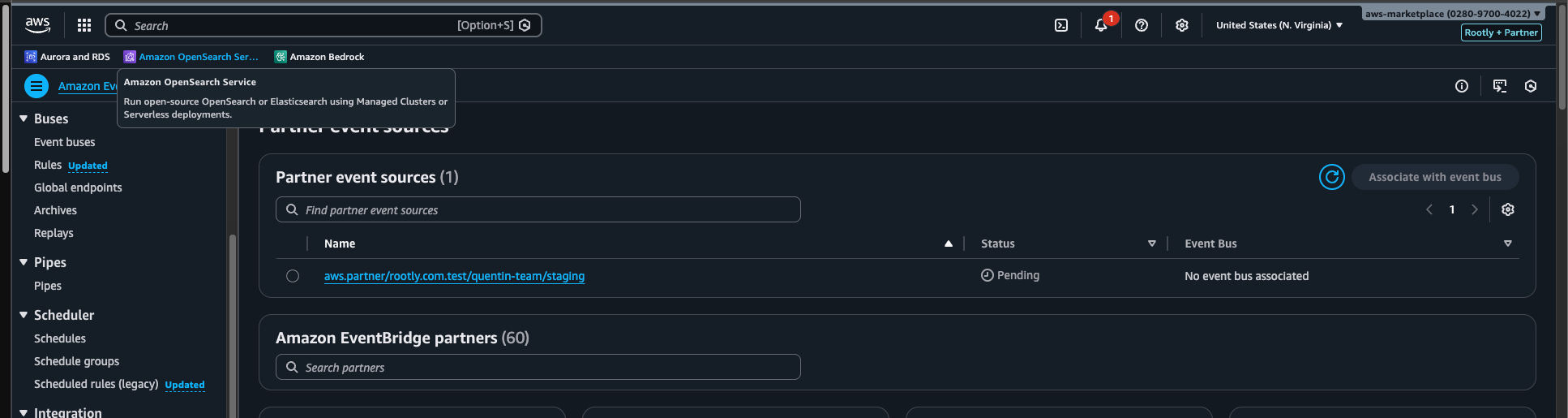
Go to Partner event sources in the left navigation
Find your event source — it will be named aws.partner/rootly.com/<your-team-slug>/<event-source-name>
Select the event source and click Associate with event bus
Confirm the association
AWS EventBridge console showing the Rootly partner event source
This creates a partner event bus in your account that receives events from Rootly.
3
Activate the integration in Rootly
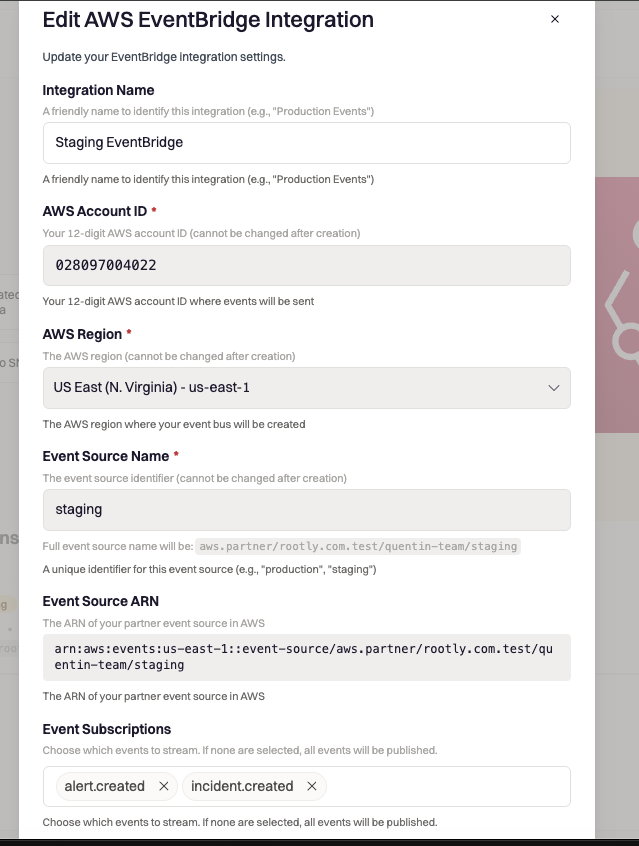
Return to Rootly and edit your EventBridge integration. Check Mark as Active and save.You can also configure Event Subscriptions to select which event types to stream.
Edit integration form with event subscriptions and Event Source ARN
The integration must be activated after associating the event source in AWS. Events are only published to active integrations.
4
Create EventBridge rules
In the AWS EventBridge console, navigate to Rules and select your partner event bus.Create rules to route events to your targets. Use event patterns to filter by event type:
You can update the integration name, event subscriptions, and active status at any time. AWS Account ID, Region, and Event Source Name are locked after creation.
Deleting an integration in Rootly stops event delivery. The partner event source remains in your AWS account and can be cleaned up from the EventBridge console.
Verify the integration is marked as Active in Rootly
Confirm the partner event source is Associated in the AWS EventBridge console
Check that the event type is included in the integration’s subscriptions (or that subscriptions are empty for all events)
Verify your EventBridge rules are targeting the correct partner event bus
Partner event source not found in AWS
Ensure you are looking in the correct AWS region. The event source is created in the region selected when configuring the integration. Also verify the AWS Account ID is correct.
Some event types are missing
Check the Event Subscriptions setting on your integration. If specific events are selected, only those events will be published. Clear all subscriptions to receive all event types.
Events are delayed
Events are published asynchronously via background jobs. Under normal conditions, events are delivered within a few seconds. If you observe persistent delays, contact Rootly Support.