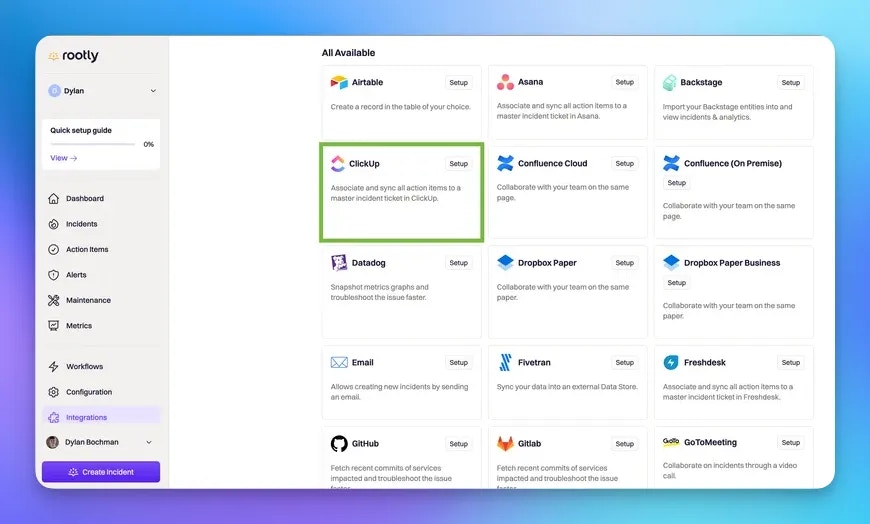
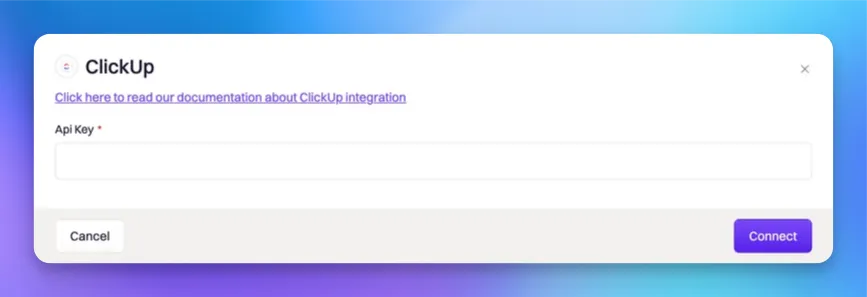
To use these workflow actions, you must first connect ClickUp to Rootly. See ClickUp Installation.
ClickUp organizes content in a hierarchy: Workspaces (Teams) → Spaces → Folders → Lists. When configuring workflow actions, select each level in order to narrow down the target list.

Outbound Actions (Rootly → ClickUp)

The actions in this section are used in Incident Workflows. They execute on changes to the Rootly incident or action item.

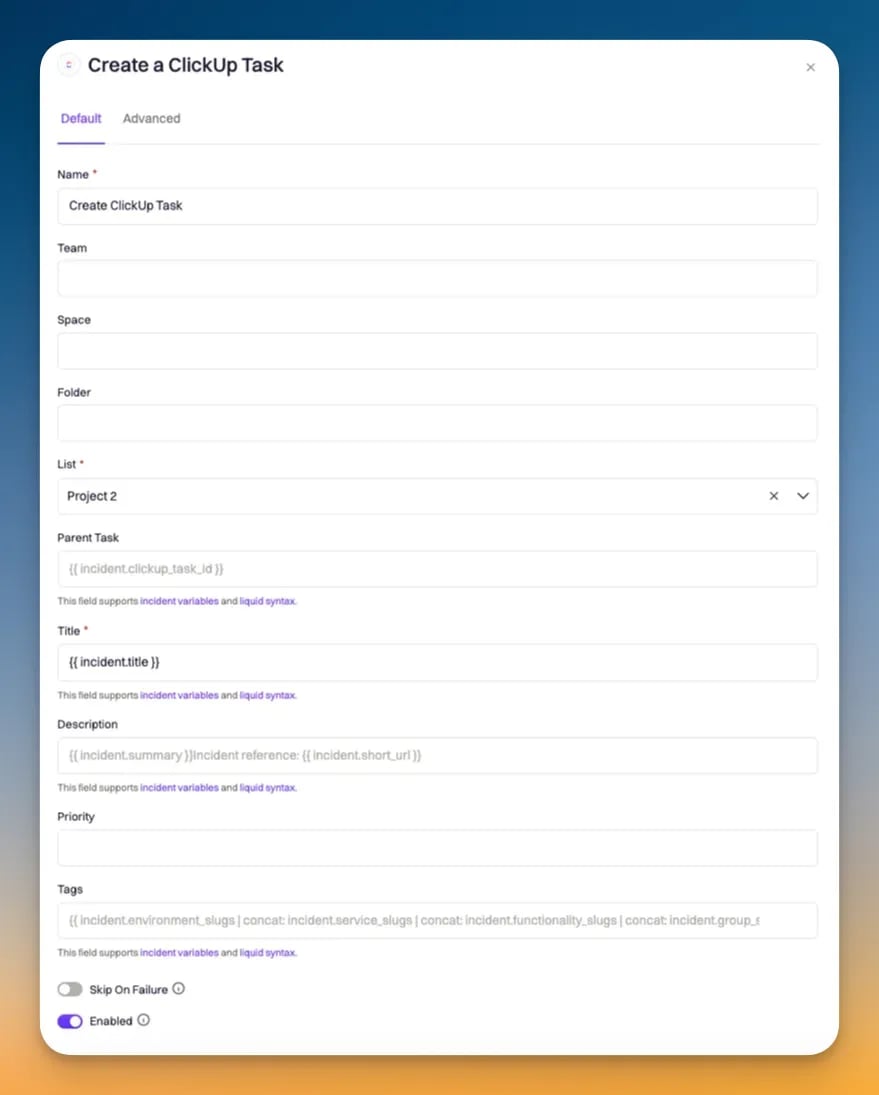
Create a ClickUp Task for Incident

Creates a new task in a ClickUp list, linked to the Rootly incident.
FieldDescriptionRequired
TeamClickUp workspace (Team) to useYes
SpaceClickUp space within the selected teamYes
FolderFolder within the selected space. Leave blank if the list is at the space level
ListClickUp list where the task will be createdYes
TitleTask title. Defaults to {{ incident.title }}. Supports LiquidYes
DescriptionTask description. Supports Liquid
PriorityTask priority. Auto mirrors the incident severity
Due DateTask due date. Supports Liquid
TagsComma-separated tags to apply to the task
Custom Fields MappingJSON mapping ClickUp custom field IDs to values. Supports Liquid
Task PayloadAdvanced JSON merged into the task creation request. Supports Liquid
Priority mapping (Auto)
Rootly SeverityClickUp Priority
CriticalUrgent (1)
HighHigh (2)
MediumNormal (3)
LowLow (4)
Document Image

Create a ClickUp Subtask for Action Item

Creates a new task as a subtask of an existing ClickUp task, linked to a Rootly action item.
When a Create a ClickUp Task for Incident action runs, Rootly stores the resulting task ID on the incident record. Reference it in the Parent Task ID field using Liquid to nest this subtask under the incident task.
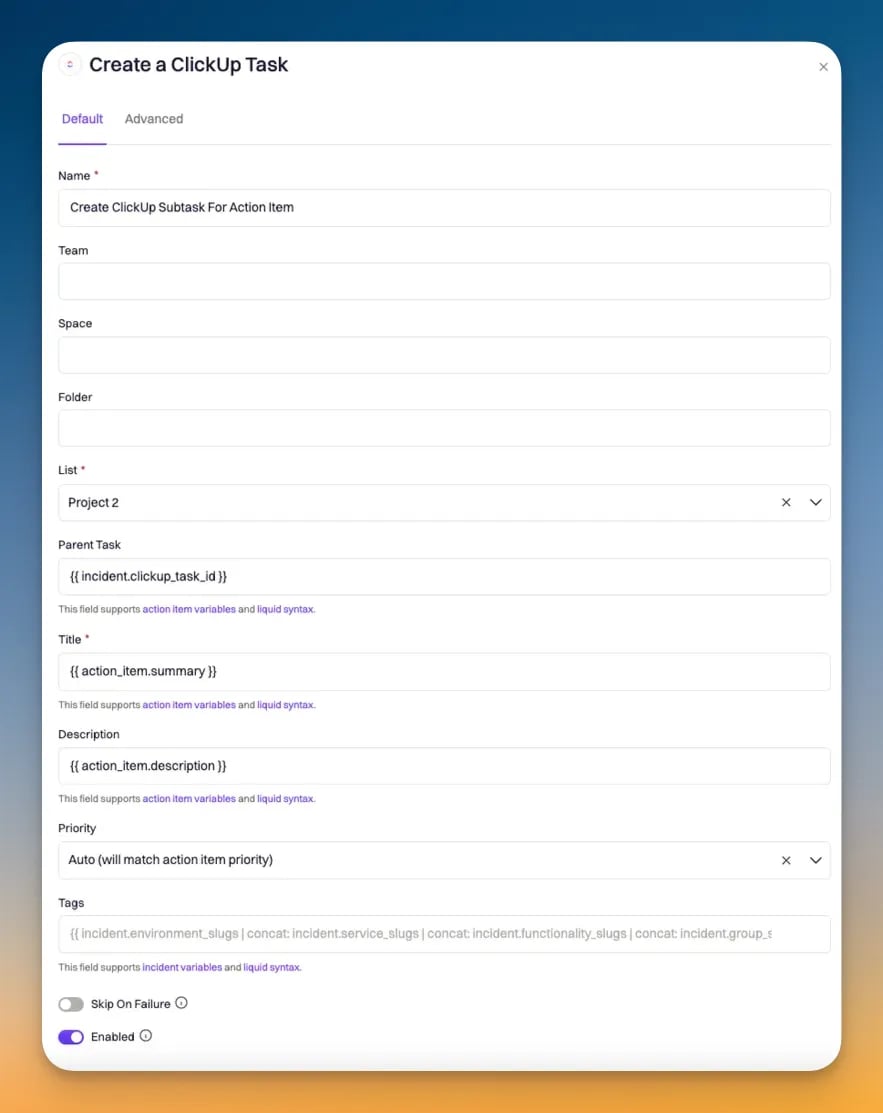
FieldDescriptionRequired
TeamClickUp workspace (Team) to useYes
SpaceClickUp space within the selected teamYes
FolderFolder within the selected space
ListClickUp list where the subtask will be createdYes
Parent Task IDID of the ClickUp task to nest this subtask under. Supports LiquidYes
TitleSubtask title. Supports LiquidYes
DescriptionSubtask description. Supports Liquid
CompletionSubtask completion. Auto mirrors the action item statusYes
Due DateSubtask due date. Supports Liquid
TagsComma-separated tags to apply
Custom Fields MappingJSON mapping ClickUp custom field IDs to values. Supports Liquid
Document Image

Update a ClickUp Task

Updates an existing ClickUp task linked to a Rootly incident.
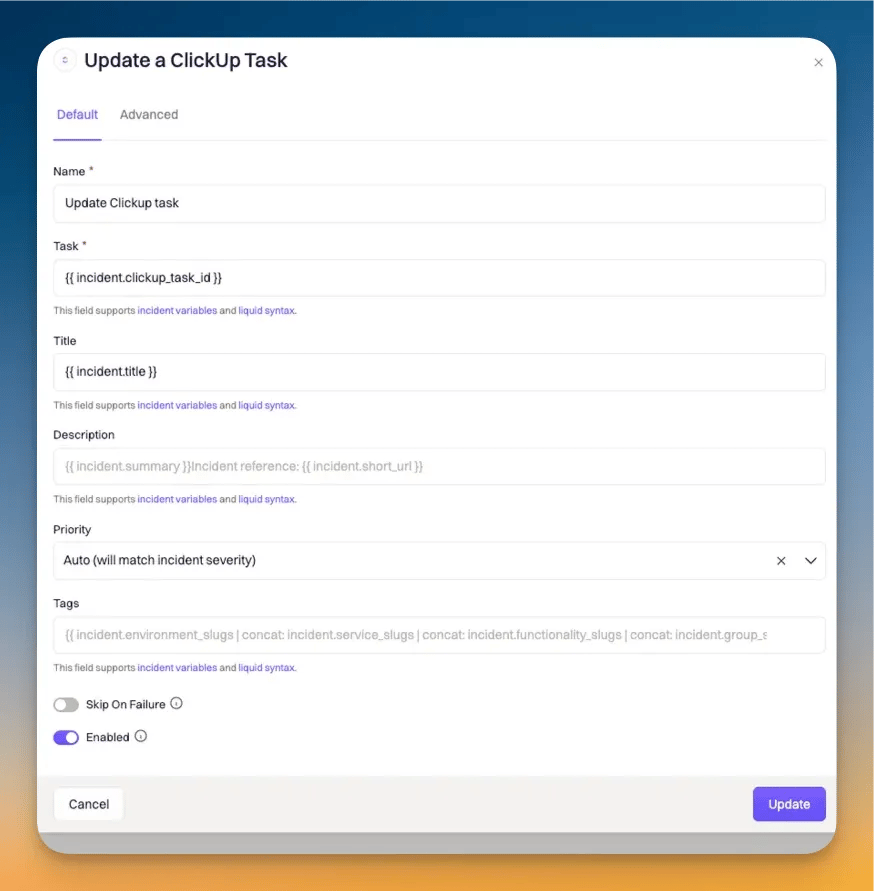
FieldDescriptionRequired
Task IDClickUp task ID to update. Supports LiquidYes
TitleUpdated task title. Supports Liquid. Leave blank to keep existing
DescriptionUpdated task description. Supports Liquid
PriorityUpdated priority
Due DateUpdated due date. Supports Liquid
TagsUpdated tags
Custom Fields MappingUpdated custom field values as JSON. Supports Liquid
Task PayloadAdvanced JSON merged into the task update request. Supports Liquid
Document Image

Update a ClickUp Subtask

Updates an existing ClickUp subtask linked to a Rootly action item.
FieldDescriptionRequired
Task IDClickUp subtask ID to update. Supports LiquidYes
TitleUpdated subtask title. Supports Liquid
DescriptionUpdated subtask description. Supports Liquid
CompletionUpdated completion status. Auto mirrors the action item statusYes
Due DateUpdated due date. Supports Liquid
TagsUpdated tags
Custom Fields MappingUpdated custom field values as JSON. Supports Liquid

Update a ClickUp Action Item

Updates a ClickUp task that represents a Rootly action item.
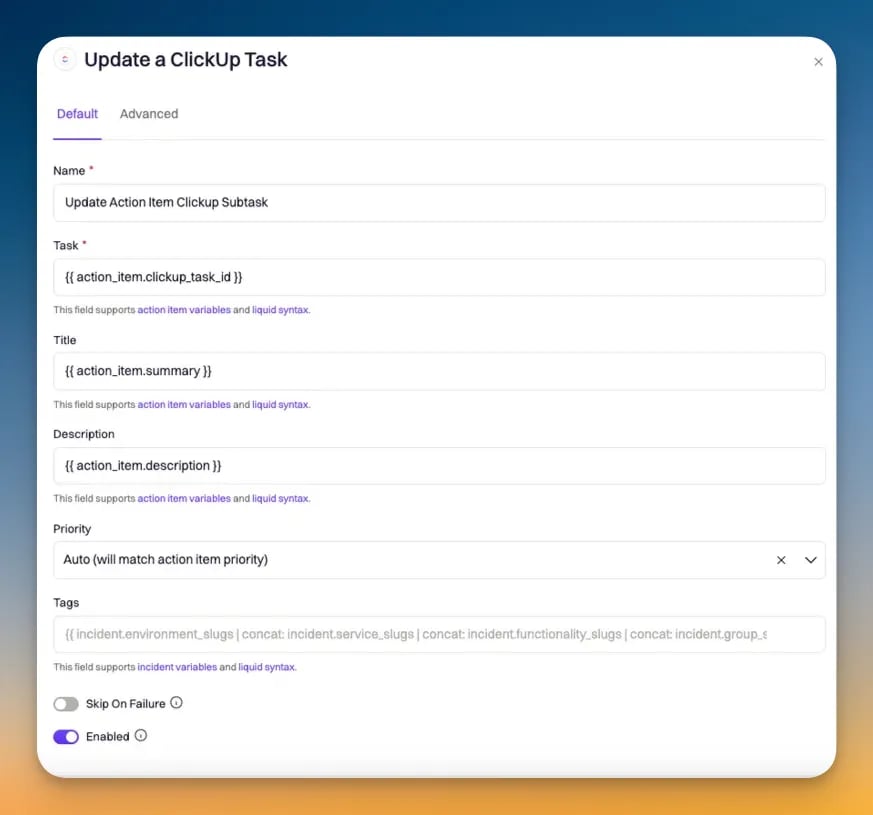
FieldDescriptionRequired
Task IDClickUp task ID to update. Supports LiquidYes
TitleUpdated title. Supports Liquid
DescriptionUpdated description. Supports Liquid
CompletionUpdated completion status. Auto mirrors the action item statusYes
Due DateUpdated due date. Supports Liquid
Custom Fields MappingUpdated custom field values as JSON. Supports Liquid
Document Image

Inbound Events (ClickUp → Rootly)

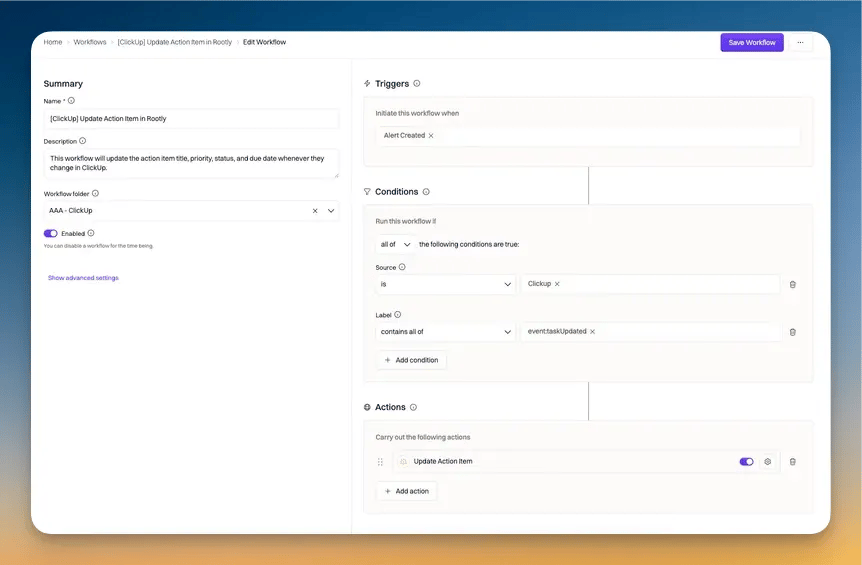
The actions in this section are used in Alert Workflows. They execute on update events sent from ClickUp via webhook.
When the integration is installed, Rootly registers a webhook with ClickUp to receive task events. The following events create alerts in Rootly:
ClickUp EventDescription
taskCreatedA new task was created
taskUpdatedA task field was changed
taskDeletedA task was deleted
Each event creates a Rootly alert with the following labels:
LabelSource
task_idClickUp task ID
eventEvent type (taskCreated, taskUpdated, taskDeleted)
fieldThe field that changed (for taskUpdated events)
usernameThe user who made the change
idThe history item ID (for taskUpdated events)

Update Action Item

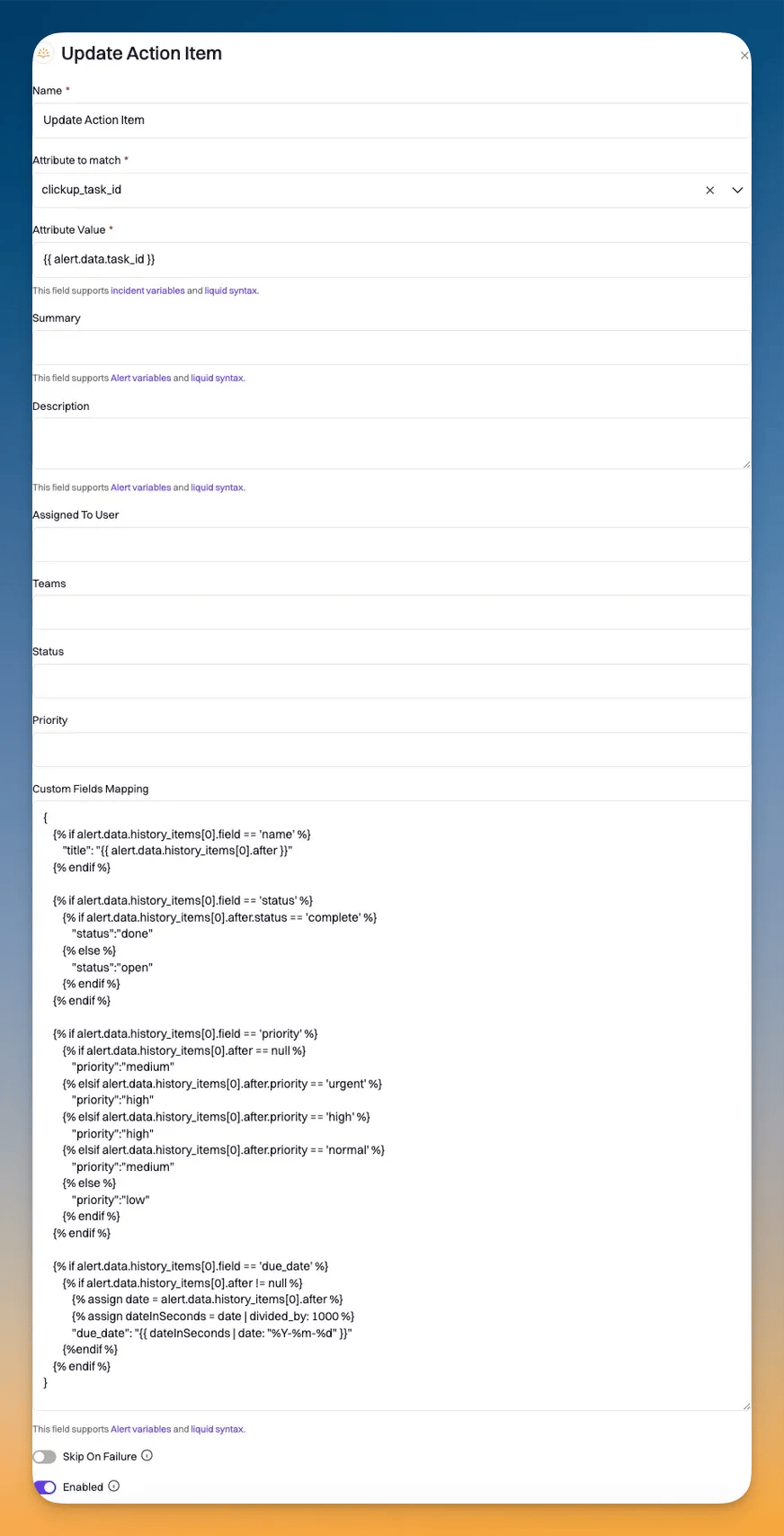
Use an Alert Workflow with the Update Action Item action to sync ClickUp task changes back to Rootly action items.
Document Image
Document Image

Data Mapping Syntax

Use the following Liquid template in the Data Mapping field to map ClickUp task update fields to Rootly action item fields:
{
  {% if alert.data.history_items[0].field == 'name' %}
    "title": "{{ alert.data.history_items[0].after }}"
  {% endif %}

  {% if alert.data.history_items[0].field == 'status' %}
    {% if alert.data.history_items[0].after.status == 'complete' %}
      "status": "done"
    {% else %}
      "status": "open"
    {% endif %}
  {% endif %}

  {% if alert.data.history_items[0].field == 'priority' %}
    {% if alert.data.history_items[0].after == null %}
      "priority": "medium"
    {% elsif alert.data.history_items[0].after.priority == 'urgent' %}
      "priority": "high"
    {% elsif alert.data.history_items[0].after.priority == 'high' %}
      "priority": "high"
    {% elsif alert.data.history_items[0].after.priority == 'normal' %}
      "priority": "medium"
    {% else %}
      "priority": "low"
    {% endif %}
  {% endif %}

  {% if alert.data.history_items[0].field == 'due_date' %}
    {% if alert.data.history_items[0].after != null %}
      {% assign date = alert.data.history_items[0].after %}
      {% assign dateInSeconds = date | divided_by: 1000 %}
      "due_date": "{{ dateInSeconds | date: "%Y-%m-%d" }}"
    {% endif %}
  {% endif %}
}
ClickUp sends due dates as Unix timestamps in milliseconds. Divide by 1000 and apply the date filter to convert to a readable format.