What You Can Do
Incidents → Linear Issues
Automatically create a Linear issue when an incident is declared, with title, description, severity, and assignee populated from incident data
Action Items → Sub-Issues
Every follow-up action item created during an incident becomes a Linear sub-issue under the parent incident issue
Status Sync
When an incident resolves in Rootly, the linked Linear issue automatically moves to Done
On-Call → Triage
Connect Rootly on-call schedules to Linear’s Triage Responsibility so new issues auto-assign to whoever is on call
How It Works
1
Incident declared
An incident is created in Rootly, either manually or via an alert from PagerDuty, Datadog, or another source.
2
Workflow runs
Your configured workflow fires and creates a Linear issue in the specified team and project, with fields populated from incident data.
3
Issue linked
The Linear issue URL is automatically attached to the incident in Rootly. Teams can navigate between both systems.
4
Updates flow
As the incident progresses, action items become sub-issues. When the incident resolves, the Linear issue status updates automatically.
Before You Begin
This setup involves authorizing Rootly inside your Linear workspace. Make sure you have the right access in both systems before starting — the OAuth flow will fail silently if your Linear account doesn’t have the correct permissions.Installation
The connection is established through Linear’s OAuth flow — Rootly redirects you to Linear, you approve access, and you’re brought back to Rootly with the integration active. You won’t need to handle any API keys or tokens manually.1
Open Rootly Integrations
Navigate to Configuration → Integrations in your Rootly dashboard. This is where all third-party integrations are managed.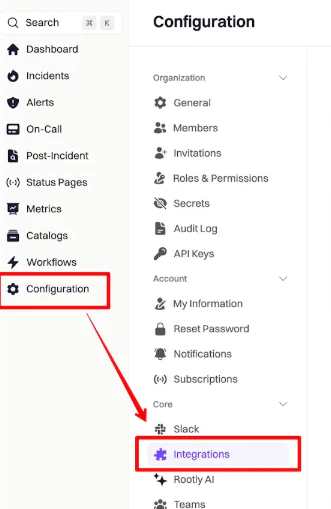
2
Find Linear and click Setup
Search for Linear in the integrations catalog and click Setup to begin the OAuth authorization flow.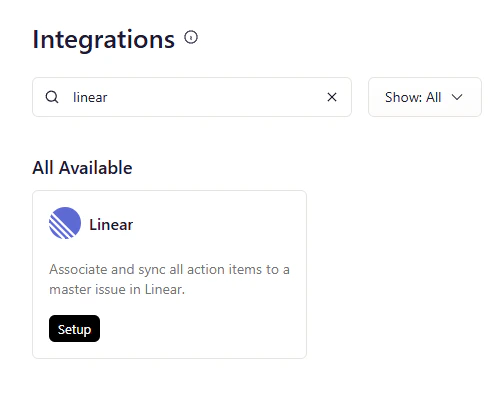
3
Authorize Rootly in Linear
You’ll be redirected to Linear’s authorization page. Review the requested permissions — Rootly needs write access to create and update issues on your behalf. Click Allow Access to proceed.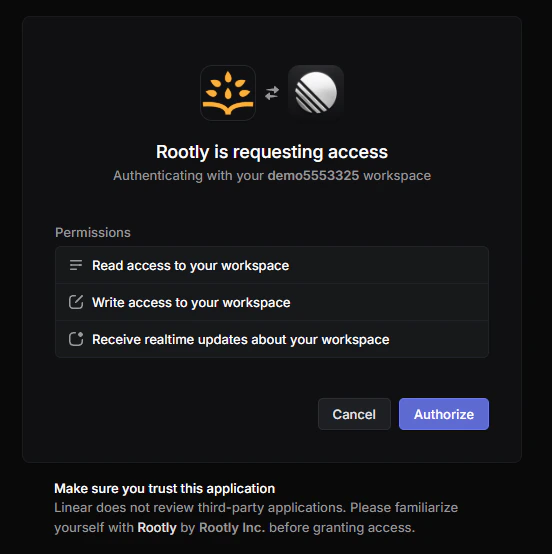
4
Select your workspace
If you belong to multiple Linear workspaces, choose the one you want to connect to Rootly and click Authorize. You can only connect one workspace per Rootly account.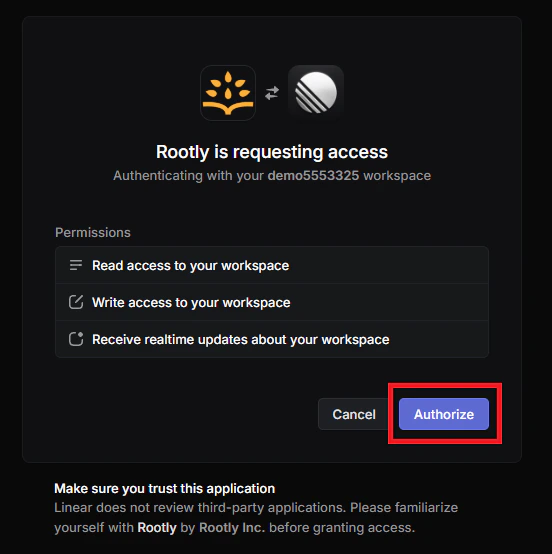
5
Confirm the connection
You’ll be redirected back to Rootly and see a confirmation: “Great! We’ve added that Linear account to your Rootly account!” The integration is now active.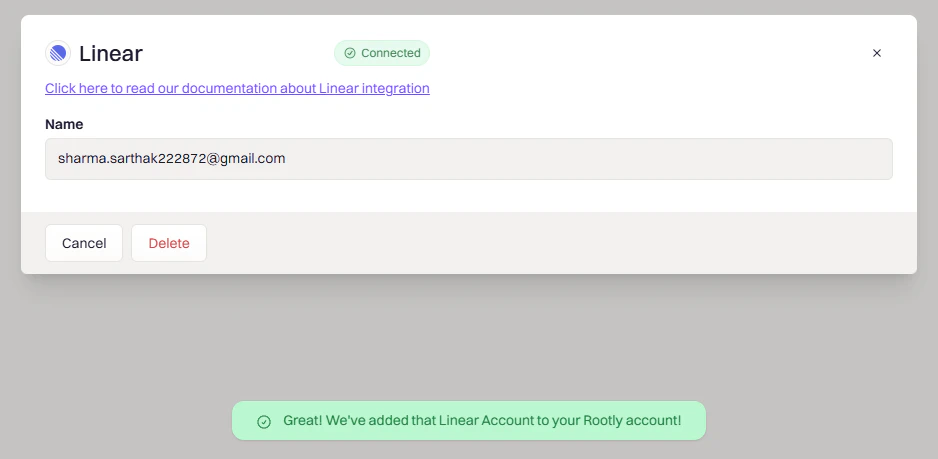
Verify the Connection
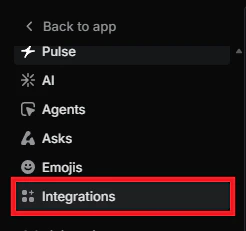
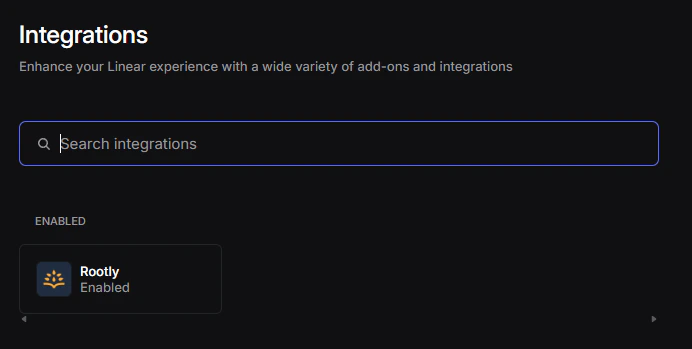
Once connected, it’s worth confirming the integration is active on both sides before building workflows. In Rootly: The integration should show Connected status on the Integrations page. In Linear: Open your workspace menu, go to Settings → Integrations, and confirm Rootly appears in your connected apps list. If it’s missing, the OAuth flow may not have completed successfully — try reconnecting.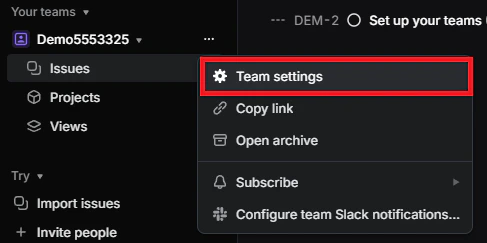
Workflow Actions
Create a Linear Issue
This is the core workflow: whenever an incident is declared in Rootly, a corresponding Linear issue is created automatically with incident data populated into the fields you configure.1
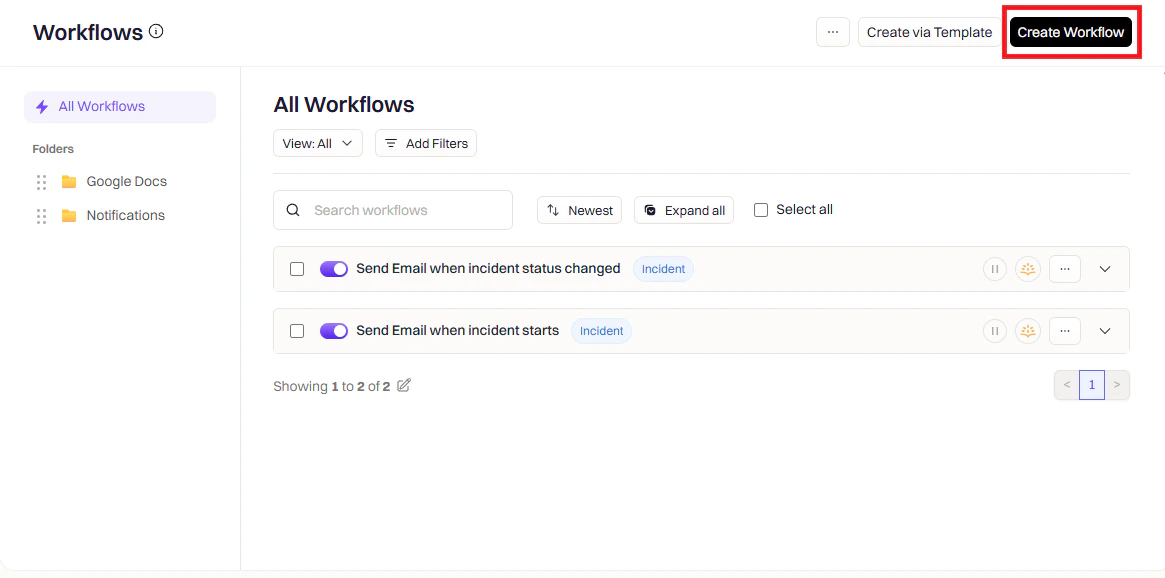
Open Workflows and create a new workflow
Go to Rootly → Workflows → Create Workflow.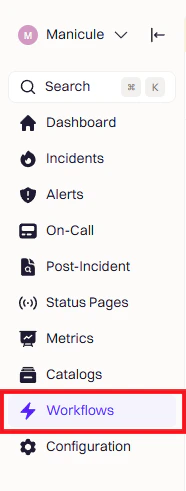
2
Choose a workflow type
Select the event type that should trigger this workflow — for example, Incident, Retrospective, or Pulse.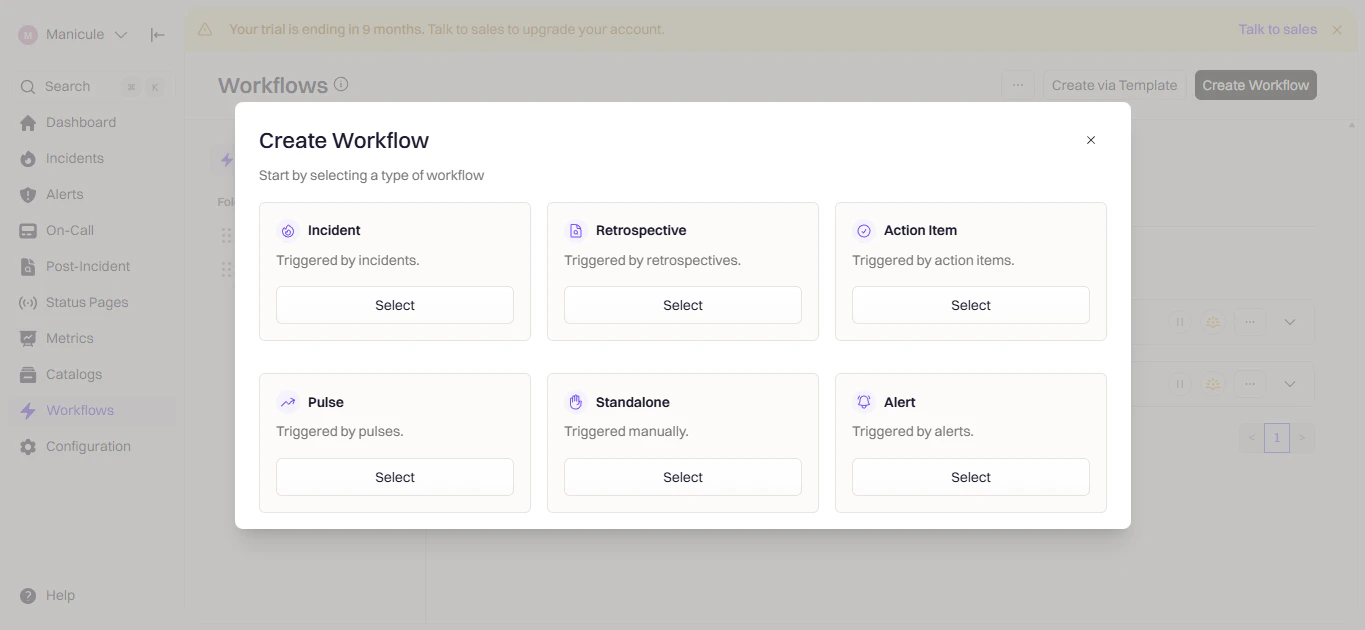
3
Configure triggers
Triggers define when this workflow fires. Choose the event that should kick off Linear issue creation.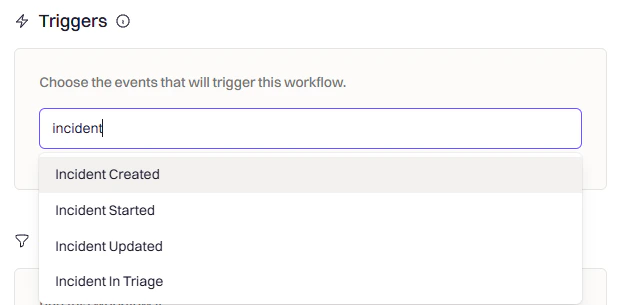
4
Add conditions (optional)
Conditions let you filter which incidents trigger the workflow — for example, only SEV-1 incidents, only specific teams, or only production environments.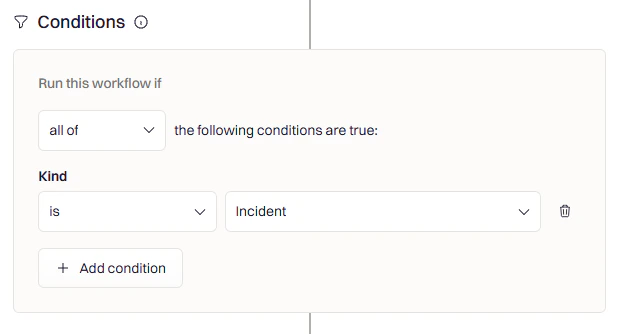
5
Add a Linear action
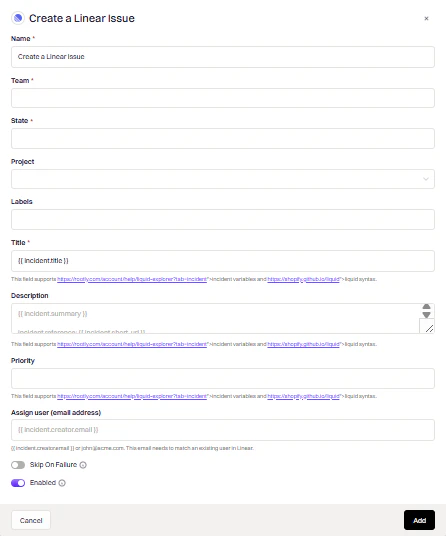
Click Add Action, search for Linear, and select Create Linear Issue.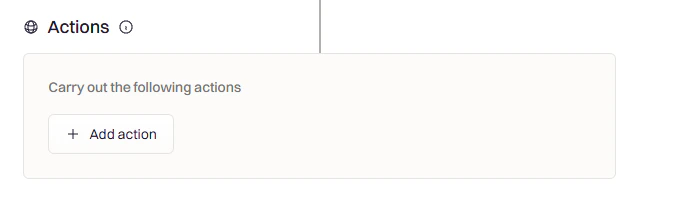
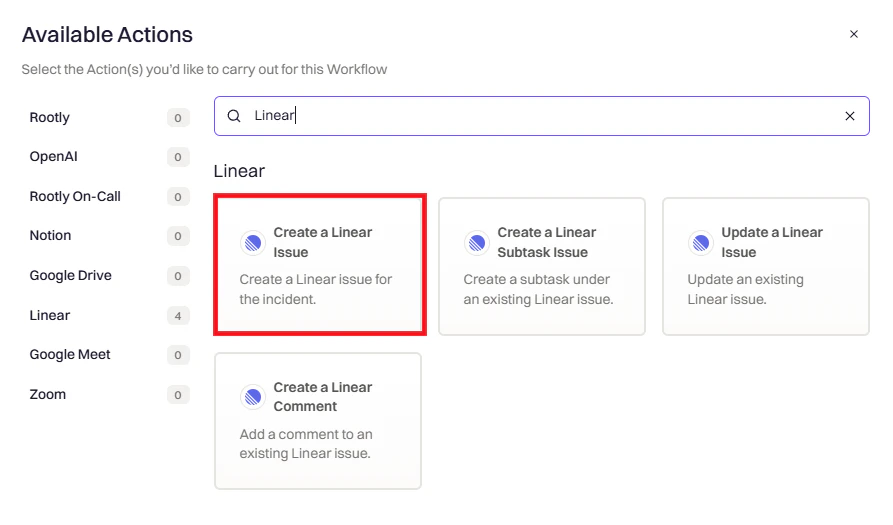
6
Configure the action fields
Fill in the fields to control how the Linear issue is created:
required
The Linear team where the issue will be created.
string
The initial workflow state for the issue — for example, Todo or In Progress.
string
Optional. Associate the issue with a specific Linear project.
array
Add labels to the issue for filtering and triage.
string
The issue title. Supports Liquid — use
{{ incident.title }} to default to the incident title.string
The issue body. Supports Liquid — use
{{ incident.summary }} to populate with the incident summary.string
The issue priority. Select Auto to automatically map incident severity to a corresponding Linear priority, or choose Urgent, High, Medium, or Low manually.
string
Email address of the Linear user to assign the issue to.
string
Optional. Map Linear custom fields using JSON. Values support Liquid, so you can populate Linear fields from Rootly context — in an action item workflow, reference the follow-up’s custom field values:
7
Save the workflow
Click Add, give your workflow a name, and click Create Workflow.
Update a Linear Issue
Use the Update Linear Issue action to keep the Linear issue in sync as the incident progresses — for example, moving it to Done when the incident resolves, or updating priority when severity changes. Configure the action with:string
Use
{{ incident.linear_issue_id }} to reference the issue that was created when the incident was declared.string
Optional. JSON mapping of Linear custom fields, with Liquid support — same format as on the Create Linear Issue action.
- Move to Done when the incident is resolved
- Update priority when severity escalates
- Change assignee as ownership transfers
- Sync a follow-up’s custom field values into Linear custom fields (in action item workflows, via
{{ action_item.custom_fields_by_slug.your-field-slug }})
Create Linear Sub-Issues
To track action items as Linear sub-issues, create a separate workflow triggered by Action Item Created and use the Create Linear Sub-Issue action.string
Use
{{ incident.linear_issue_id }} to nest the sub-issue under the parent incident issue.string
Use
{{ action_item.summary }} to populate the sub-issue title from the action item.Triage Responsibility
Connect Linear’s Triage Responsibility feature to your Rootly on-call schedules so new Linear issues are automatically assigned to whoever is currently on call. This keeps your triage queue aligned with your incident response rotation.1
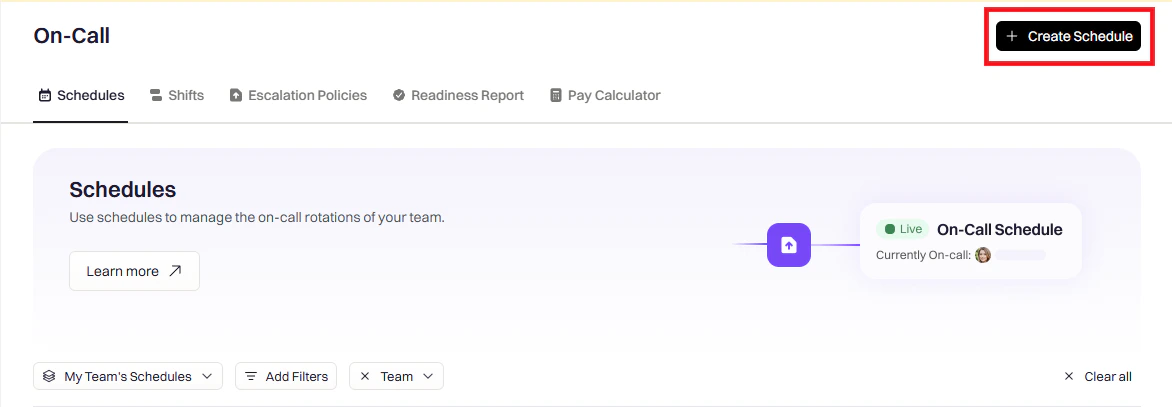
Create a schedule in Rootly
Go to Schedules and click Create Schedule.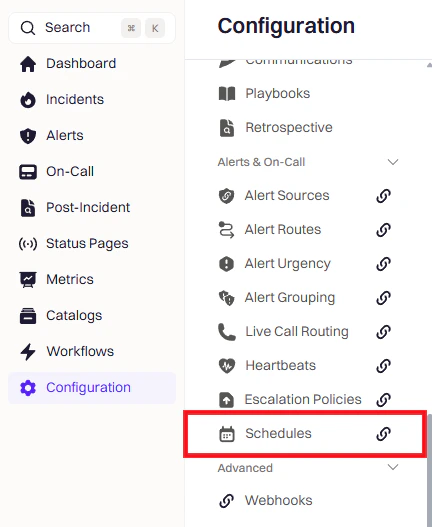
2
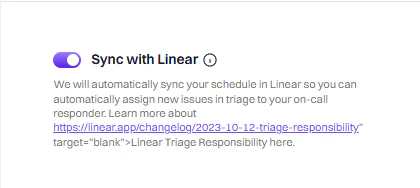
Enable Linear sync on the schedule
In the Integrations tab, toggle on Sync with Linear.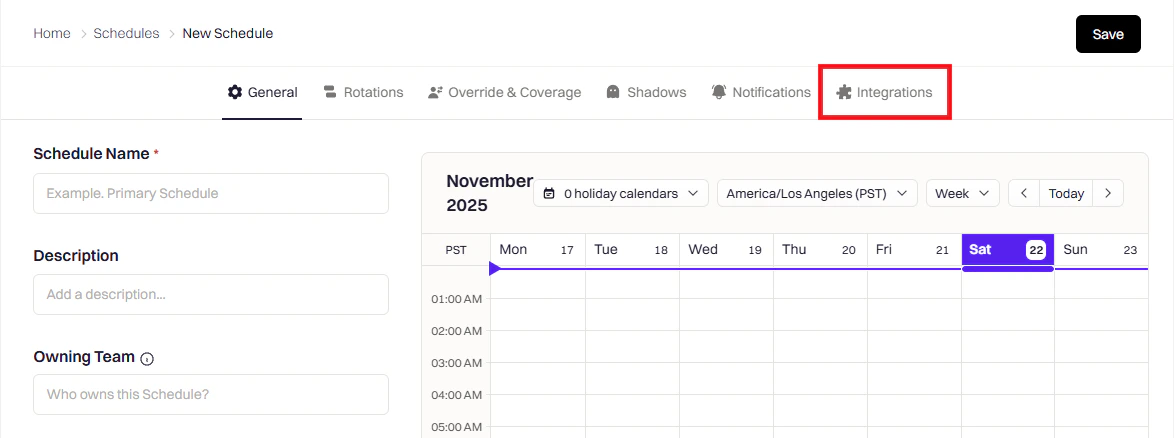
3
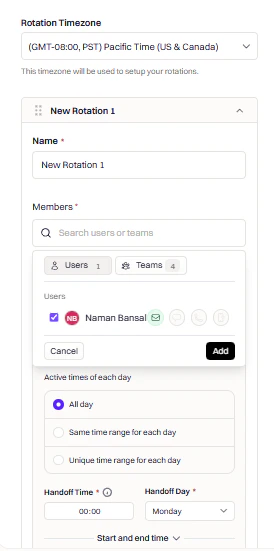
Configure and save the schedule
Give the schedule a name, add members, and click Save.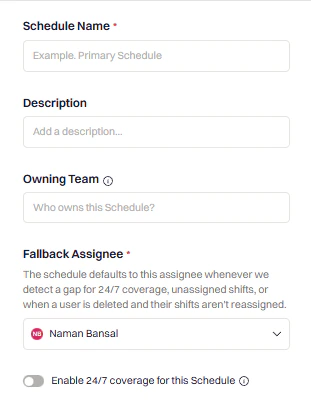
4
Open your team settings in Linear
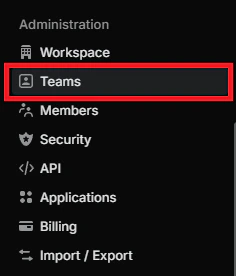
In Linear, navigate to Settings → Teams and select the team you want to configure.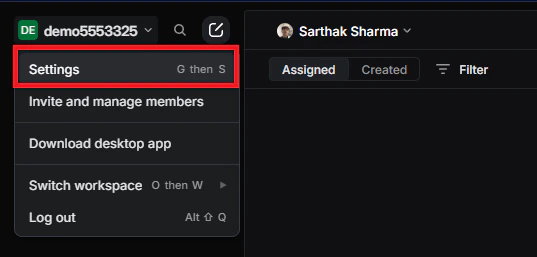

5
Set Triage Responsibility to your Rootly schedule
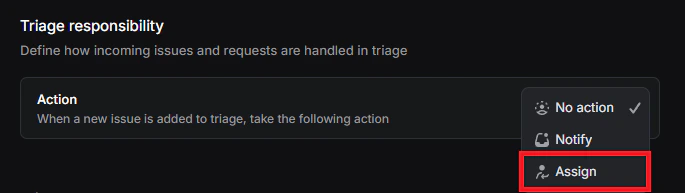
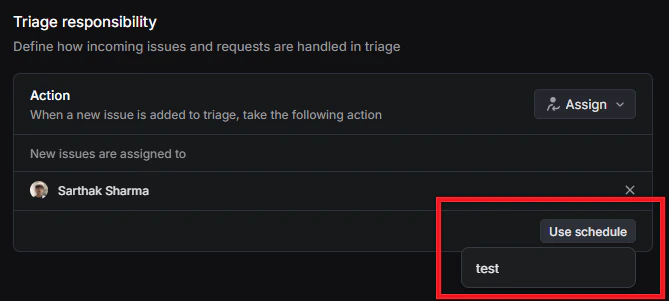
Under Workflow → Triage, find Triage responsibility and select Use schedule. Choose the Rootly schedule you just created.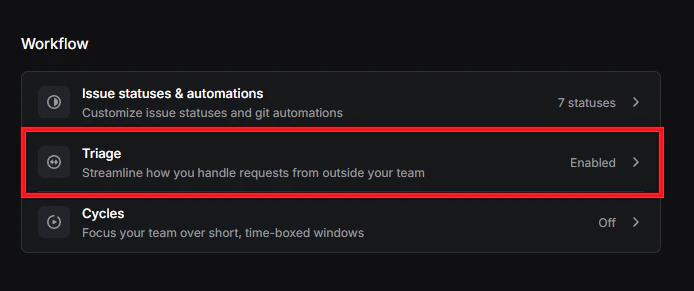
Troubleshooting
Rootly not appearing in Linear integrations
Rootly not appearing in Linear integrations
Confirm you completed the OAuth flow and granted Rootly access to your workspace. In Linear, go to Settings → Integrations and verify Rootly is listed and enabled. If it’s missing or showing an error, disconnect the integration in Rootly and reconnect from scratch — the OAuth token may have expired or been revoked.
No teams or projects available during setup
No teams or projects available during setup
You must be a member of at least one Linear team with write permissions — read-only roles won’t allow issue creation. If your workspace uses restricted teams, a Linear admin needs to add you before you can proceed. After your permissions are updated, restart the authorization flow so Linear returns the correct team list.
Uninstall
To remove the Linear integration, go to Configuration → Integrations, find Linear, and click the Connected button to reveal the disconnect option.