

Prerequisites
We recommend connecting with a service account rather than a personal account. This ensures the integration stays active if team members leave your organization.
Part 1: Connect via OAuth
The OAuth flow grants Rootly permission to interact with your Microsoft Teams workspace through the API. You’ll be redirected to Microsoft to sign in and approve the required permissions, then returned to Rootly automatically.1
Open Integrations
In Rootly, go to Configuration → Integrations and search for Microsoft Teams.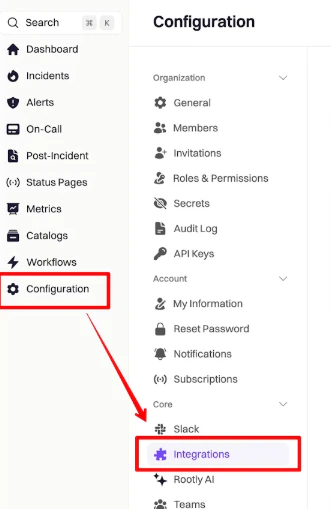
2
Start Setup
Click Setup on the Microsoft Teams integration to begin the OAuth flow.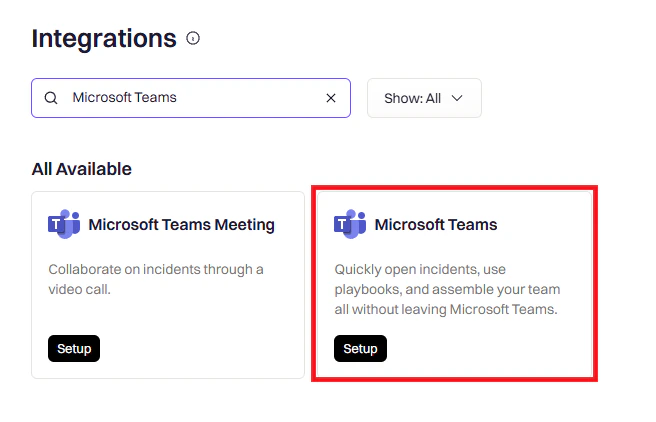
3
Sign in to Microsoft
You’ll be redirected to Microsoft. Select your Microsoft 365 work account — this should be the service account you intend to use for the integration.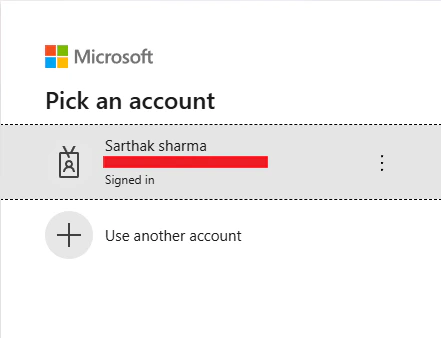
4
Review and approve permissions
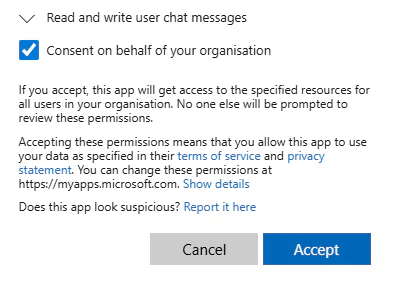
Microsoft will show you the permissions Rootly is requesting. Review them and click Accept to grant access.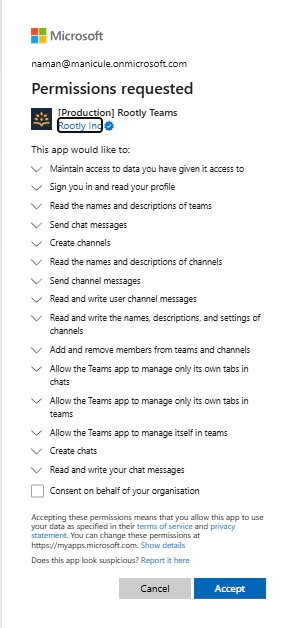
5
Confirm connection
After approving, you’ll be redirected back to Rootly. A success message confirms the integration is connected.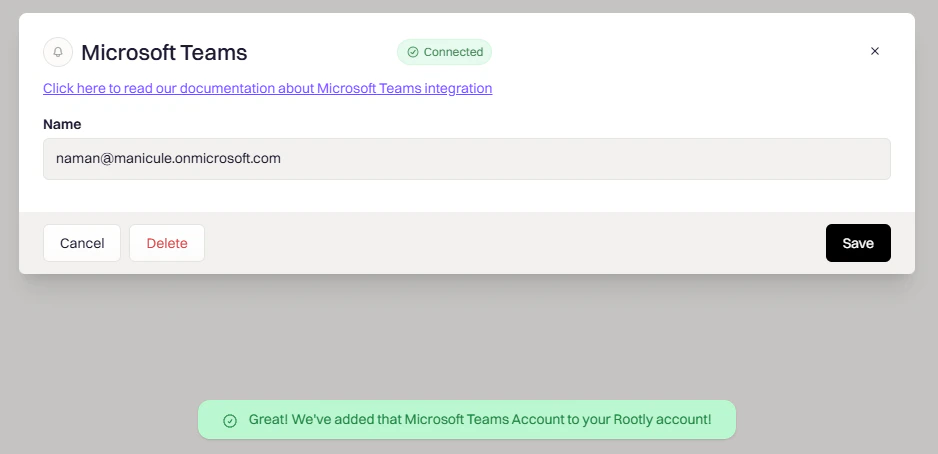
Microsoft Teams is now connected to Rootly.
Required OAuth Permissions
View all OAuth scopes
View all OAuth scopes
Part 2: Install the Rootly Bot
OAuth gives Rootly API access, but channel creation and messaging also require the Rootly bot to be present inside Microsoft Teams. Without the bot installed, workflows that create channels or send messages will fail. You install it directly from the Teams app store.1
Open Apps in Teams
In Microsoft Teams, click Apps in the left sidebar and search for Rootly.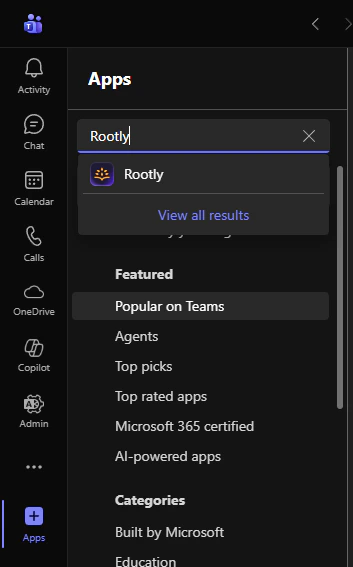
2
Add Rootly
Click Add on the Rootly app listing.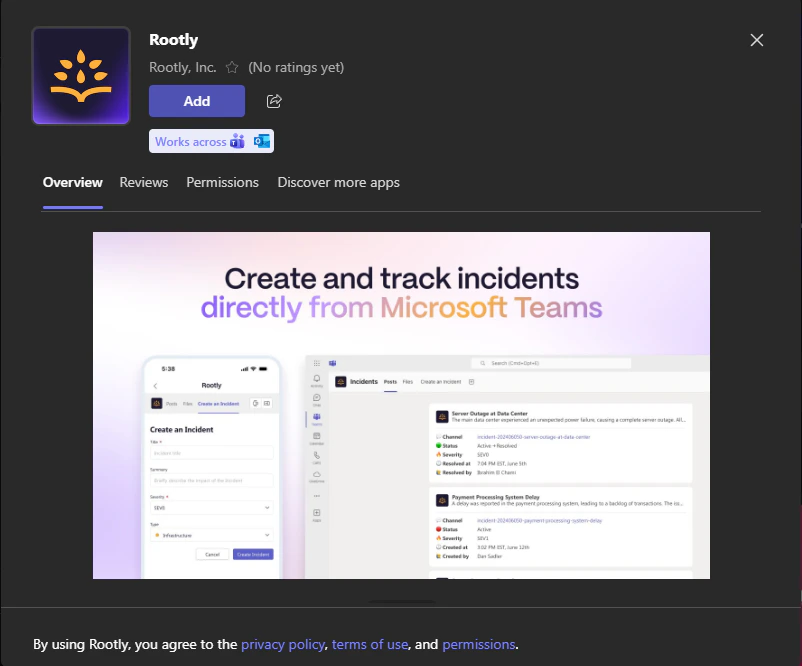
3
Choose a team
Select the team where you want to install Rootly. We recommend starting with the General channel of your primary incident response team.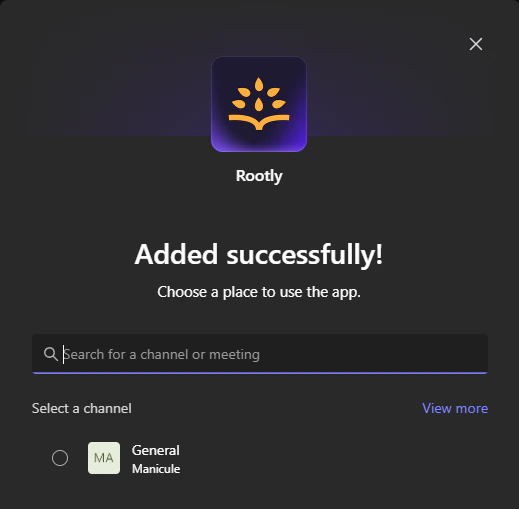
4
Installation complete
The Rootly bot is now installed in your team and ready to create channels and send messages.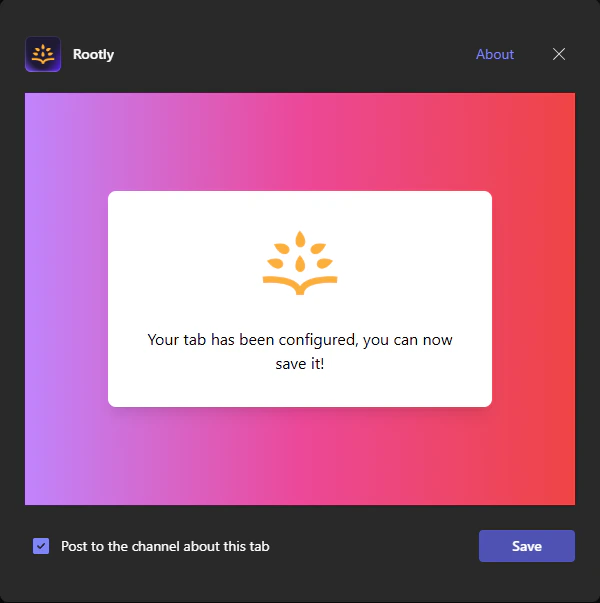
You’ll need to repeat the bot installation for each team where you want Rootly to create incident channels. The service account must be a member of each team.
Verify Installation
Once both parts are complete, confirm everything is working before setting up workflows:- Check Rootly — The integration status shows Connected on the integrations page
- Check Teams — The Rootly app appears in your team’s installed apps
- Test end-to-end — Create a test incident in Rootly and verify a Teams channel is created automatically
Microsoft Teams Meeting
The Microsoft Teams Meeting integration is a separate OAuth connection that enables creating video meetings directly from Rootly incidents. It uses a different set of permissions than the main Teams integration and must be connected independently — even if you’ve already set up the main Teams integration. Once connected, a Create a Microsoft meeting button appears in the incident header, letting anyone on the response team spin up a live video call with one click.Setup
- Go to Configuration → Integrations and search for Microsoft Teams Meeting
- Click Setup and sign in with your Microsoft 365 work account
- Approve the requested permissions
- Once connected, the Create a Microsoft meeting button will appear on every incident
We recommend connecting with a service account so the meeting integration stays active if a user leaves your organization.
Required OAuth Permissions
Uninstall
- Log into your Microsoft Teams Meeting account
- Click Manage → Installed Apps or search for the Rootly app
- Click the Rootly app and click Uninstall
Uninstall
To remove the main Microsoft Teams integration from Rootly:- Go to Configuration → Integrations and find Microsoft Teams
- Click Connected to reveal the disconnect option
- Click Disconnect
Troubleshooting
Rootly not showing in Microsoft Teams
Rootly not showing in Microsoft Teams
After completing OAuth, Rootly doesn’t appear as a connected app in Teams.Solutions:
- Verify you completed OAuth using the same email as your Teams account
- Make sure Rootly was installed in a specific team, not just your personal app space
- Try uninstalling and reinstalling the Rootly app from the Teams store
- Check if your organization restricts third-party app installations — a Microsoft 365 admin may need to approve Rootly
Cannot add Rootly to a team
Cannot add Rootly to a team
Teams shows an error when trying to add Rootly to a team.Solutions:
- Ensure you have owner or admin permissions in the team
- Ask a Team Owner or Microsoft 365 admin to approve the Rootly app
- Verify that third-party app installations are enabled in your Microsoft 365 admin center
Email not associated with account
Email not associated with account
Teams reports that the signed-in email isn’t linked to a Rootly account.Solutions:
- Verify the OAuth email matches exactly the email registered in Rootly
- Confirm this email exists as a user in Rootly
- Add the email under Rootly → Organization Settings → Members if needed
- Disconnect and reconnect the Microsoft Teams integration
Channels not being created
Channels not being created
Workflows run successfully but no Teams channels appear.Solutions:
- Verify the Rootly bot is installed in the specific team referenced in the workflow action
- Check workflow run logs for errors: Workflows → Your Workflow → … → View Runs
- Confirm the team name in the workflow action exactly matches the team in Teams