

- Import, link, and sync services from PagerDuty into Rootly
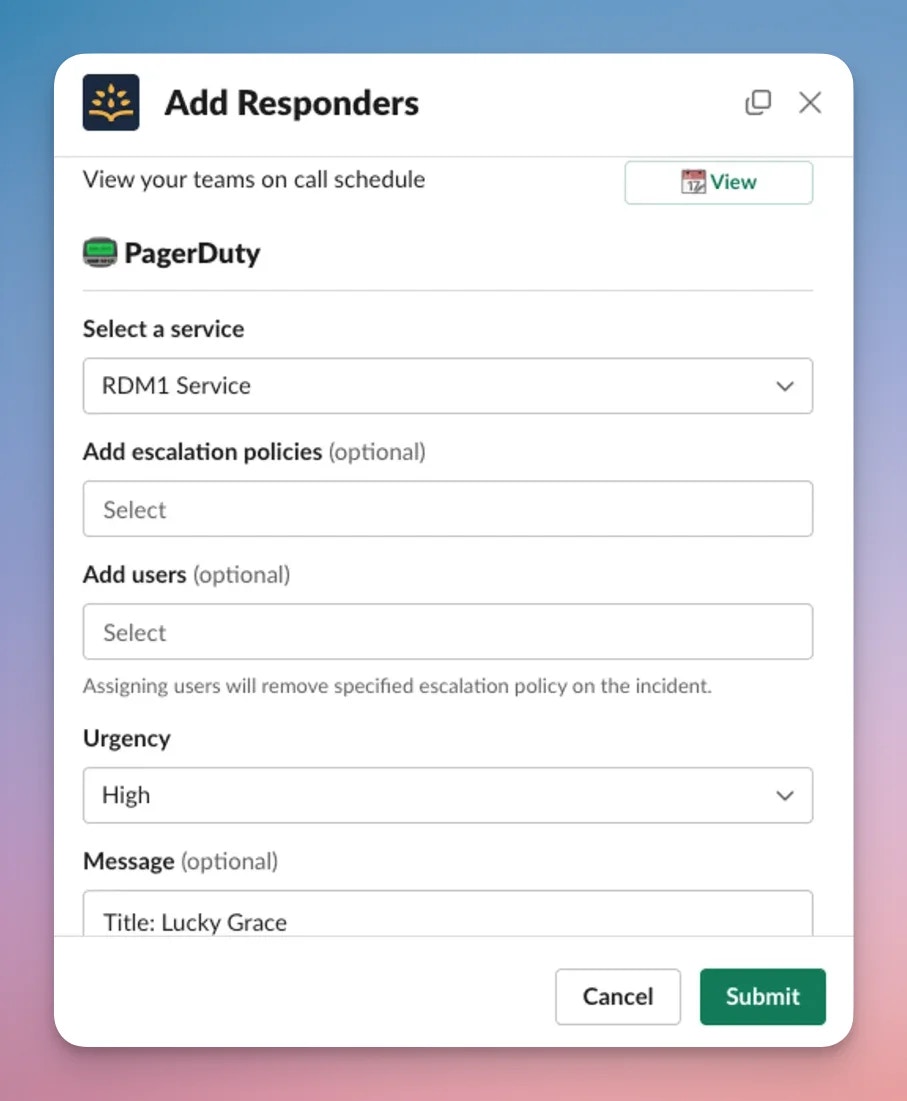
- View on-call personnel directly from Slack
- Page PagerDuty services, escalation policies, and users from Rootly
- Invite on-call responders into incidents and assign incident roles automatically
- Keep key incident and alert activity aligned between Rootly and PagerDuty
- Ingest supported PagerDuty webhook events as Rootly alerts
Before You Begin
Before setting up the PagerDuty integration, make sure you have:- A Rootly account with permission to manage integrations
- A PagerDuty account with access to authorize integrations
- The services, escalation policies, or users you want Rootly to page
- Slack connected as well, if you want to use Slack-based on-call and paging flows
PagerDuty Permissions
PagerDuty permissions in Rootly are tied to the PagerDuty user who completes the OAuth connection. That means Rootly can only read from and write to the PagerDuty objects that the authenticated PagerDuty user has access to. Choose the PagerDuty account carefully, and use a service account when possible so the integration remains stable over time.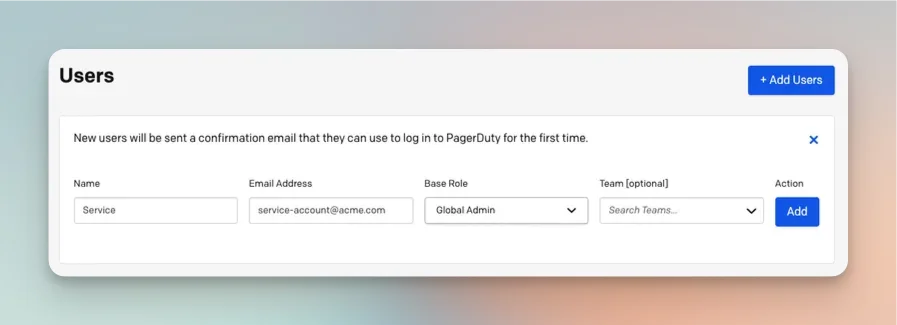
Installation
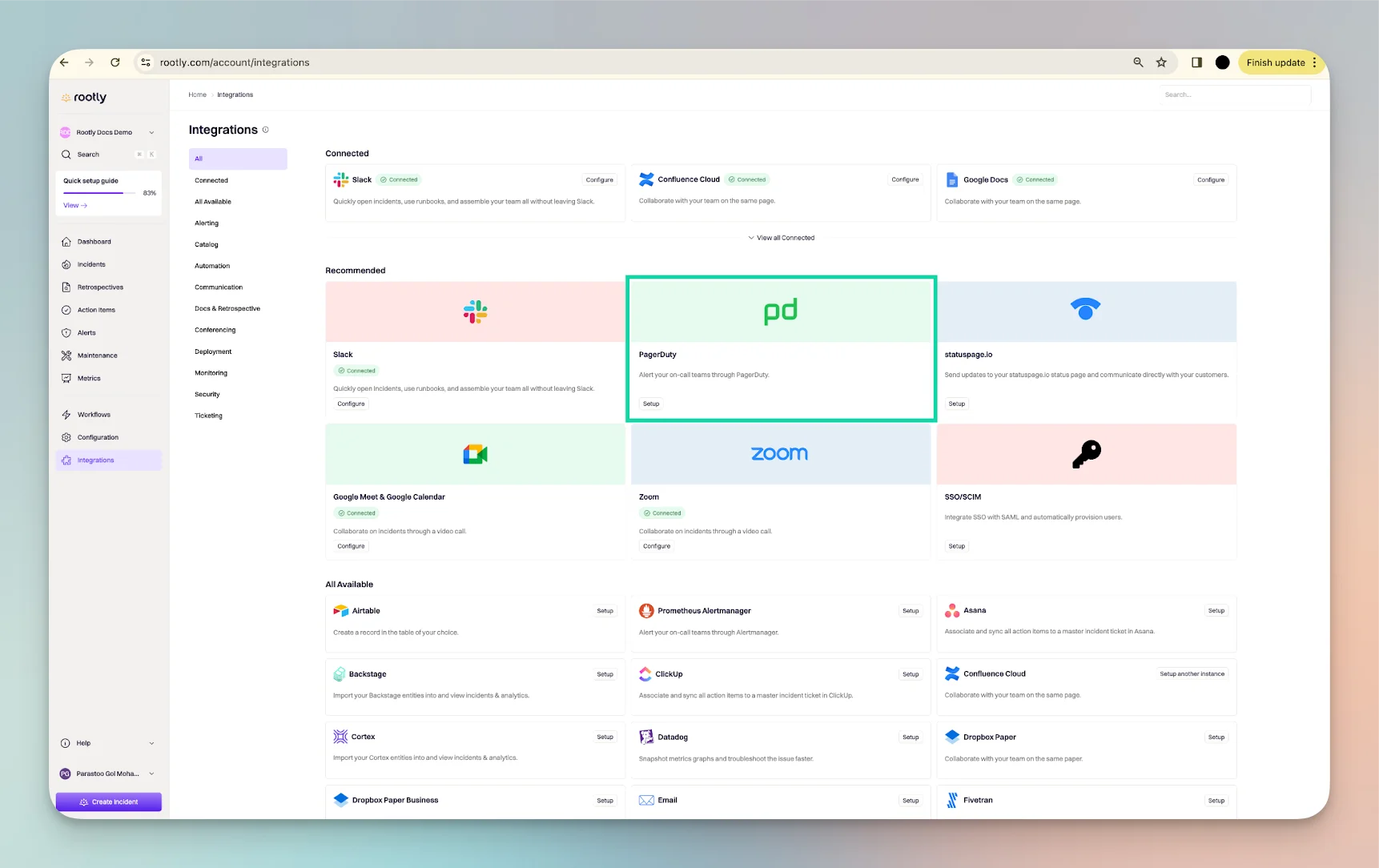
Open PagerDuty in the integrations catalog
Sign in to PagerDuty
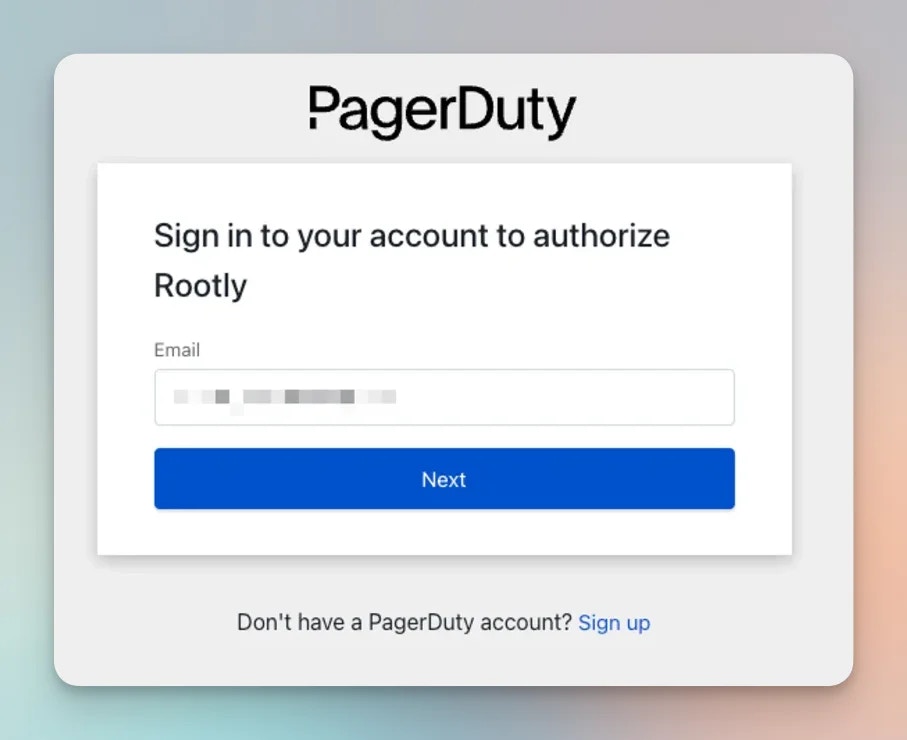
Authorize Rootly in PagerDuty
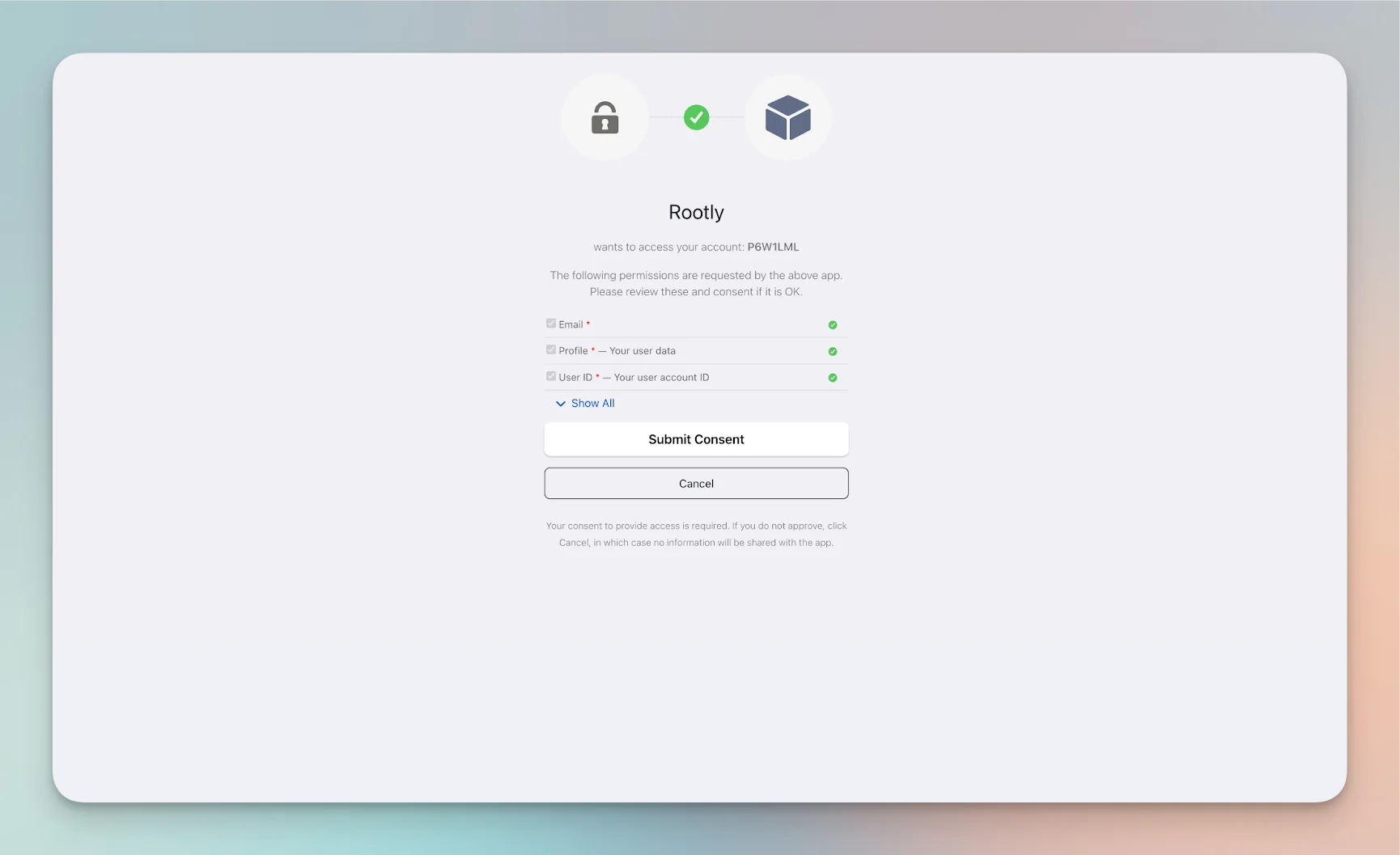
Complete the installation
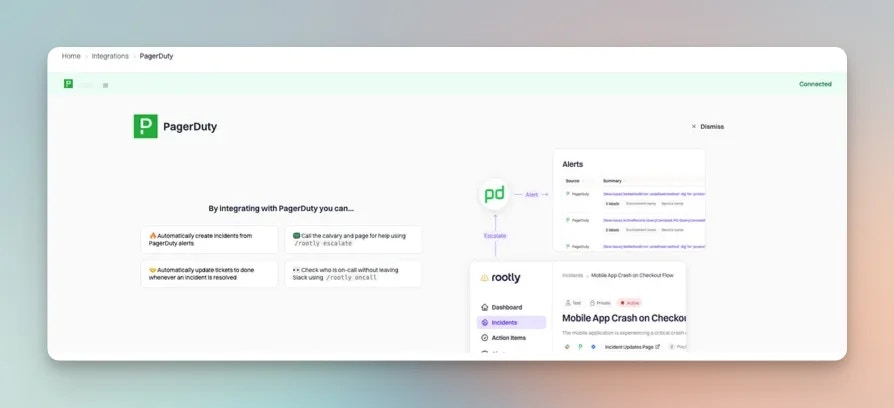
Set Up PagerDuty Webhooks
PagerDuty webhooks allow Rootly to receive supported PagerDuty webhook events for alerts and incident-related activity.Via the PagerDuty Web UI
Open Generic Webhooks in PagerDuty
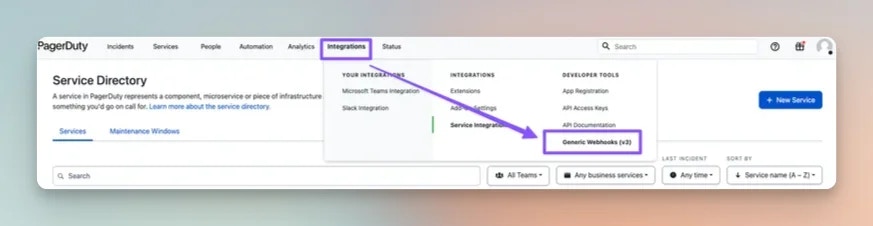
Create a new webhook
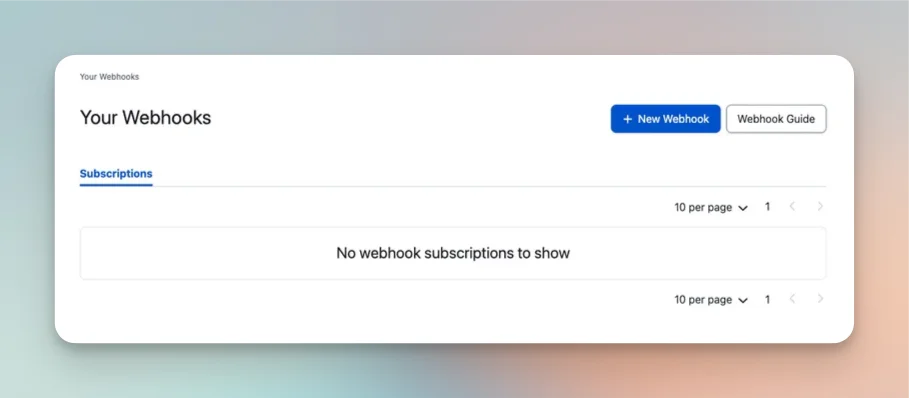
Enter the Rootly webhook settings
- Webhook URL:
https://webhooks.rootly.com/webhooks/incoming/pagerduty_webhooks - Scope Type: Choose one of:
Service— only events for the selected service are sent to RootlyTeam— only events for the selected team are sent to RootlyAccount— events across the PagerDuty account are sent to Rootly
- Description: Optional
- Custom Header Name:
secret - Custom Header Value:
<secret>
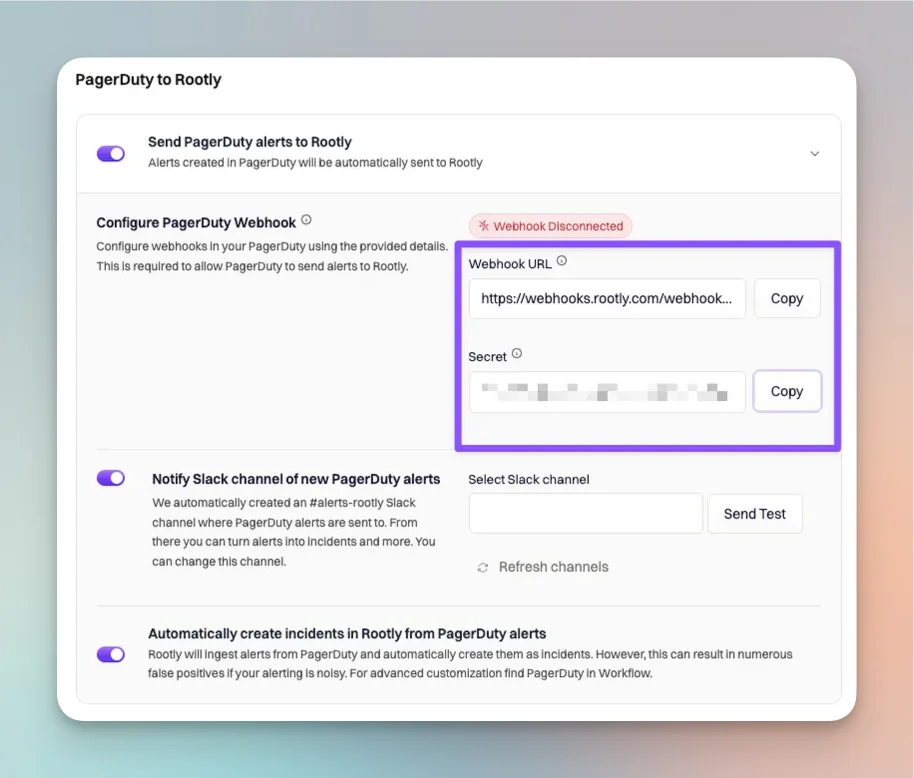
secret value is unique to your Rootly account.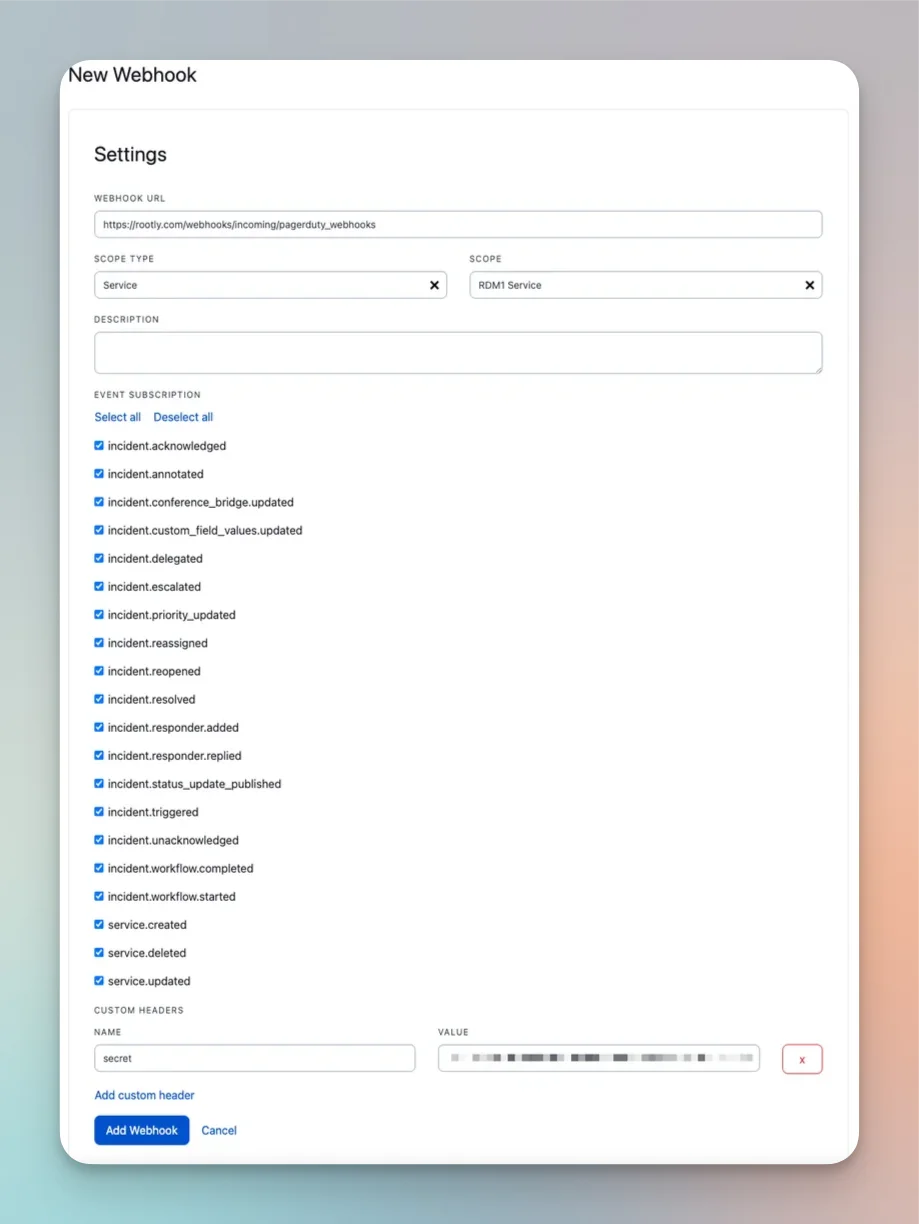
Choose webhook event subscriptions
Finish the webhook setup
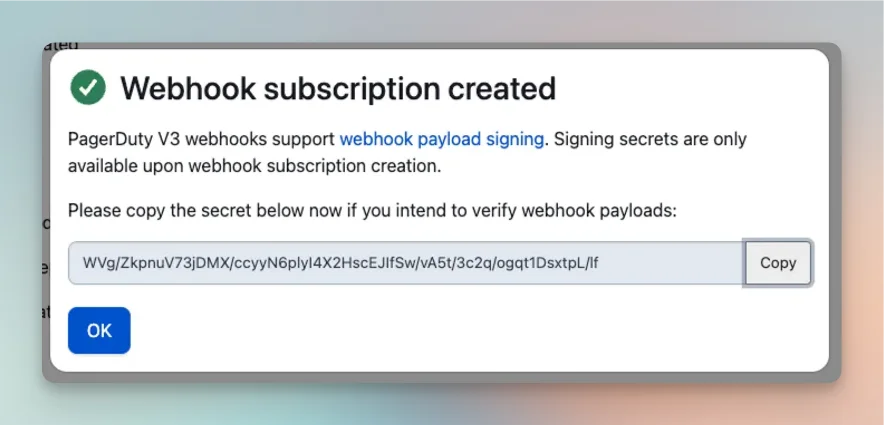
Via the PagerDuty API
PagerDuty webhooks can also be created through the PagerDuty API. Use the same Rootly endpoint and secret shown in the web UI setup:- URL:
https://webhooks.rootly.com/webhooks/incoming/pagerduty_webhooks - Header:
secret: <TOKEN>
Smart Defaults
Smart Defaults help teams get started with the PagerDuty integration faster by preconfiguring common behaviors that would otherwise require manual workflow setup. This is useful for teams that want a simpler PagerDuty setup in Rootly without having to build every automation from scratch on day one. Smart Defaults cover two directions of activity:- Rootly to PagerDuty for paging, inviting responders, and resolving linked PagerDuty incidents
- PagerDuty to Rootly for alert ingestion, Slack notifications, incident creation, and sync-related behaviors
Rootly to PagerDuty
The first section of Smart Defaults controls actions that begin in Rootly and trigger behavior in PagerDuty.Open the Rootly to PagerDuty settings
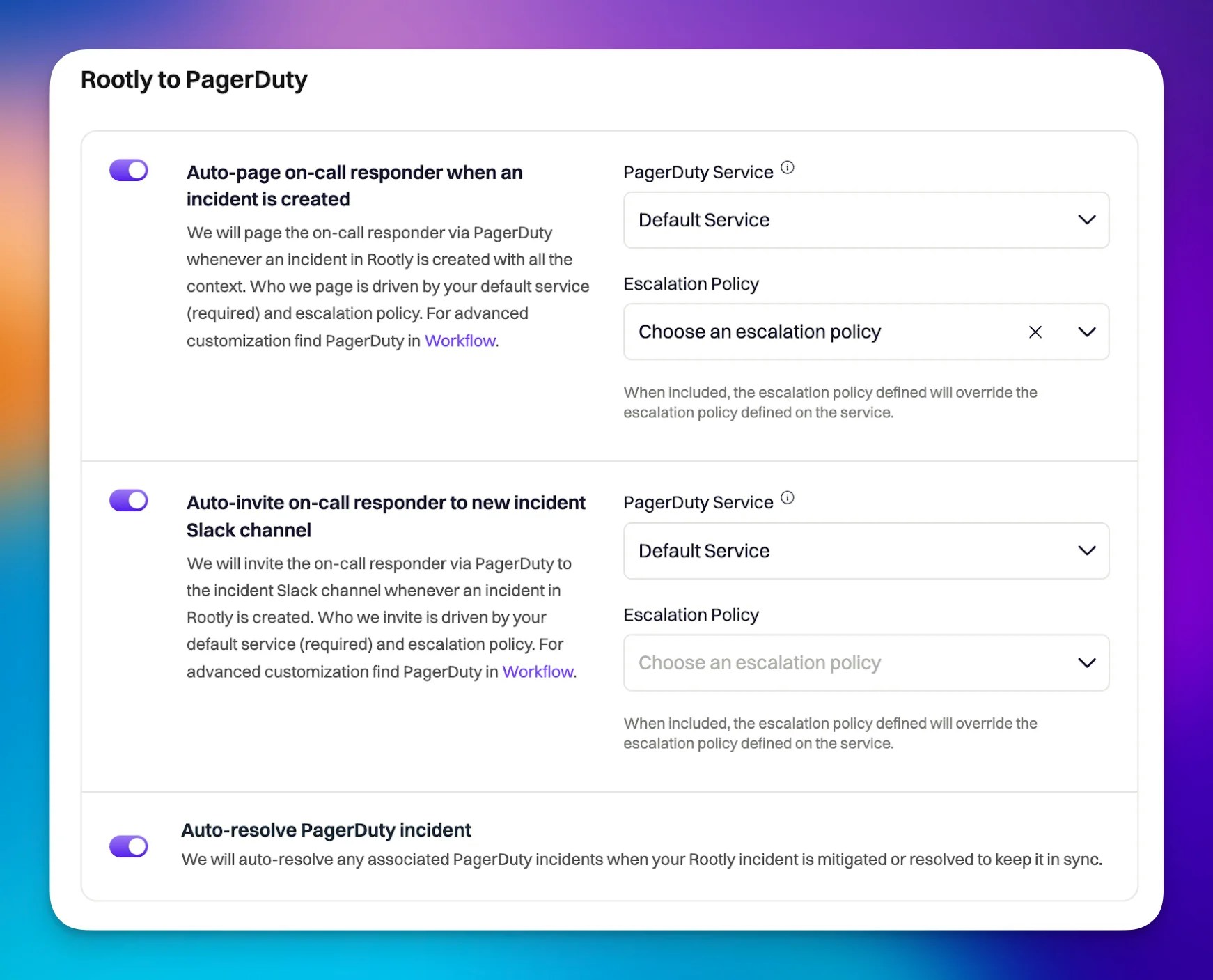
Configure automatic paging on incident creation
Configure automatic Slack invitations for on-call responders
Configure automatic resolution of linked PagerDuty incidents
PagerDuty to Rootly
The second section of Smart Defaults controls actions that begin in PagerDuty and affect Rootly.Open the PagerDuty to Rootly settings
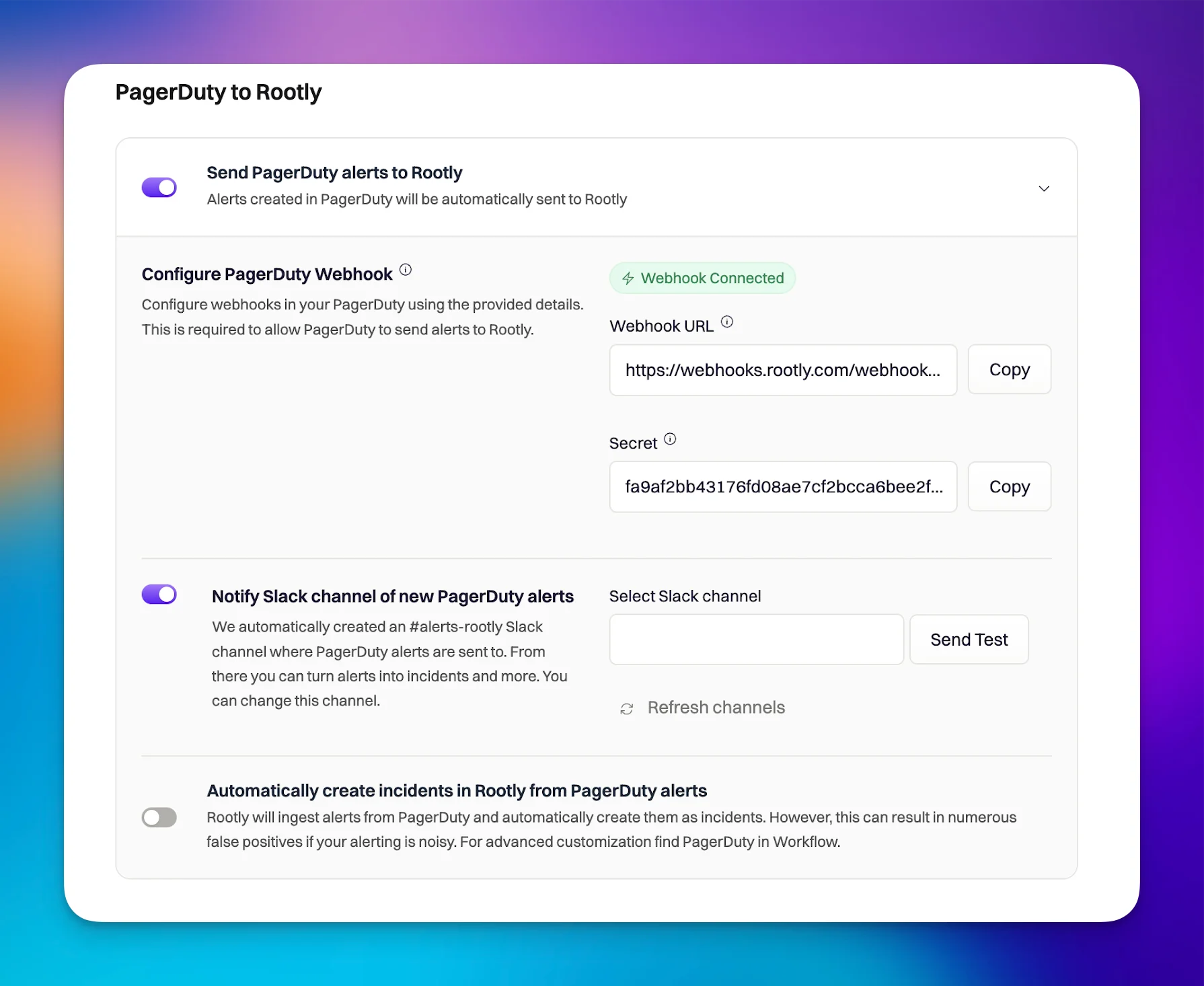
Send supported PagerDuty alerts to Rootly
Notify a Slack channel when PagerDuty alerts arrive
Automatically create incidents from PagerDuty alerts
Additional PagerDuty Settings
Depending on your configuration, the PagerDuty integration can also include additional settings for:- Default PagerDuty incident title and description values
- Service and team sync or import behavior
- Other PagerDuty-to-Rootly coordination options
Smart Defaults Notes
- Smart Defaults simplify common PagerDuty use cases, but they do not replace every possible custom workflow
- Some Smart Default settings depend on Slack being connected in Rootly
- PagerDuty services and escalation policies used in these settings are imported from your PagerDuty workspace
- Automatically creating incidents from PagerDuty alerts should be reviewed carefully before enabling in production
Import Teams
You can import PagerDuty teams into Rootly teams from the Teams page. This is useful when you want to align your Rootly team structure with your existing PagerDuty configuration. Once imported, Rootly can use the team relationship during incident workflows, escalation actions, and on-call lookups.Workflow Actions
The following workflow actions are available for the PagerDuty integration.Page PagerDuty On-Call
Use this action to page an on-call responder through PagerDuty. In practice, this creates or updates a PagerDuty incident from the Rootly incident.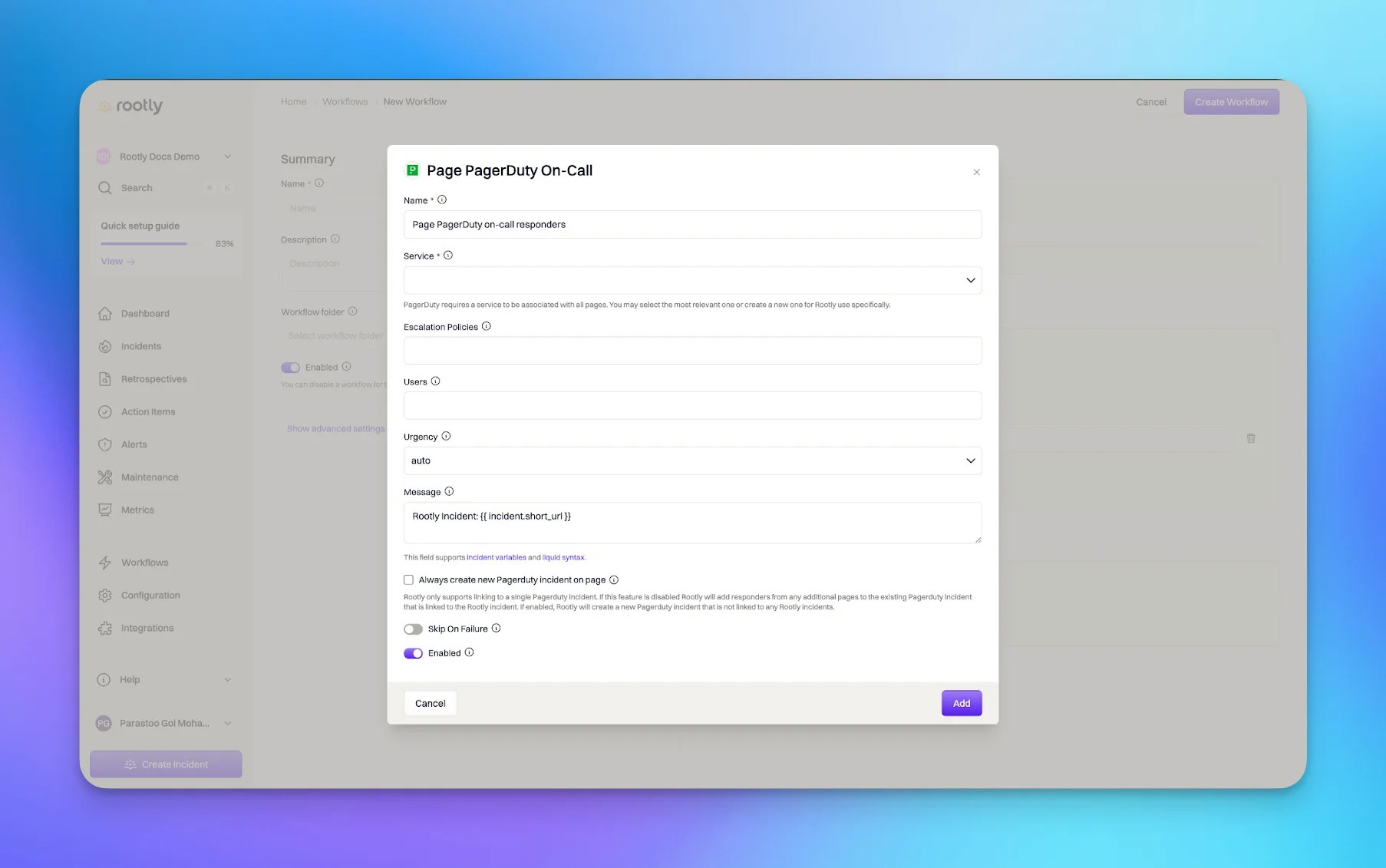
Choose the PagerDuty service or responder target
Optionally target an escalation policy or specific users
Set the PagerDuty incident details
- Title
- Urgency
- Message
Choose whether to reuse or create a new PagerDuty incident
AutoAssign Role from On-Call
Use this action to assign the current PagerDuty on-call responder to an Incident Role in Rootly.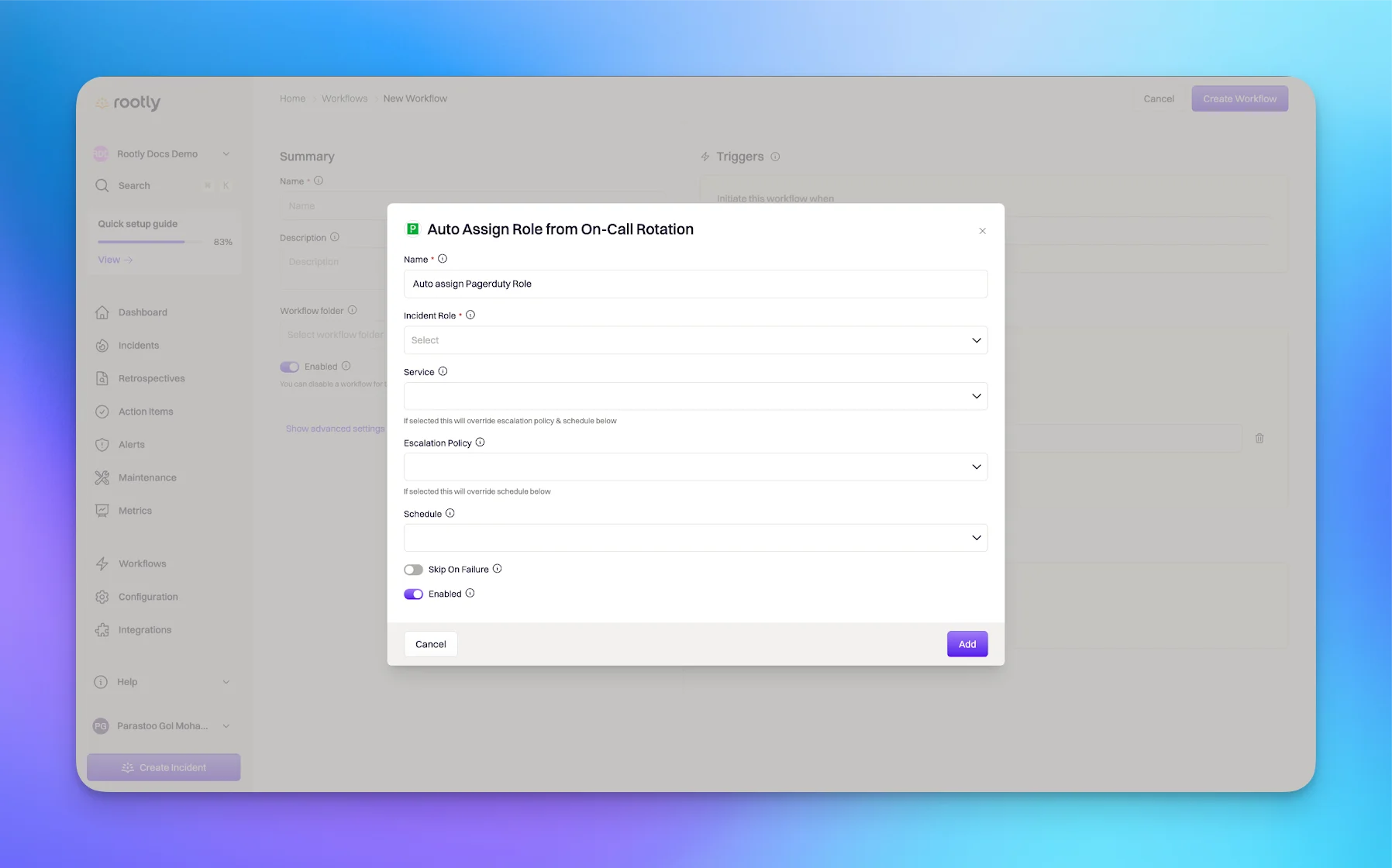
Choose the Incident Role
Choose exactly one PagerDuty lookup source
- A Service
- An Escalation Policy
- A Schedule
Understand how escalation policy assignment works
Invite On-Call to Slack Channel
Use this action to invite PagerDuty on-call responders into Slack channels.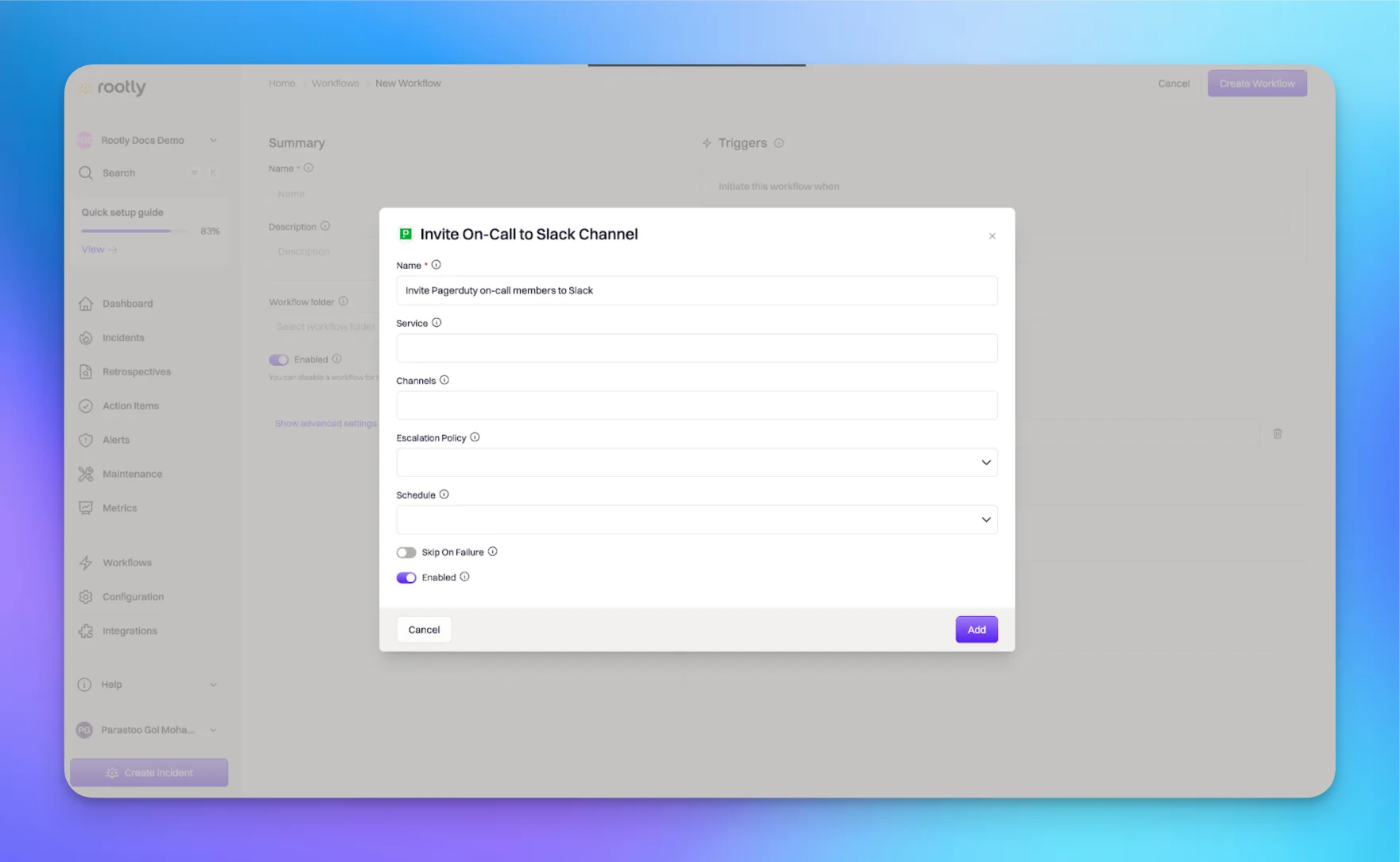
Choose exactly one PagerDuty lookup source
- A Service
- An Escalation Policy
- A Schedule
Choose the Slack channels
{{ incident.slack_channel_id }}for the current incident channel{{ parent_incident.slack_channel_id }}for the parent incident channel
Understand who gets invited
Update PagerDuty Incident
Use this action to update an existing PagerDuty incident linked to the Rootly incident.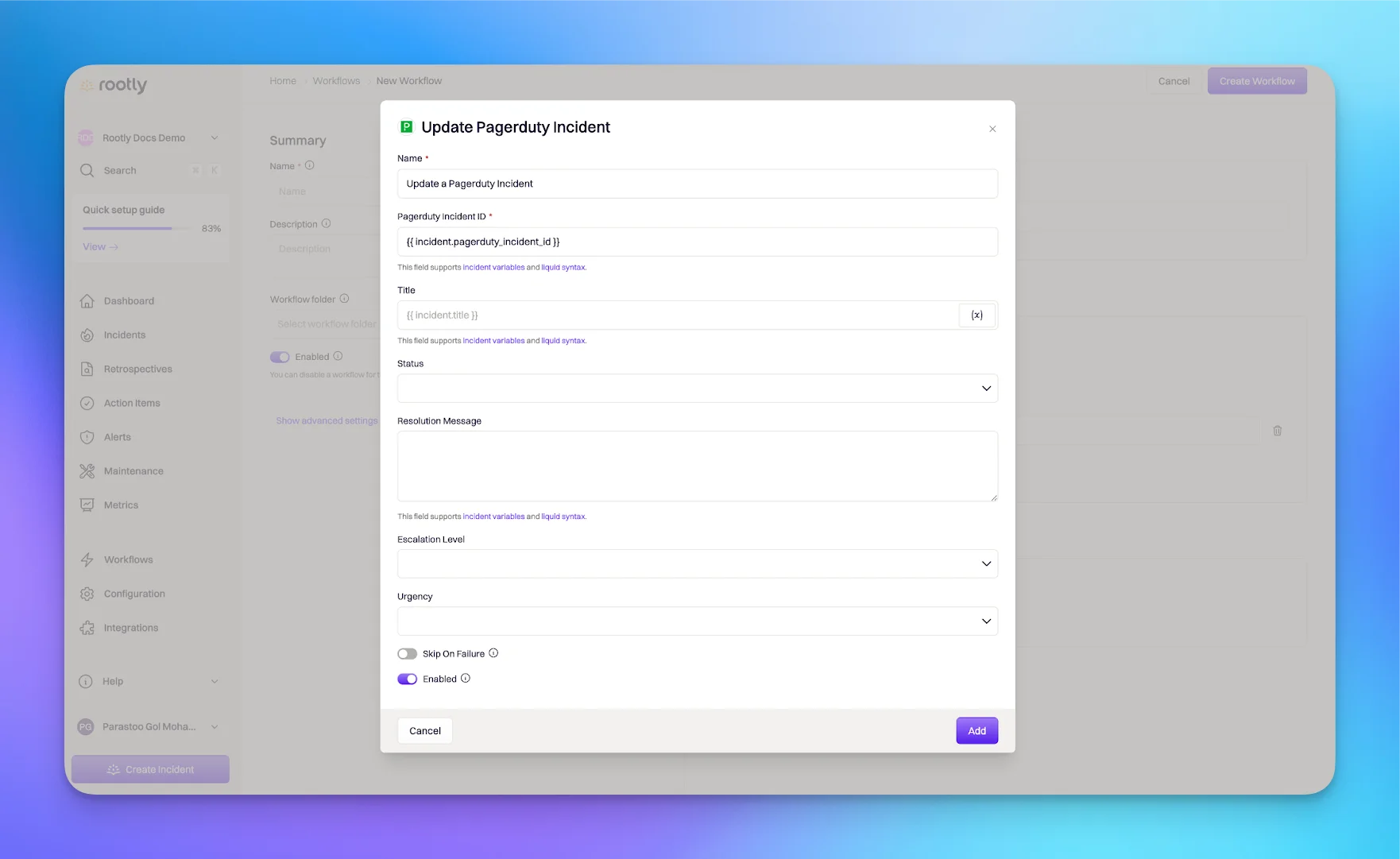
Reference the linked PagerDuty incident
{{ incident.pagerduty_incident_id }} to reference the PagerDuty incident linked to the Rootly incident.Update the incident details
- Title
- Status
- Urgency
- Priority
- Escalation Level
auto if you want PagerDuty status behavior to follow Rootly status logic.Add a resolution message when resolving
Create PagerDuty Status Update
Use this action to add a status update message to the linked PagerDuty incident.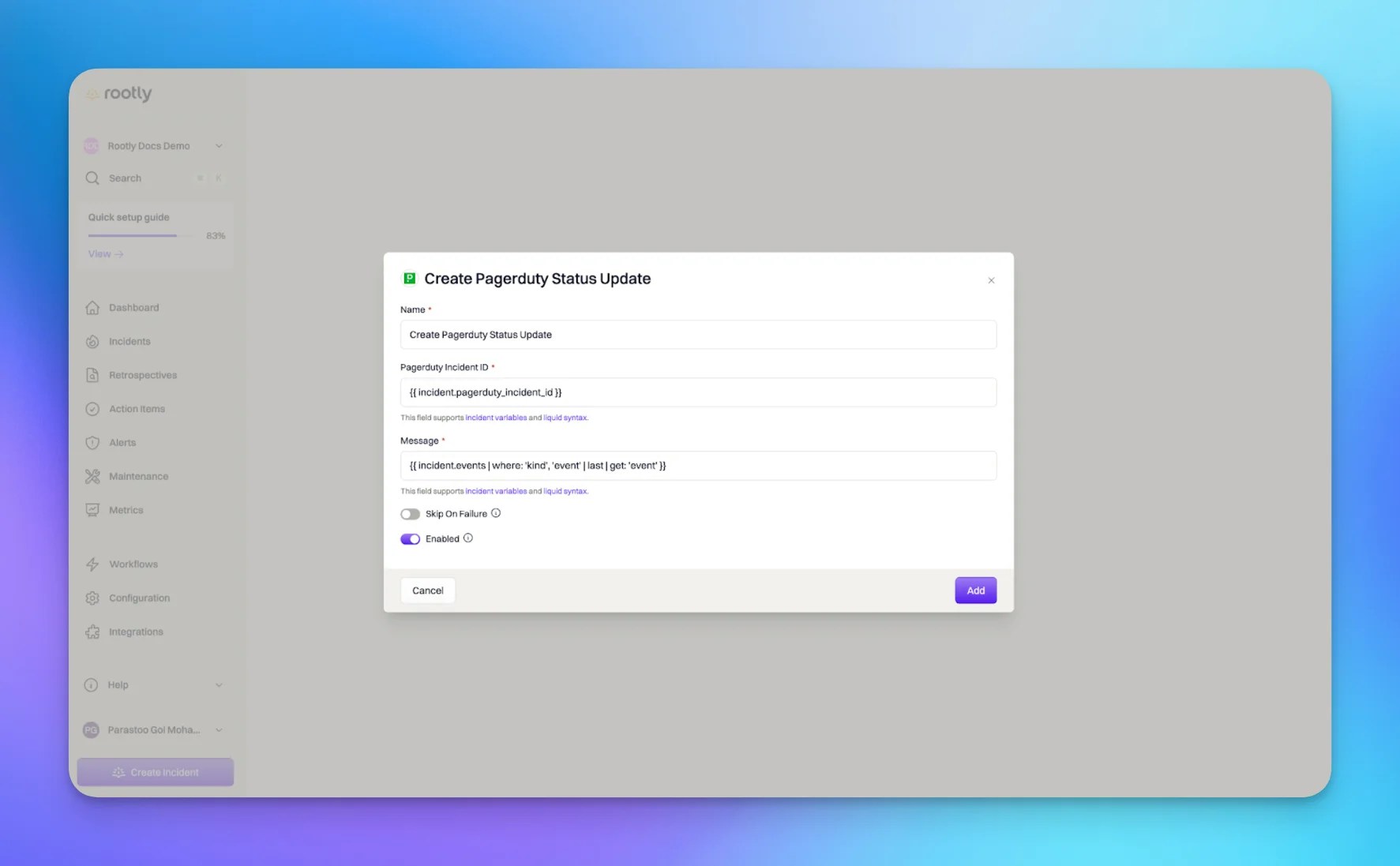
Reference the linked PagerDuty incident
{{ incident.pagerduty_incident_id }} to target the linked PagerDuty incident.Compose the status update message
Workflow Notes
- Workflow actions can be combined to page, invite, assign, and synchronize activity across Rootly and PagerDuty
- Some PagerDuty actions depend on the PagerDuty plan and permissions of the connected account
- Rootly links only one PagerDuty incident to each Rootly incident
- Advanced teams can combine these actions with broader Rootly workflow conditions and branching logic
Alert Ingestion
Rootly can ingest supported PagerDuty webhook events as alerts. These alerts can then be used to drive incident automation, alert workflows, and incident updates in Rootly. The steps below cover configuring ingestion and the automation it drives.Set Up the Workflow
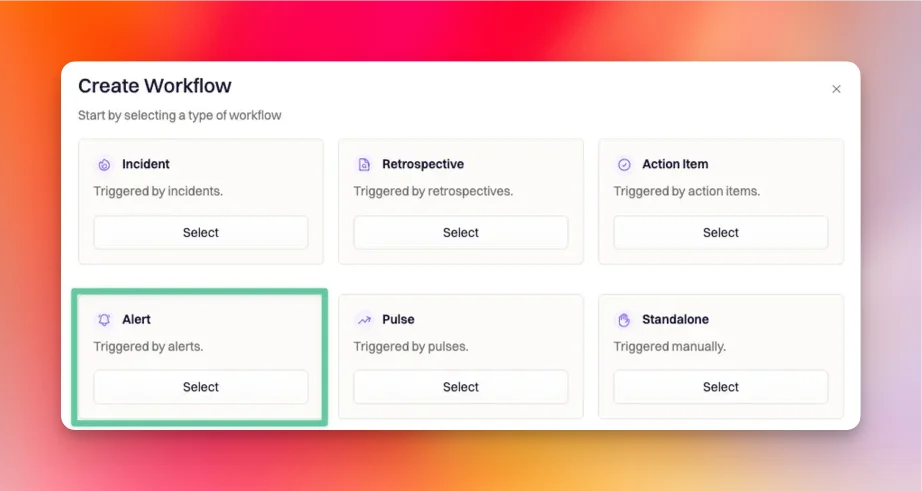
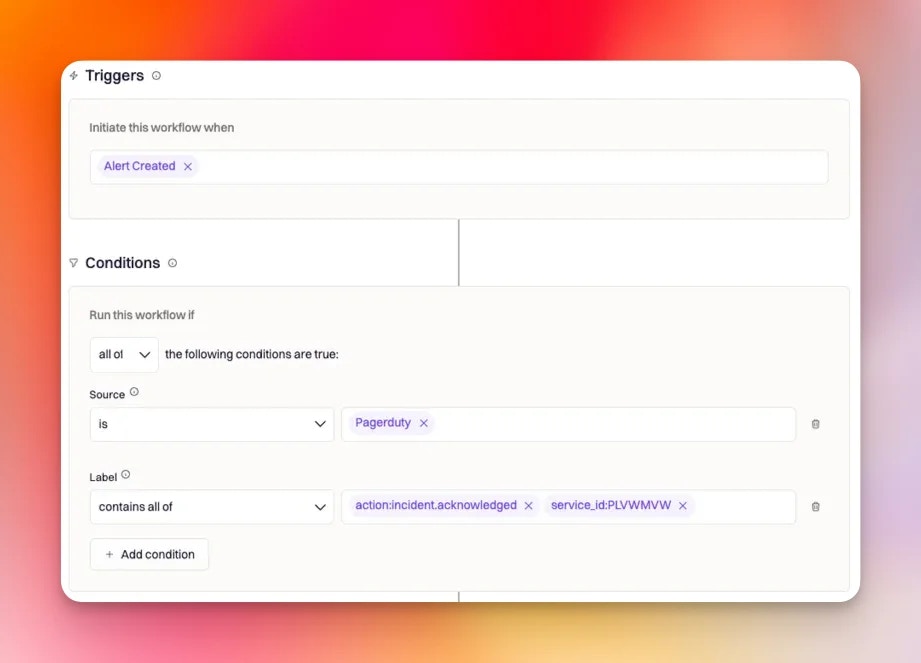
PagerDuty events are ingested into Rootly as alerts, so the correct workflow type is Alert.Choose the Alert workflow type
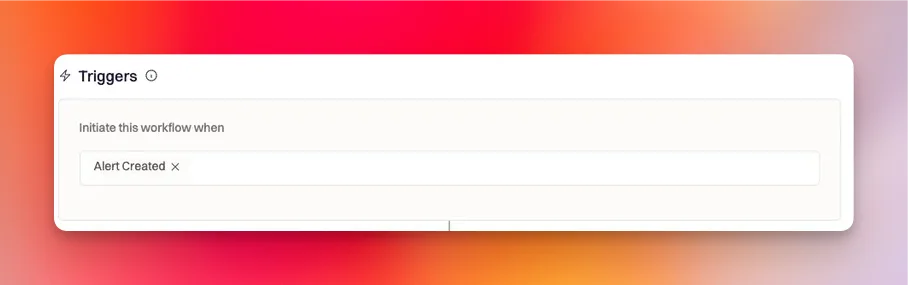
Use the Alert Created trigger
Add PagerDuty-specific run conditions
- Alert source is
Pagerduty - Alert labels contain the PagerDuty event type you want to react to
- Optional payload filtering if you need more precise matching
Recommended Run Conditions
PagerDuty alerts in Rootly include label values that make it easier to target specific event types without relying only on payload filtering. A common pattern is to match on the alert source first, then useaction: labels to decide which PagerDuty event should trigger the workflow. You can also add service_id: if you only want the workflow to run for alerts from a particular PagerDuty service.
Common examples include:
-
New PagerDuty incident triggered
action:incident.triggered- Optional:
service_id:PLVWMVW
-
Existing PagerDuty incident acknowledged
action:incident.acknowledged- Optional:
service_id:PLVWMVW
-
Existing PagerDuty incident resolved
action:incident.resolved- Optional:
service_id:PLVWMVW
-
Responder added to an existing PagerDuty incident
action:incident.responder.added
action: label values may also be available depending on the specific supported PagerDuty event being ingested.
Filter by Payload When Needed
If labels are not specific enough, you can add payload-based filtering. Use JSONPath to select the field from the alert payload, then compare it to a value or regular expression. This is helpful when your team only wants to react to PagerDuty events that match a certain property in the webhook payload. For example:- JSONPath:
$.object.specific_field - Match value:
/specific_value/i
- JSON Path Explorer
- Rubular for Ruby regular expressions
Create a Rootly Incident from a PagerDuty Alert
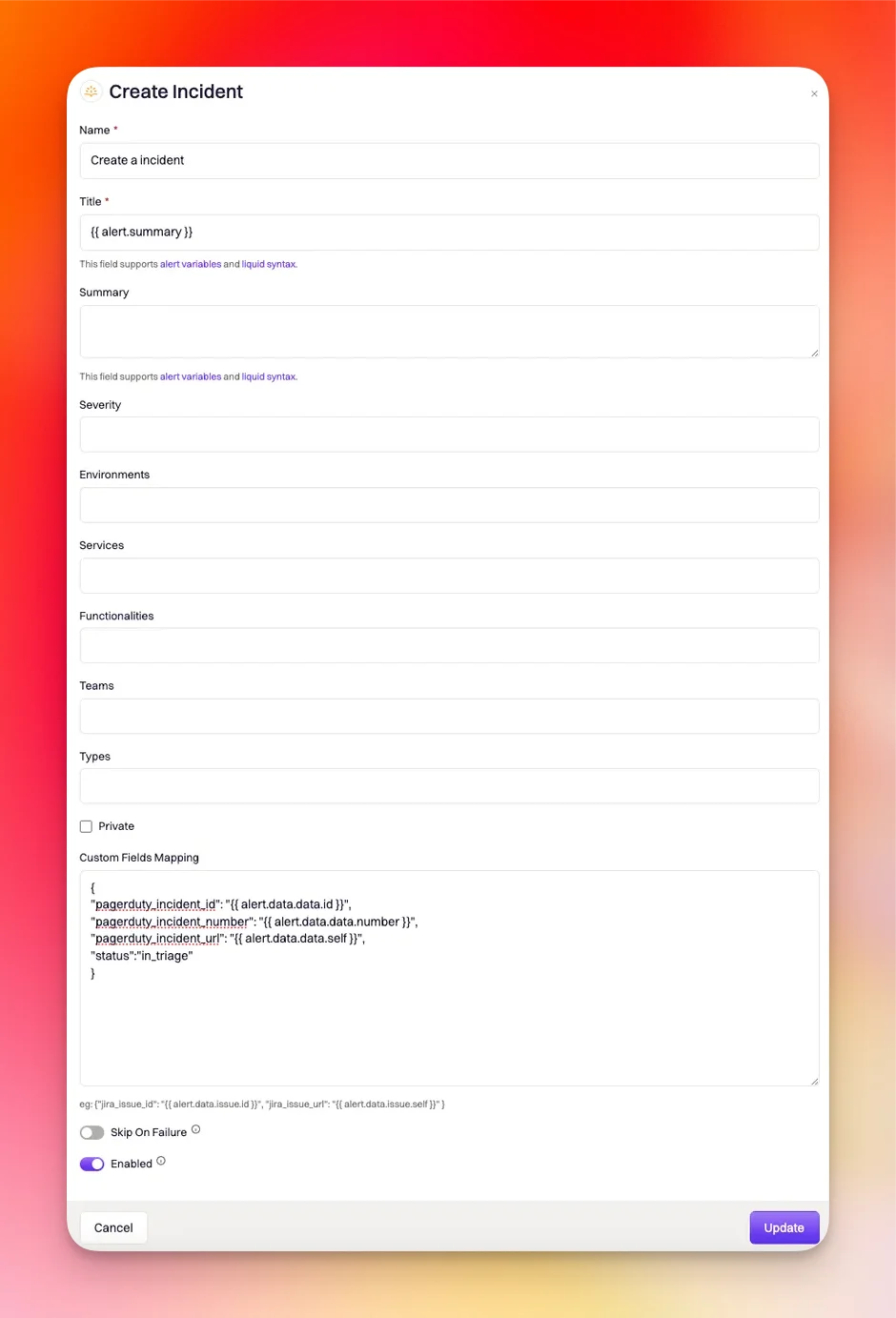
Use the Create Incident action when you want a PagerDuty alert to declare a new incident in Rootly. Because this action is being driven by an alert, dynamic values use the{{ alert.<properties> }} format. If you want the new Rootly incident to stay linked to the PagerDuty incident, include a custom mapping that stores the PagerDuty identifiers on the incident.
Add the Create Incident action
Map the PagerDuty identifiers onto the incident
Update an Existing Rootly Incident from a PagerDuty Alert
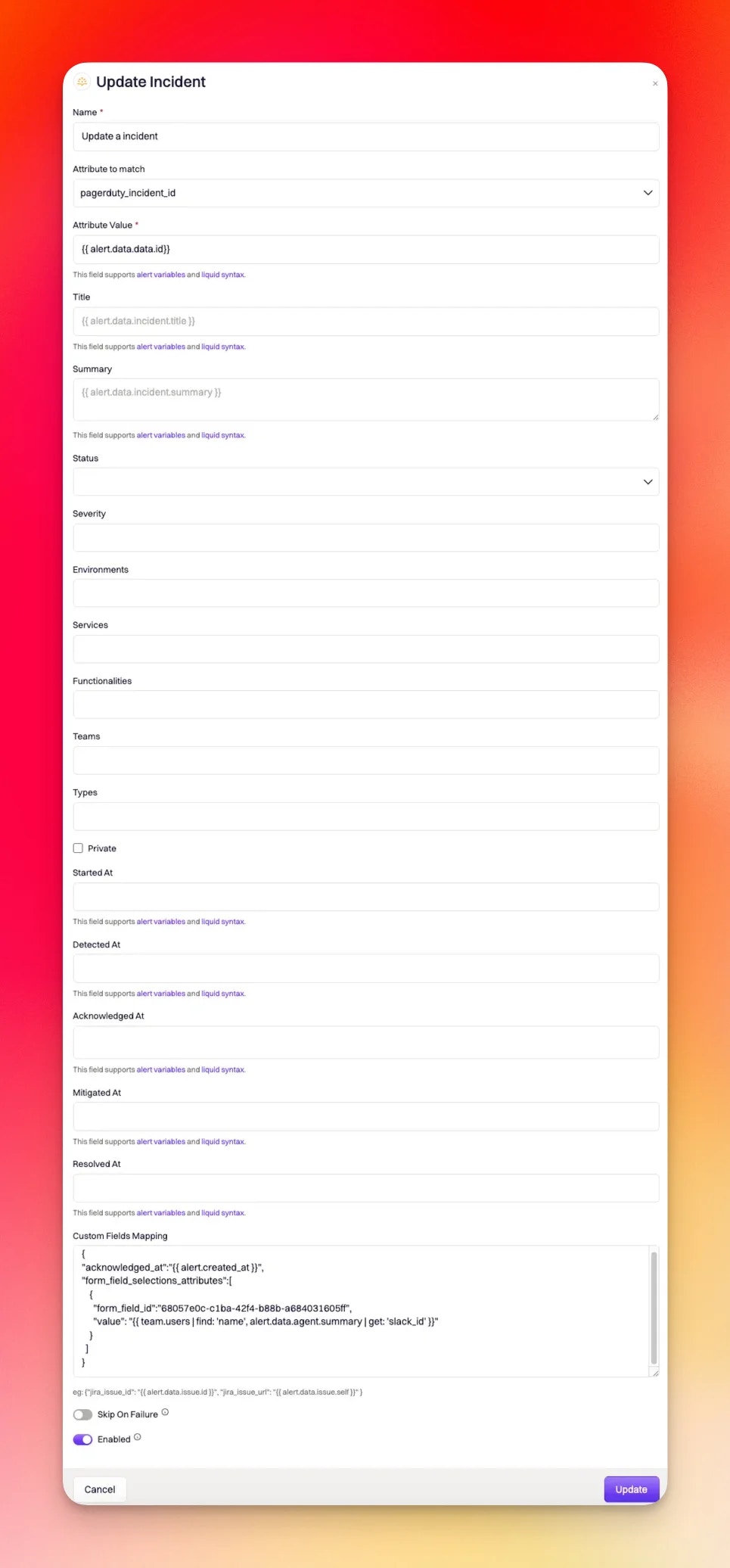
Use the Update Incident action when the PagerDuty alert should modify an incident that already exists in Rootly. The most important part of this setup is telling Rootly how to find the correct incident. For PagerDuty-driven updates, the standard pattern is to match onpagerduty_incident_id.
Add the Update Incident action
Match on the PagerDuty incident ID
- Attribute to Match:
pagerduty_incident_id - Attribute Value:
{{ alert.data.data.id }}
Use Custom Fields Mapping for Richer Automation
Custom Fields Mapping lets you set additional incident attributes dynamically. This field accepts JSON with embedded Liquid, which makes it useful for incident timestamps, role assignments, and custom form fields.Log acknowledgement time
Use this when the workflow is responding to an acknowledged PagerDuty incident:action:incident.acknowledged.Assign an incident role to the acknowledging user
You can map the PagerDuty acknowledging user back to a Rootly user by combining Liquid with custom JSON:action:incident.acknowledged.Set a custom Rootly field
Example for a text field with a hard-coded value:Alert Notes
- Supported PagerDuty webhook events do not all behave the same way in Rootly
- Some accepted PagerDuty events may not create an alert at all, so there may be nothing for an alert workflow to trigger from
incident.triggeredalerts may be skipped if the PagerDuty incident is already linked to an existing Rootly incident- PagerDuty webhook payload structure can differ by webhook version, so always verify your Liquid paths and payload fields before using them in production
Debugging Alerts
If a workflow is not behaving as expected, open the workflow run details in Rootly by navigating to: … > View Runs > View Common errors include:Frequently Asked Questions
PagerDuty has incident management features too. How is this different?
PagerDuty has incident management features too. How is this different?
Should I keep using PagerDuty, or can Rootly replace it?
Should I keep using PagerDuty, or can Rootly replace it?
I do not use PagerDuty. Is that okay?
I do not use PagerDuty. Is that okay?
Why am I seeing 'Failed to authenticate. Reason: Invalid Credentials' when connecting PagerDuty?
Why am I seeing 'Failed to authenticate. Reason: Invalid Credentials' when connecting PagerDuty?