

Step 1: Create Alert Rules in Sentry
You’ll start in Sentry by defining the alert rules that determine when an event should be forwarded to Rootly. These rules let you specify conditions based on error frequency, type, tags, severity, or any combination — so only the alerts that matter reach Rootly. Every alert that passes these conditions will land in Rootly’s alert feed with the full Sentry payload attached.1
Navigate to Alerts and create a new rule
In Sentry, go to Issues → Alerts, then click Create Alert.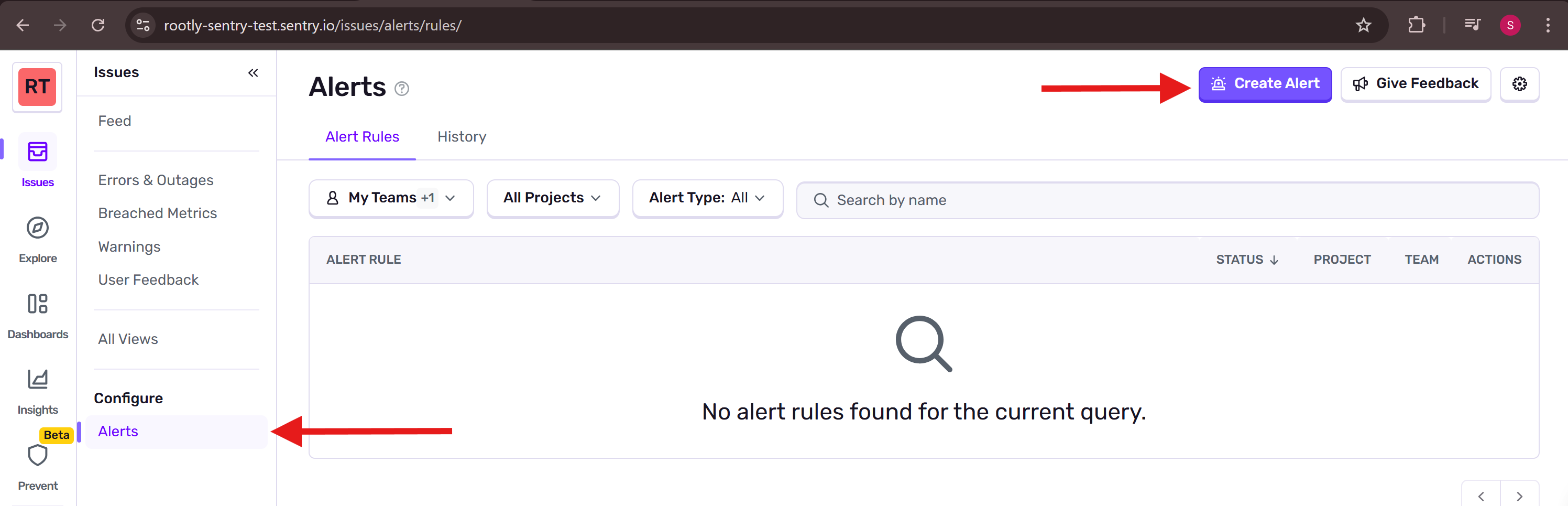
2
Choose your alert type and set conditions
Select the type of alert you want to create — for example, an Error Alert — then click Set Conditions.
Set your conditions under the When and If fields. For example: trigger when an issue is seen more than 10 times in 1 hour, or when a specific tag like
environment:production is present. The more precisely you scope these, the less noise your Rootly workflows will see.3
Add Rootly as the action
Under the Then section, select Rootly as the action. This tells Sentry to forward the alert payload to Rootly whenever your conditions are met.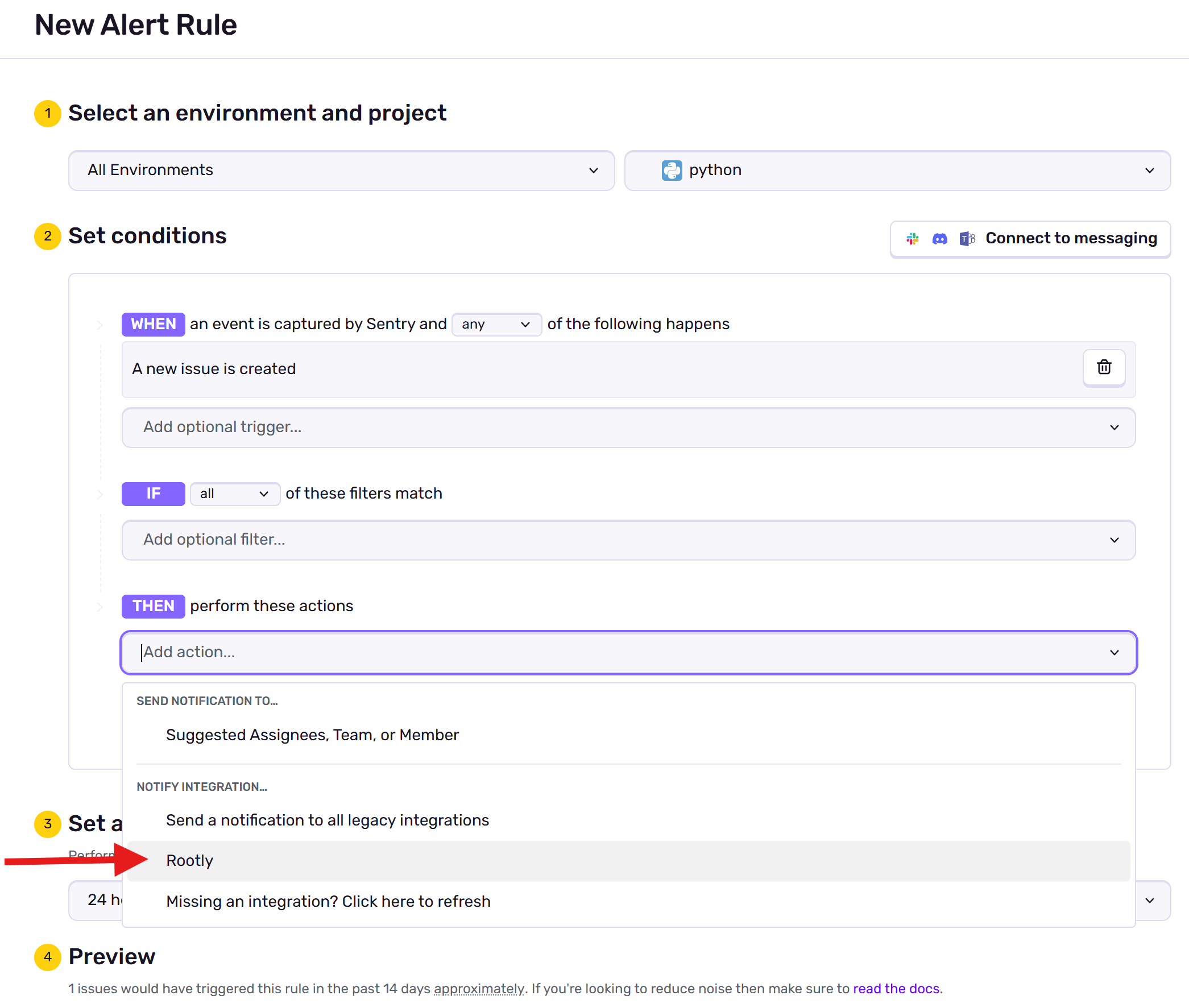
4
Send a test notification
Use Sentry’s Send Test Notification to fire a real test alert to Rootly. This sends a live payload so you can inspect exactly what fields are available before writing your workflow conditions.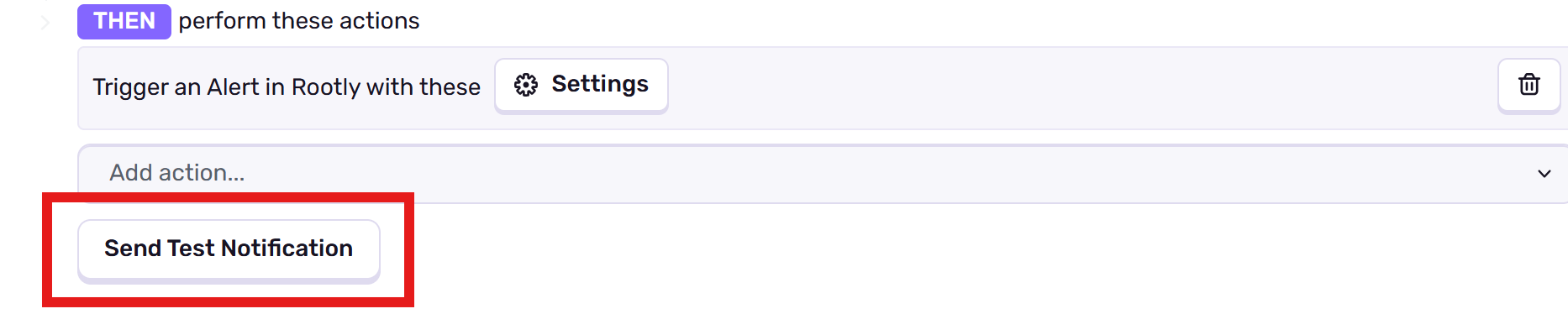
Step 2: Build the Workflow in Rootly
With alerts now flowing into Rootly, you create a workflow that reacts to them. Rootly workflows let you inspect the incoming alert payload, apply conditions to filter which alerts should trigger a response, and chain together actions like creating an incident, paging on-call, or sending notifications. You only need one workflow per alert pattern — conditions handle the filtering.1
Open Workflows and create a new workflow
In Rootly, go to Workflows and click Create Workflow.
2
Choose an Alert-based workflow type
Select the Alert workflow type. This workflow will trigger whenever Rootly receives an alert from any source — including Sentry. Conditions in a later step will narrow it down to Sentry alerts specifically.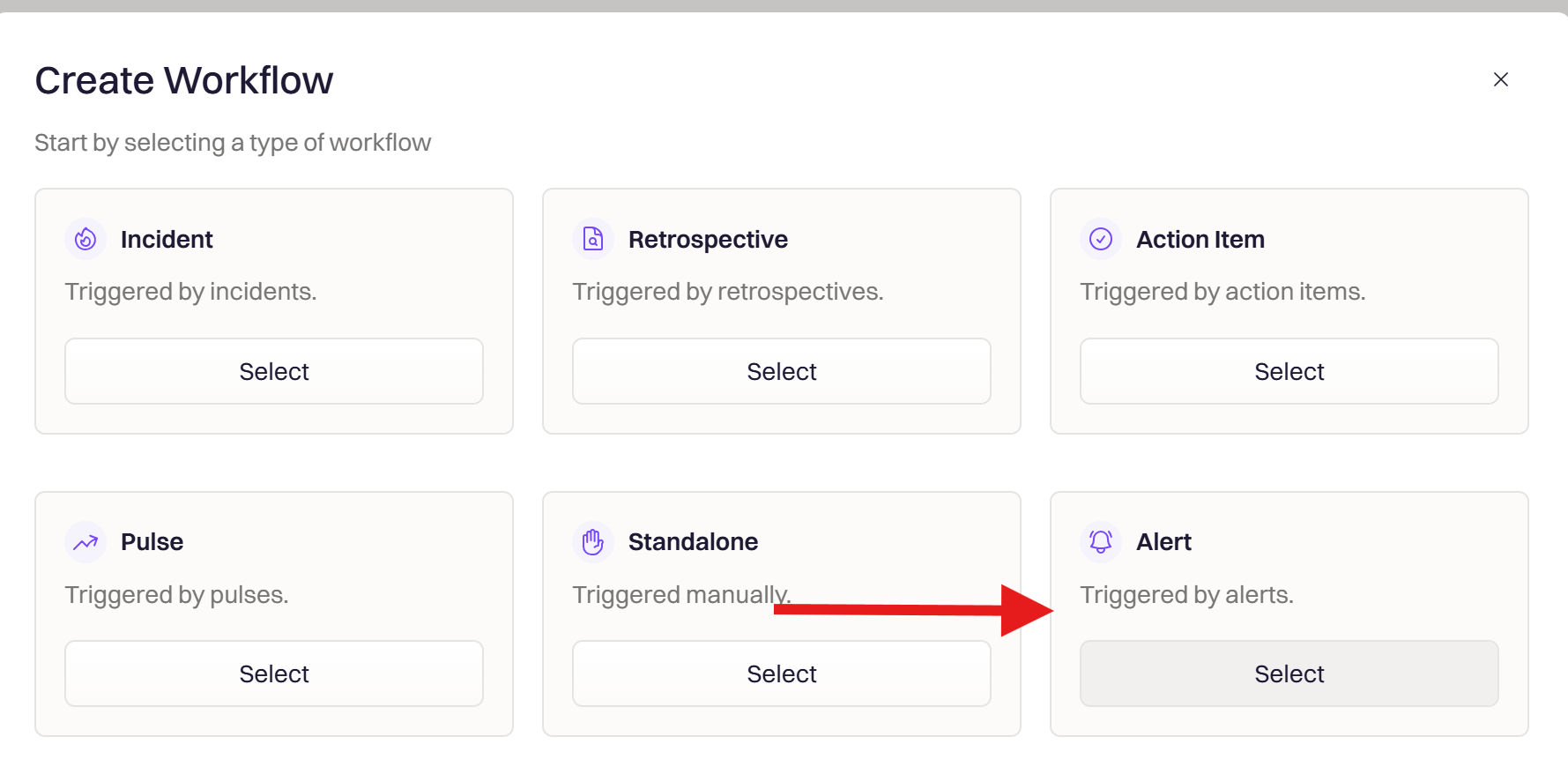
3
Configure workflow details
Give your workflow a clear name like “Create Incident for Sentry Errors”.
There are additional optional settings you can configure here, such as:
- Workflow description — helps your team understand what this workflow does
- Repeat configuration — controls whether the workflow can fire multiple times for the same alert
4
Set the trigger
The trigger defines which alert event activates this workflow.Select Alert Created to run the workflow whenever a new Sentry alert arrives. Use Alert Status Updated if you want to automatically close an incident when Sentry marks the issue resolved.
For Alert type workflows, two triggers are available:
- Alert Created — fires when a new alert is received from Sentry
- Alert Status Updated — fires when an existing alert changes state (e.g., resolved or acknowledged)
5
Add conditions to match Sentry alerts
Conditions filter which alerts trigger the workflow. Use one of the following to match alerts from Sentry:
- Match by Source
- Match by Payload
Run this workflow if
any of the following conditions are true:- Source is
Sentry
The Sentry alert payload contains many fields you can use for more advanced conditions — environment, project, level, tags, and more. Open the test alert you sent earlier to browse all available fields.
6
Add actions
Add one or more actions that should occur when the workflow is triggered. Common actions include:
- Create Incident — declares an incident with context pulled directly from the alert payload
- Page Rootly On-Call — immediately pages the on-call responder for the affected service
- Send SMS or Email — notifies stakeholders outside of Slack
7
Save and activate the workflow
Click Create Workflow. The workflow is now active and will fire automatically on the next matching Sentry alert.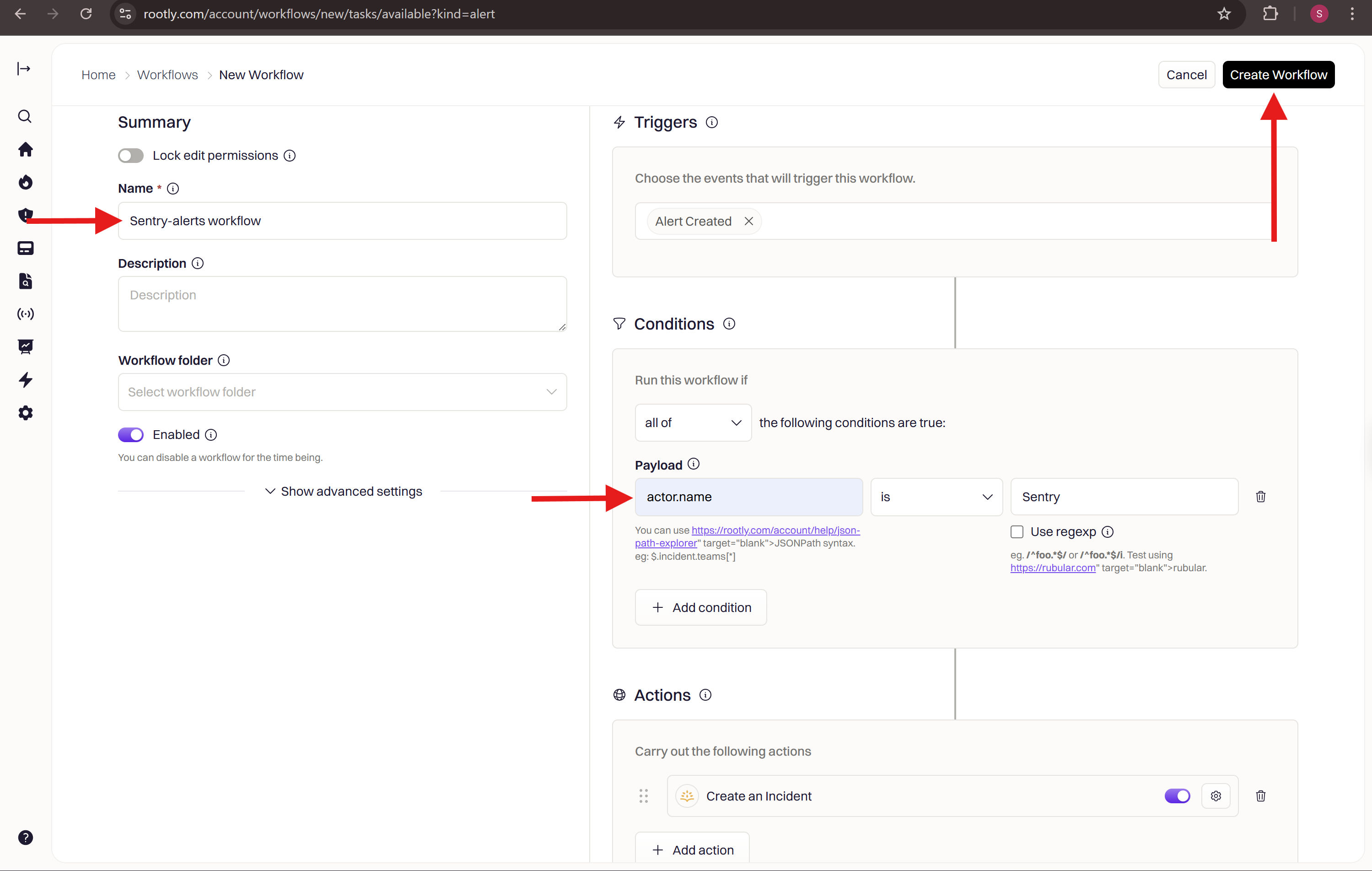
Step 3: Verify
Return to Sentry and trigger the alert rule again — or send another test notification. Confirm that the workflow activates inside Rootly and that the expected incident or action is created. You can monitor workflow execution in Rootly → Workflows → Activity.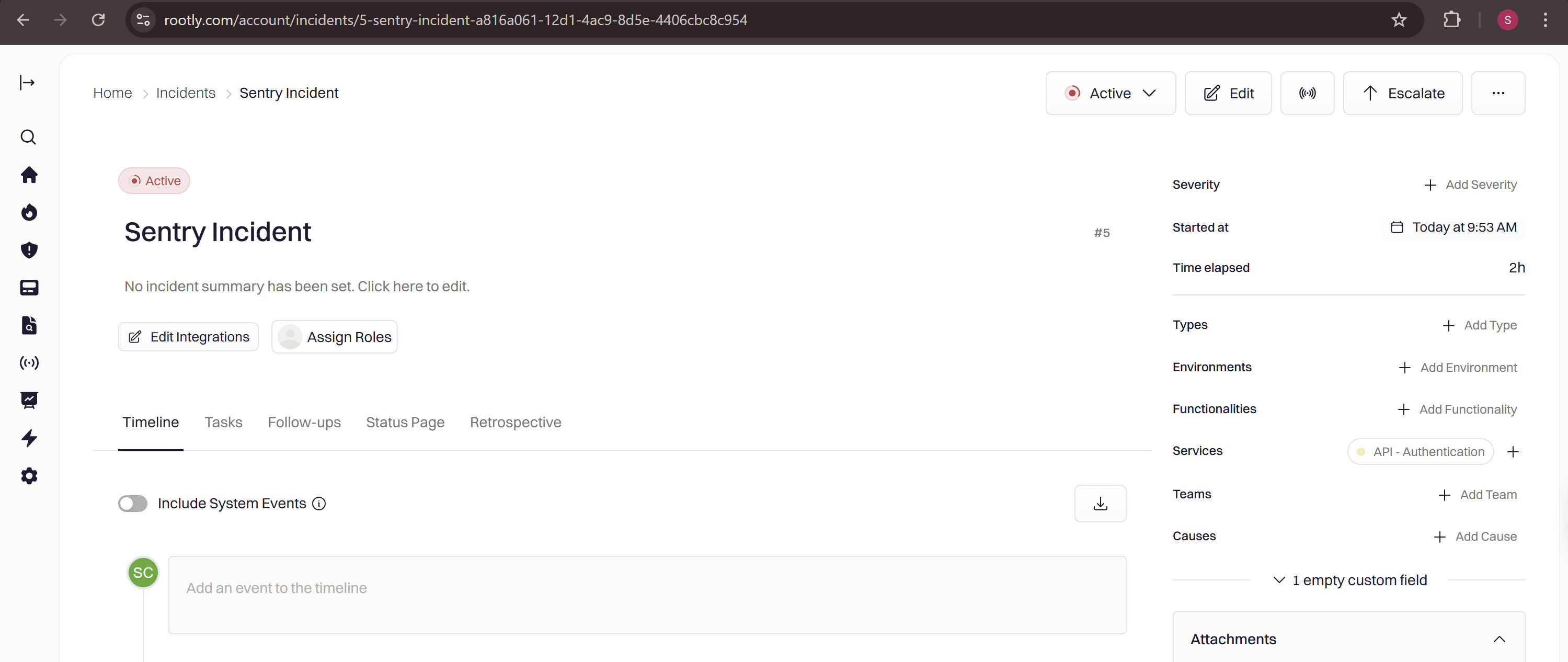
How Alert Fields Are Mapped
Rootly extracts the following fields from each Sentry alert type and makes them available as conditions and variables inside your workflows:Issue title, issue ID, issue URL, error type, level, and project name. Supports automatic resolution — when Sentry sends a resolved event, Rootly resolves the corresponding alert.
Alert title, alert ID, and web URL. Does not support automatic resolution — must be resolved manually or via a workflow action.
level, type, project, and status are extracted as labels on every alert where available. Use these as workflow conditions to filter by severity, environment, or state.Troubleshooting
Sentry alerts aren't appearing in Rootly
Sentry alerts aren't appearing in Rootly
Confirm the Rootly app is installed in your Sentry organization and that the alert rule has Rootly set as an action. Verify the rule conditions are being met by triggering a test event.
Metric alerts aren't resolving automatically
Metric alerts aren't resolving automatically
This is expected — metric alerts don’t support automatic resolution. Resolve them manually or configure a workflow action to resolve them based on a follow-up Sentry event.
rootly_notification_target isn't paging anyone
rootly_notification_target isn't paging anyone
Check that the value follows
type:id format exactly (e.g. EscalationPolicy:abc-123) and that the resource exists in Rootly. Setting the value to none disables paging. An invalid or missing resource is silently ignored.rootly_urgency isn't being applied
rootly_urgency isn't being applied
Confirm the value is a valid Rootly alert urgency ID belonging to your team. Invalid urgency IDs are silently ignored and no urgency will be assigned to the alert.