

Before You Begin
This setup involves two systems — Sentry and Rootly — so make sure you have the right access in both before starting. The installation takes about 5 minutes and only needs to be done once per Sentry organization.Install Rootly in Sentry
Install the Rootly integration inside your Sentry organization. This allows Sentry to forward enriched alert payloads into Rootly, giving your Rootly workflows the real-time context they need.1
Open Integrations in Sentry
Inside your Sentry organization, navigate to Settings → Integrations and search for Rootly.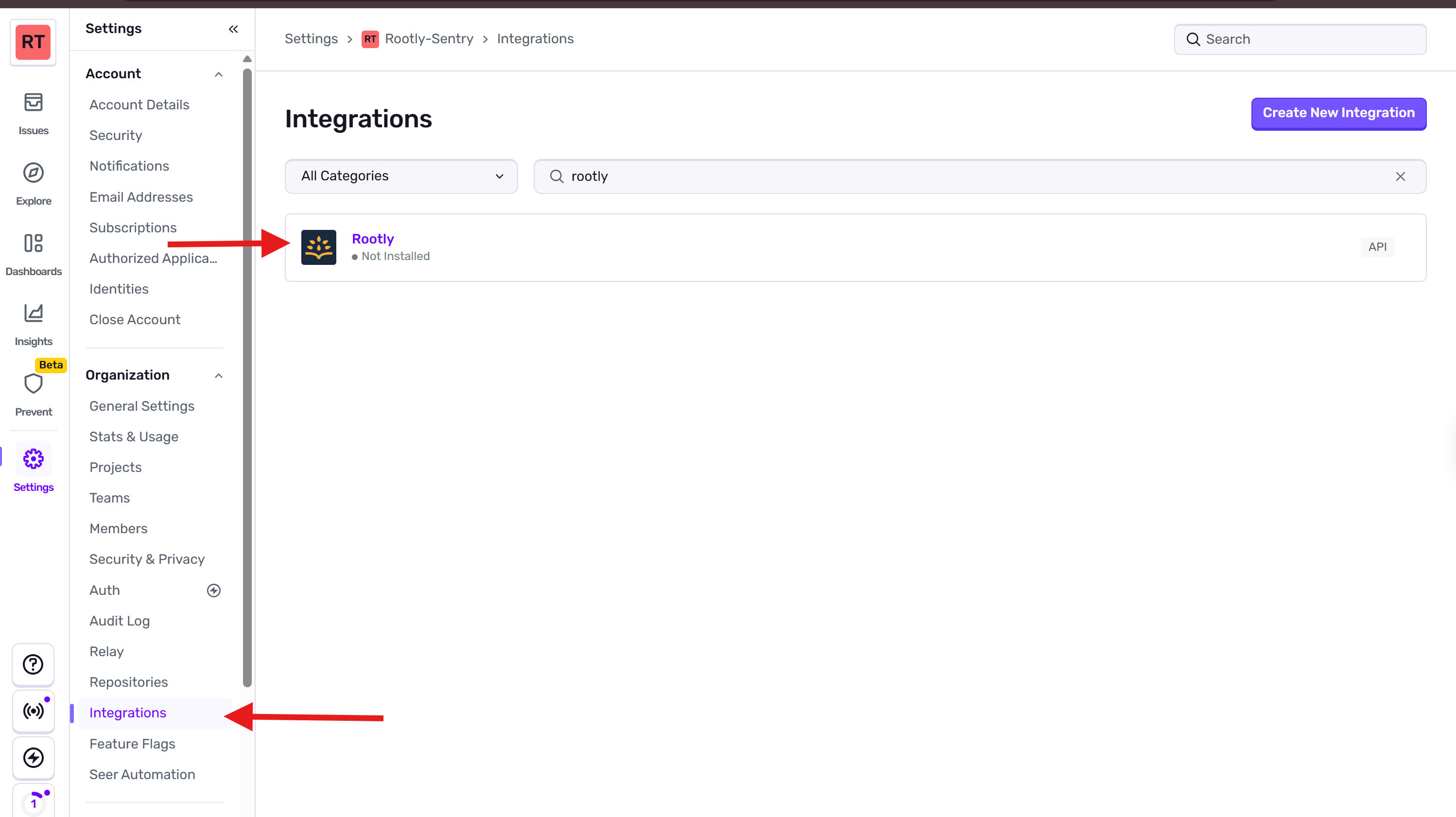
2
Accept and install
Click Accept & Install. You’ll be redirected to Rootly to complete the alert source setup.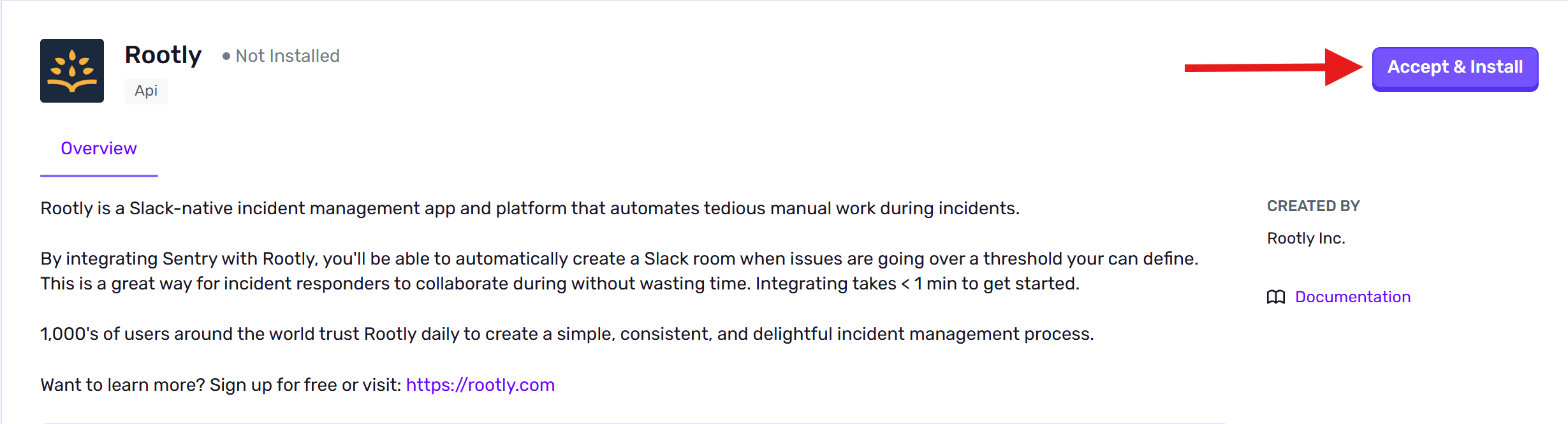
3
Configure the alert source in Rootly
On the Sentry alert source page, enter a descriptive Source Name (e.g., “Sentry Alerts”) and click Save. You can leave optional settings like Owning Team at their defaults and adjust them later.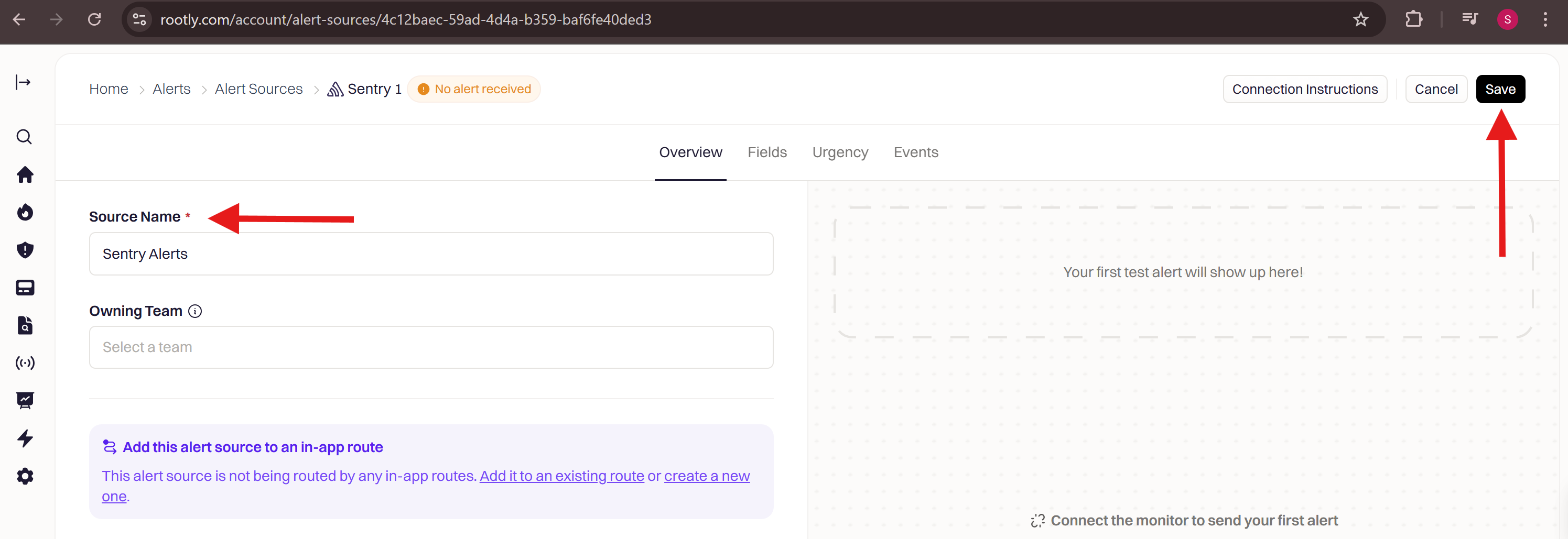
4
Verify the installation
Switch back to Sentry and go to Settings → Integrations. Rootly should appear in your installed integrations list.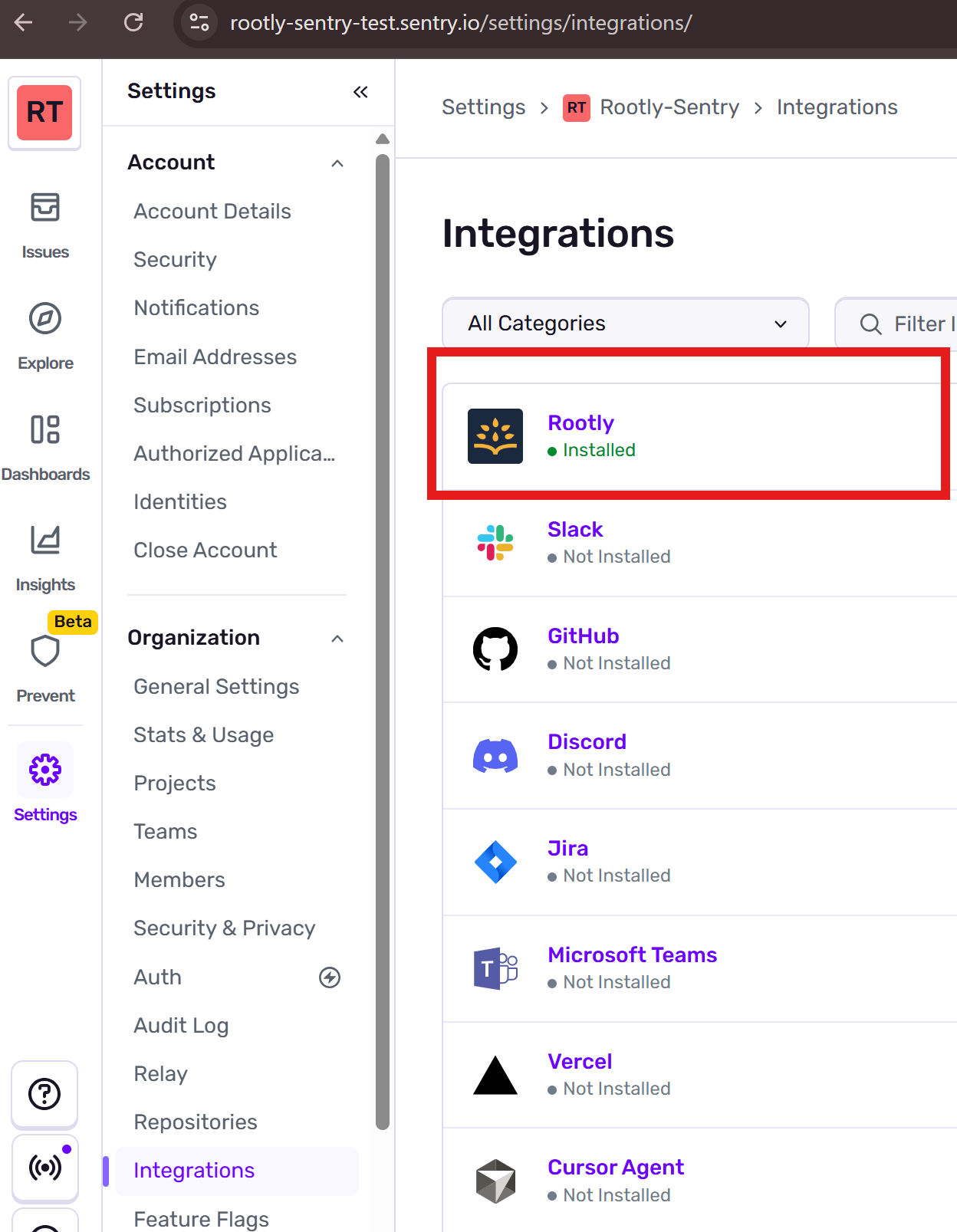
Alert Types
Rootly supports three Sentry alert types, each with different behavior.Issue Alerts
Issue alerts are tied to specific Sentry issues and support automatic resolution. When Sentry sends a resolved event, Rootly resolves the corresponding alert automatically. You can configure the following directly in the Sentry alert rule action settings:Routes the alert to a specific Rootly resource for on-call paging. Format:
type:id — for example, EscalationPolicy:abc-123.Supported types: User, Group, EscalationPolicy, Service. Set to none to disable paging entirely.Sets the alert urgency in Rootly using the ID of a Rootly alert urgency. If not set or the ID is invalid, no urgency is assigned to the alert.
Metric Alerts
Metric alerts are threshold-based and do not support automatic resolution. When a metric alert fires, Rootly creates an alert in the open state. You must resolve it manually or through a workflow. Metric alerts also supportrootly_notification_target and rootly_urgency in the Sentry alert rule action settings.
Issue (Legacy)
Theissue resource type is a legacy format that’s still supported but not recommended for new rules. New rules should use event_alert instead. Existing rules using the legacy type will continue to work without migration.
Uninstall
To remove the Sentry integration from Rootly, go to Configuration → Integrations, find Sentry, click Connected, and select Disconnect.Next Steps
Create Alert Workflows
Build workflows that automatically create incidents from incoming Sentry alerts