

Available Actions
Create a Workflow
1
Open Workflows
Go to Rootly → Workflows → Create Workflow.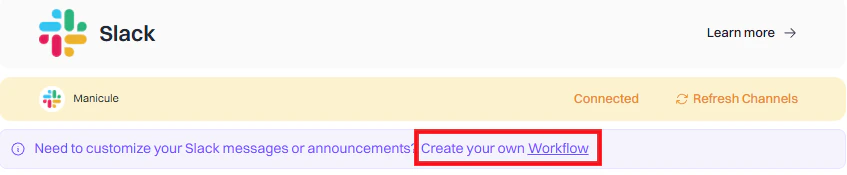
2
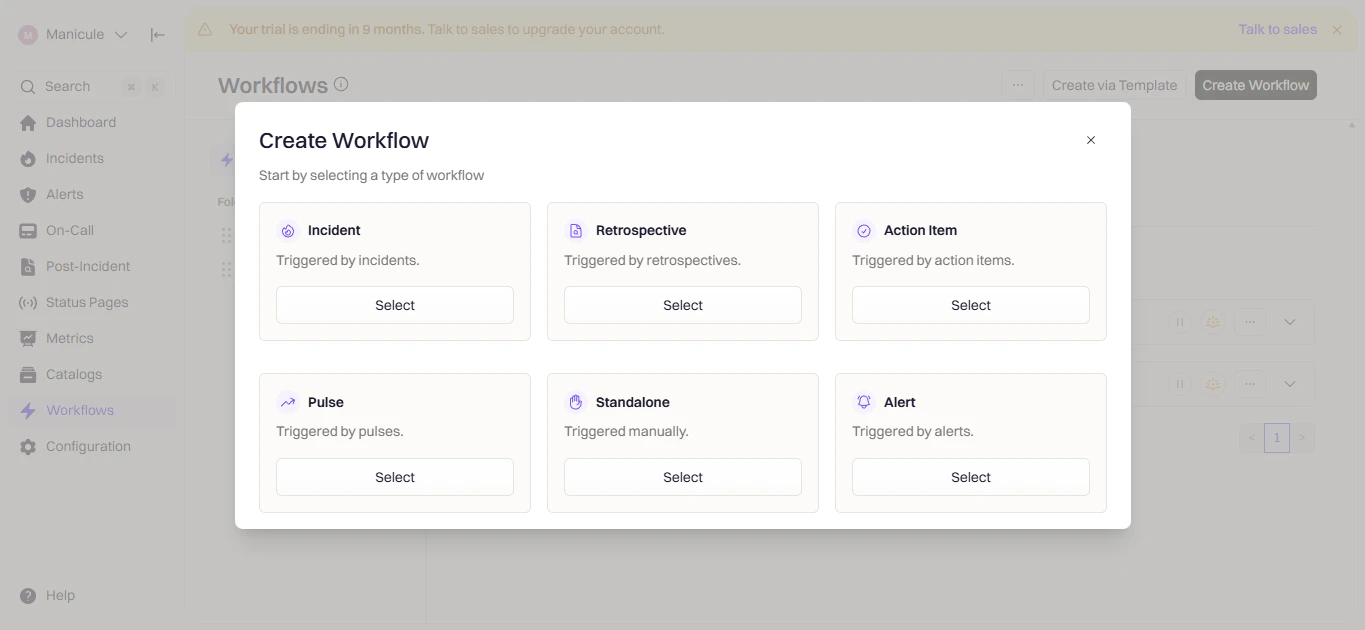
Choose Workflow Type
Select Incident, Retrospective, or Pulse depending on when you want the workflow to run.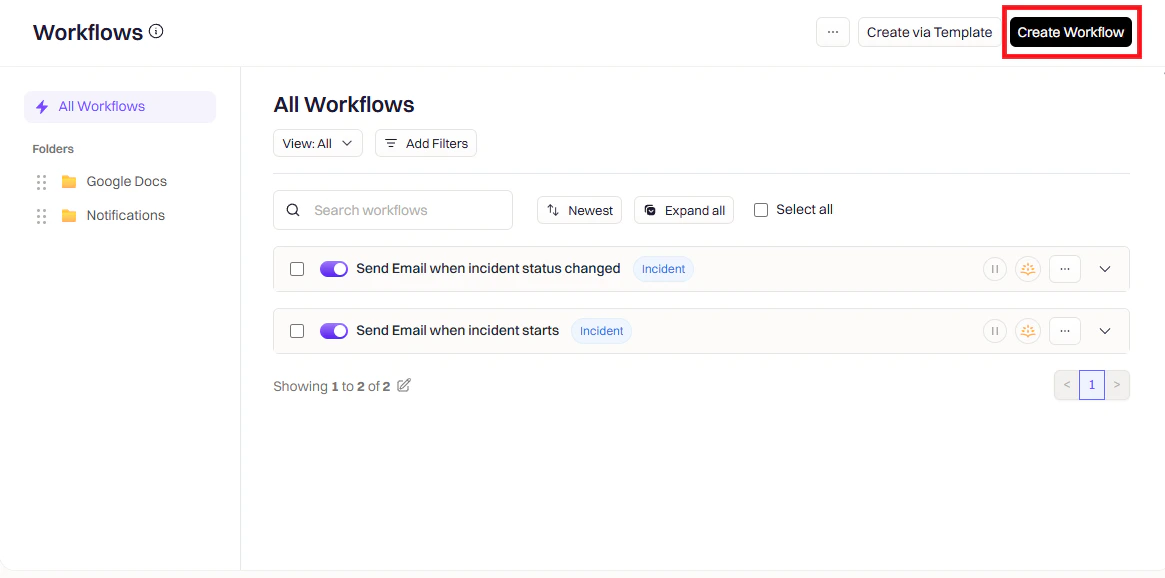
3
Configure Triggers
Triggers define when the workflow runs.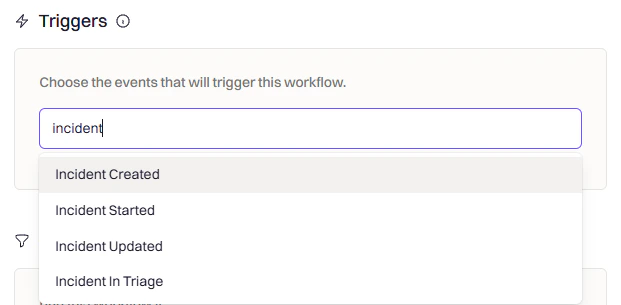
4
Add Conditions (Optional)
Conditions filter when the workflow should actually execute.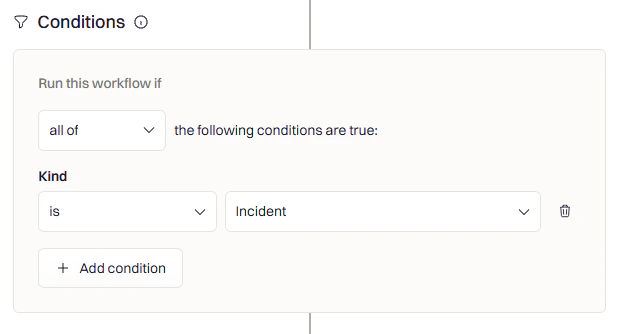
- Severity — Only for SEV-1 or SEV-2
- Team/Service — Only for specific teams
- Incident Type — Only for actual incidents (not tests)
- Environment — Only for production
5
Add Actions
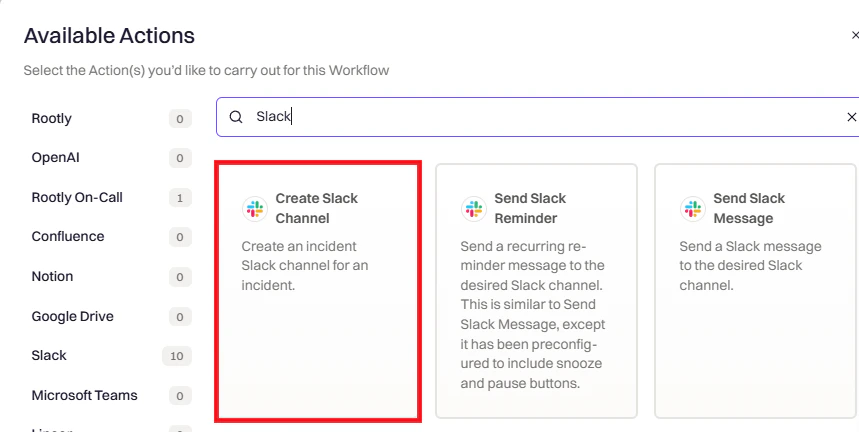
Click Add Action and search for Slack.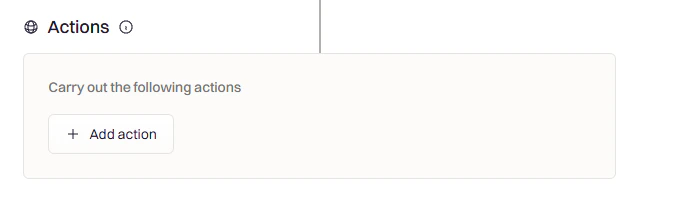
Action Reference
Create Slack Channel
Create Slack Channel
Creates a dedicated channel for the incident.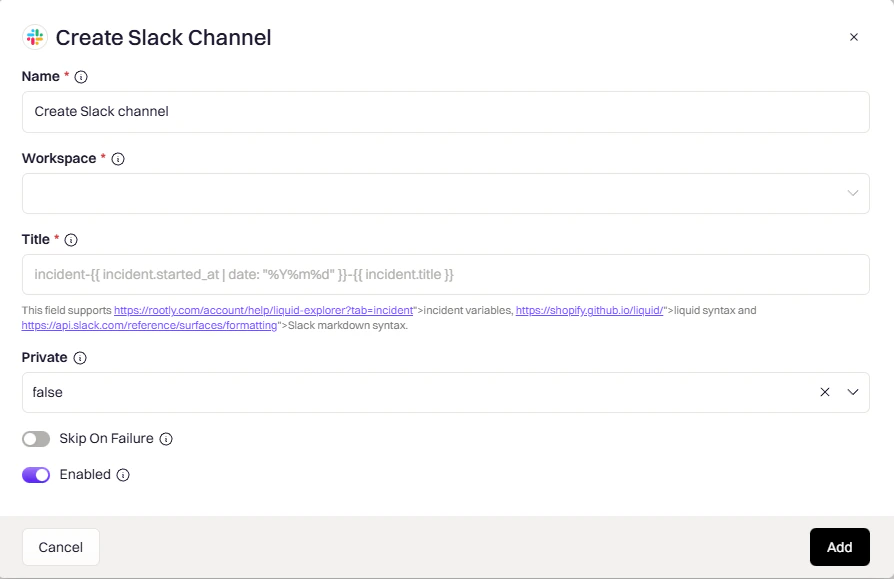
string
required
Which Slack workspace to create the channel in.
string
required
Channel name. Supports Liquid variables.Example:
incident-{{ incident.sequential_id }}-{{ incident.title }}enum
Controls channel visibility:
auto— matches incident privacy (private incident → private channel)true— always privatefalse— always public
If the incident already has a Slack channel, this action will skip channel creation to avoid duplicates.
Send Slack Message
Send Slack Message
Posts a message to channels, users, or user groups.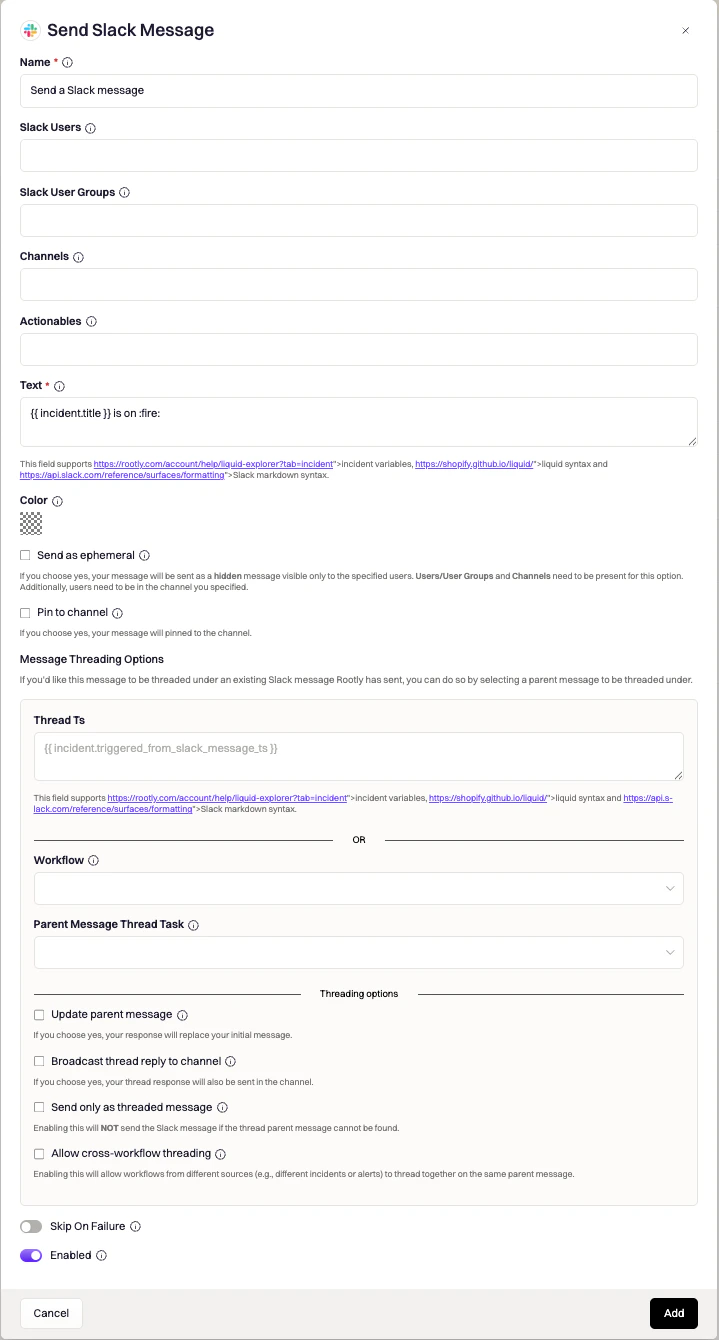
string
Target channels. Use
{{ incident.slack_channel_id }} for the incident channel. Supports Liquid variables.string
Individual users to message directly.
string
Groups to notify — all members receive the message.
string
required
Message content. Supports Liquid variables and Slack markdown.
Action Buttons — add interactive buttons to messages:
Send Slack Reminder
Send Slack Reminder
Same as Send Message, but with Snooze/Pause buttons and support for recurring schedules.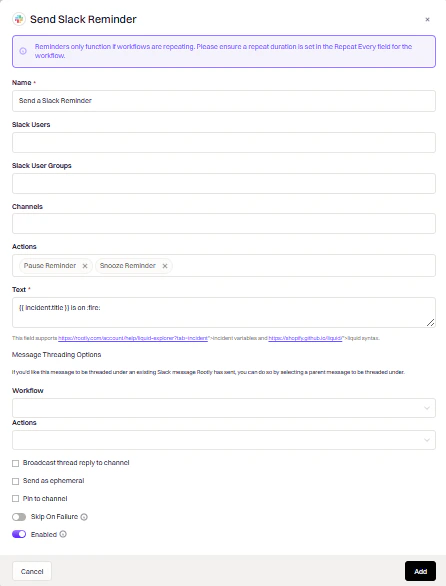
string
Target channels. Supports Liquid variables.
string
required
Reminder message content. Supports Liquid variables.
enum
How often the reminder fires. Options include once, every N minutes, hourly, and daily.
Use reminders for periodic nudges (e.g., “Update the incident summary every 30 minutes”). The Snooze and Pause buttons allow responders to defer or stop reminders without leaving Slack.
Send Slack Blocks
Send Slack Blocks
Send rich, interactive messages using Slack Block Kit.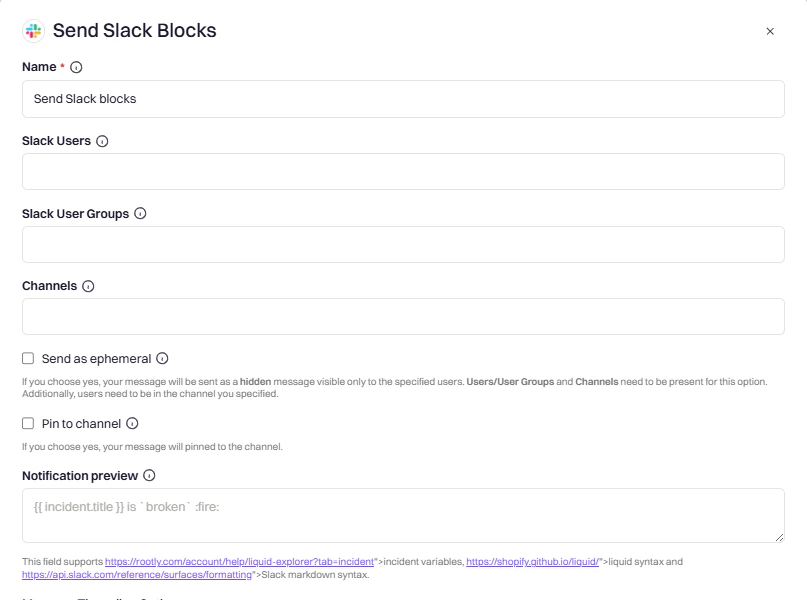
string
required
JSON payload following Block Kit format. Supports Liquid variables.
string
Text shown in push notifications when Block Kit content can’t be rendered.
action_id values:Invite to Slack Channel
Invite to Slack Channel
Adds users or user groups to a channel.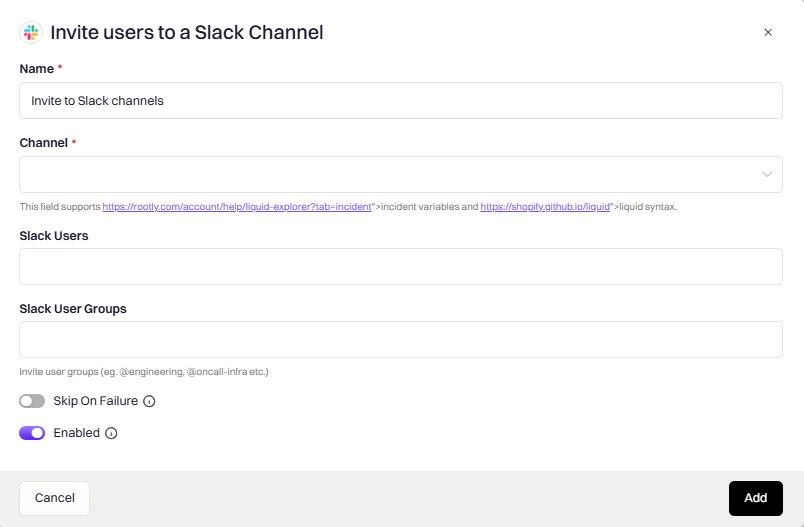
string
required
Target channel. Use
{{ incident.slack_channel_id }} for the incident channel. Supports Liquid variables.string
Individual users to invite. Use
{{ incident.creator }} for the incident creator.string
Groups to invite — all members are added to the channel.
Rename Slack Channel
Rename Slack Channel
Changes the channel name dynamically, useful for reflecting status changes.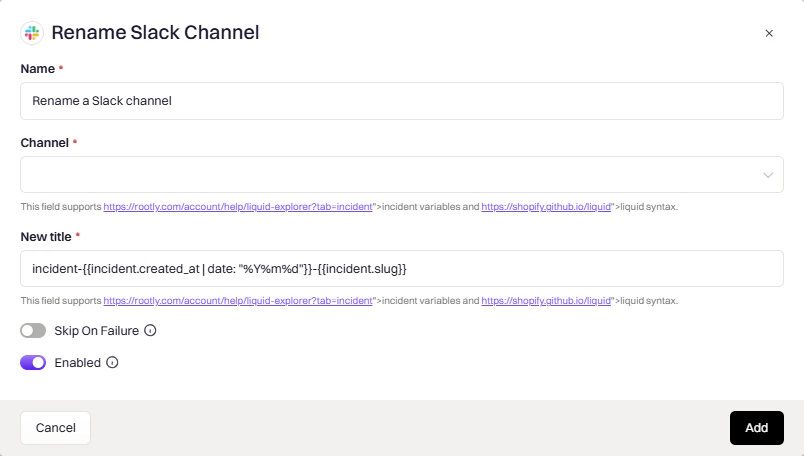
string
required
Channel to rename. Use
{{ incident.slack_channel_id }}. Supports Liquid variables.string
required
New channel name. Supports Liquid variables.Example:
resolved-{{ incident.title }}resolved-database-outage).Update Channel Topic
Update Channel Topic
Sets the channel topic to display key incident info at a glance.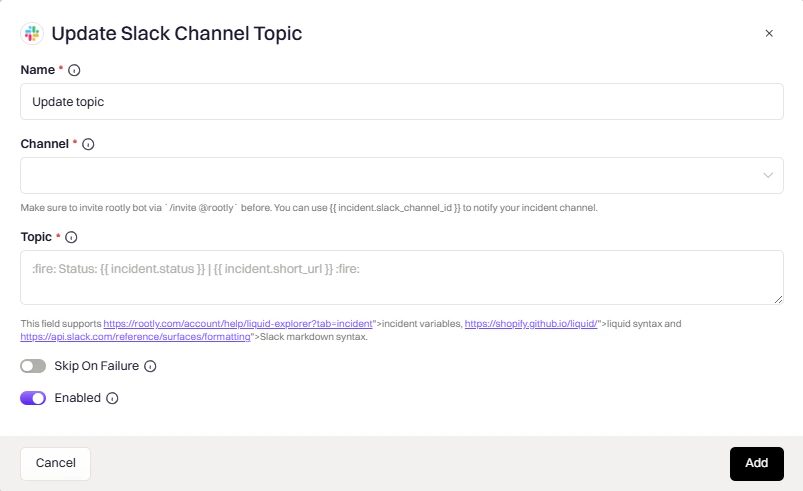
string
required
Channels to update. Supports Liquid variables.
string
required
New topic text. Supports Liquid variables and Slack markdown.
Add Slack Bookmark
Add Slack Bookmark
Pins a link to the channel’s bookmark bar for quick access during an incident.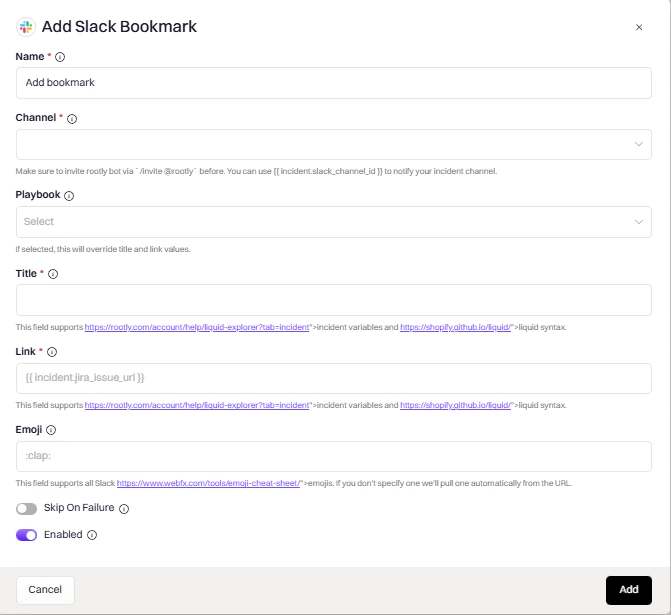
string
required
Channel to add the bookmark to. Supports Liquid variables.
string
required
Bookmark display text. Supports Liquid variables.
string
required
URL to bookmark. Common values:
{{ incident.url }}, {{ incident.jira_issue_url }}. Supports Liquid variables.string
Icon shown next to the bookmark.
string
Optionally link to a Rootly playbook instead of specifying a title and link manually.
Archive Slack Channel
Archive Slack Channel
Archives the channel to keep your workspace clean after an incident is resolved.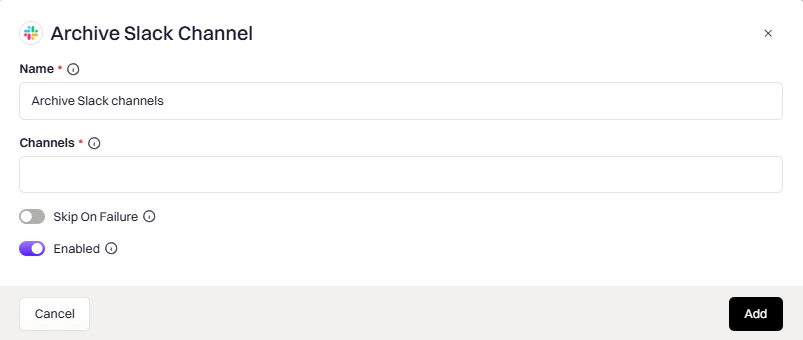
string
required
Channel to archive. Use
{{ incident.slack_channel_id }}. Supports Liquid variables.Change Channel Privacy
Change Channel Privacy
Switches a channel between public and private.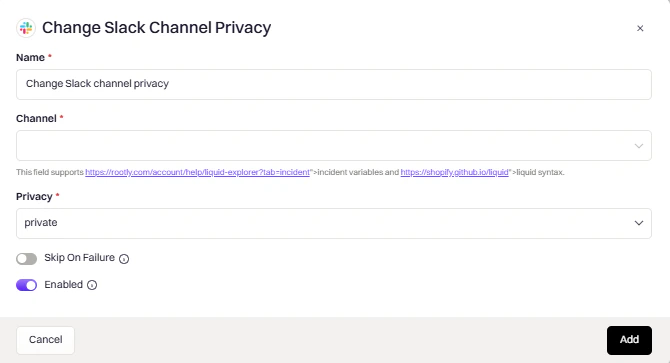
string
required
Channel to modify. Supports Liquid variables.
enum
required
public— make the channel visible to all workspace membersprivate— restrict access to invited members only
Changing from private to public may not be allowed by your Slack workspace settings.